← GraphicMeat Smart Cart

Store apps · Setup guide

GraphicMeat Smart Cart setup guide

16 scenarios, each split into what you set in the app and what you set in the theme editor, using the labels you will actually see. Read the one you need; nothing here assumes you read the others.

Smart Cart is configured in two places: reward tiers and upsell rules live in the app inside your Shopify admin (the backend); the drawer itself, its wording, announcement bar, upsell picks and countdown are settings on the theme app embed (the frontend). Every scenario below is split that way, with the exact labels.

How to read it. Each scenario has two columns. Backend is the app inside your Shopify admin; frontend is the theme editor and what the shopper sees on the storefront. Labels in bold are the exact ones on screen. An empty frontend column means the storefront needs nothing beyond the app embed, which you switch on once, below.
Before any scenario

Backend · in the app

  1. Install from the Shopify App Store. The app’s Home page shows a three-item Setup checklist: enable the embed, configure a reward tier, verify on the storefront.
  2. Open theme editor on Home jumps straight to the editor’s App embeds panel.

Frontend · theme editor & storefront

  1. Online Store → Themes → CustomizeApp embeds → switch Smart cart drawer on → Save. From now on the cart icon, cart links and add-to-cart open this drawer instead of the theme’s.
  2. All drawer settings are on that embed, listed in the table below. Nothing is written into theme files.

Every theme-editor setting

SettingWhat it doesDefault
Drawer titleHeading at the top of the drawer.Your cart
Checkout buttonText on the checkout button.Checkout
Open drawer from cart linksCart icon and every cart link open the drawer; also makes the drawer take over the /cart page. Off = the drawer only opens after add-to-cart.on
Show remove button on cart itemsTrash icon per line; the − stepper reaches 0 either way.on
Slide in fromRight or Left.Right
Accent colorProgress bar, chips, buttons, bundle labels.#1a7f37
Upsell productsUp to 8 products for the “You may also like” list, in priority order.none
Max upsells shownHow many of them render at once, 1–6.3
Announcement textThe bar at the top of the drawer; blank hides it.blank
Announcement link (optional)Makes the bar a link.none
Starts at / Ends at (ISO date, optional)Schedule for the bar, e.g. 2026-07-01T00:00:00Z; blank = always.blank
Deadline (ISO date, optional), under Urgency countdown (Pro)Countdown shown above the cart lines. Requires the Pro plan.blank

Where things live in the app

PageWhat is there
HomeRevenue generated (last 30 days / all time), revenue across the suite, the Setup checklist and Open theme editor.
RewardsUp to 5 tiers: Cart amount, Reward label, Select gift; Gamified display; Add tier; Save.
Upsell rulesRules for the sibling apps: Select trigger products (optional), Select upsell products, Discount %; Save & publish.
PlanUpgrade to Pro ($9.99/month, 14-day trial) and Switch to Free.
Help / SupportIn-app documentation and the support form; email reaches [email protected].

Scenarios

Turn the drawer on

Replace the theme’s cart drawer with Smart Cart, nothing else yet.

Backend · in the app

  1. Nothing required. Home → Open theme editor is a shortcut to the embed.

Frontend · theme editor & storefront

  1. App embedsSmart cart drawer on.
  2. Set Drawer title, Checkout button, Slide in from and Accent color to taste; leave Open drawer from cart links and Show remove button on cart items on.
  3. Save.

What the shopper sees

The cart icon, cart links and every add-to-cart open Smart Cart; the theme’s own drawer stays closed.

Check it

Click the cart icon four times in a row: it opens every time. Add a product: the drawer opens by itself.

On the demo store

Free shipping earned, next reward in sight.

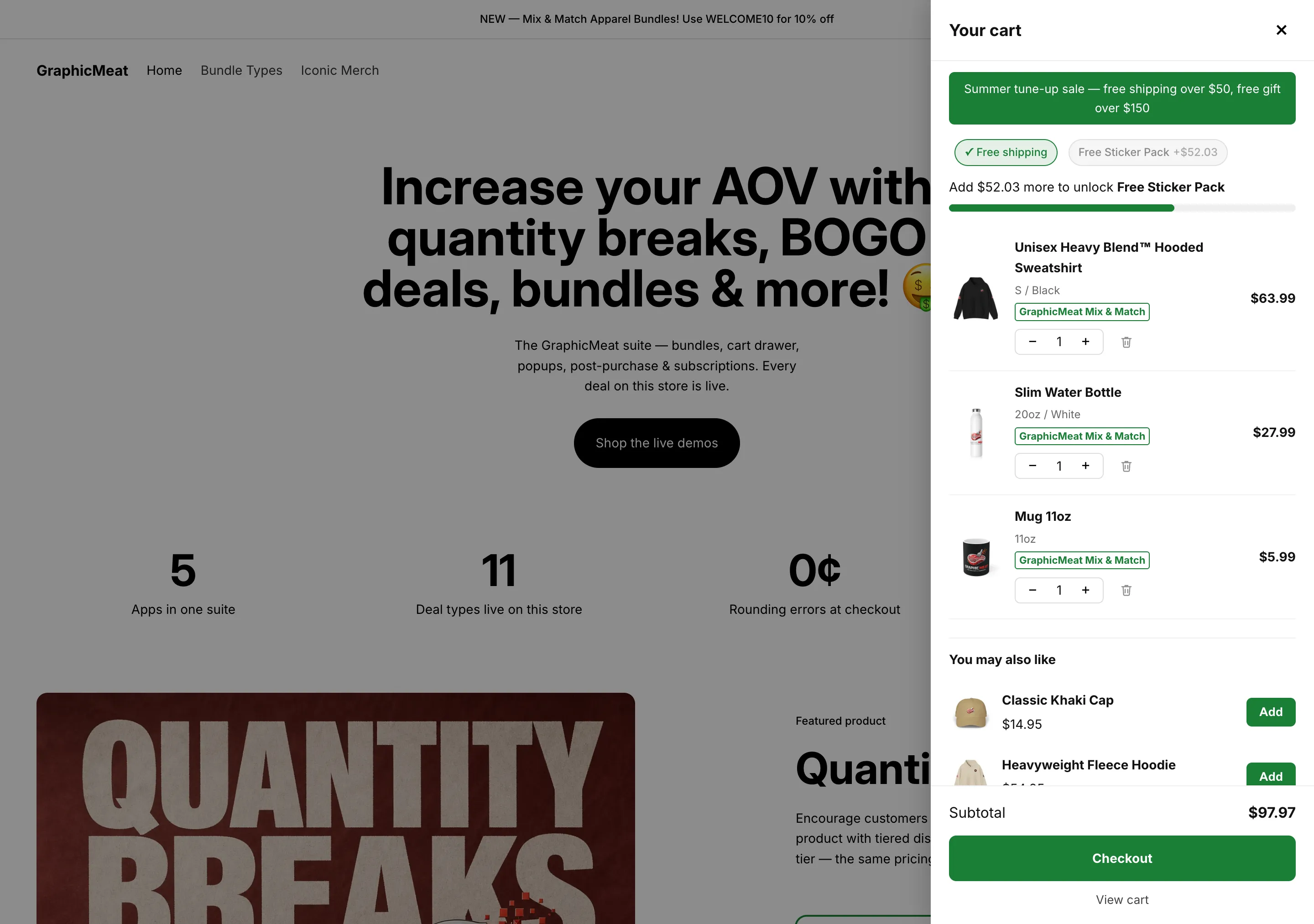
The announcement bar states the deal, the chips show free shipping already earned and the free sticker pack $52.03 away, and the bar keeps filling across tiers instead of resetting at each one. Every line carries its bundle label, a quantity stepper and a remove button; the picks under You may also like are yours.

Demo store homepage with the Smart Cart drawer open: a Summer tune-up sale announcement, a Free shipping chip marked earned, a Free Sticker Pack chip $52.03 away, a progress bar, three cart lines labelled GraphicMeat Mix & Match with quantity steppers, a You may also like section with Add buttons, and a $97.97 subtotal above a Checkout button
GraphicMeat demo store · Horizon theme · unretouchedClick to enlarge

Free shipping progress bar

“Add $12.03 more to unlock free shipping”, filling as the cart grows.

Backend · in the app

  1. Rewards → first row: Cart amount 50, Reward label “Free shipping”, no gift → Save.
  2. The tier is a label and a threshold; it does not change shipping rates by itself.

Frontend · theme editor & storefront

  1. Make shipping actually free at that amount: in Shopify Settings → Shipping and delivery, add a “Free shipping” rate with a minimum order price of $50 to your shipping profile, or run a Prime Bundles Shipping discount at $50. Same number in both places.
  2. Optional: Announcement text “Free shipping over $50”.

What the shopper sees

A chip for the tier, a “Add $X more to unlock Free shipping” line and a progress bar; the chip ticks once the subtotal clears $50. Full-page capture on the GraphicMeat Smart Cart page.

Check it

Cart at $40 → bar partly filled; add an item past $50 → chip ticked and checkout shows free shipping.

Free gift at $150

A sticker pack lands in the cart for free once the subtotal passes $150, and only then.

Backend · in the app

  1. RewardsAdd tierCart amount 150, Reward label “Free Sticker Pack”.
  2. Select gift → pick the gift variant (the button then reads “Gift: …”; Clear removes it). The gift must be purchasable: in stock, or inventory not tracked.
  3. Save. The app publishes the tiers to the storefront and to its checkout Function in the same save.

Frontend · theme editor & storefront

Nothing beyond the app embed, already on.

What the shopper sees

Past $150 the drawer adds the gift as a real cart line priced “Free”; a Shopify Function re-checks the cart at checkout and discounts it to $0. Drop below and the drawer removes it again.

Check it

Cart at $160 → gift line at $0 in the drawer and at checkout. Remove an item to go under $150 → gift disappears.

On the demo store

Cross the threshold, the gift lands in the cart.

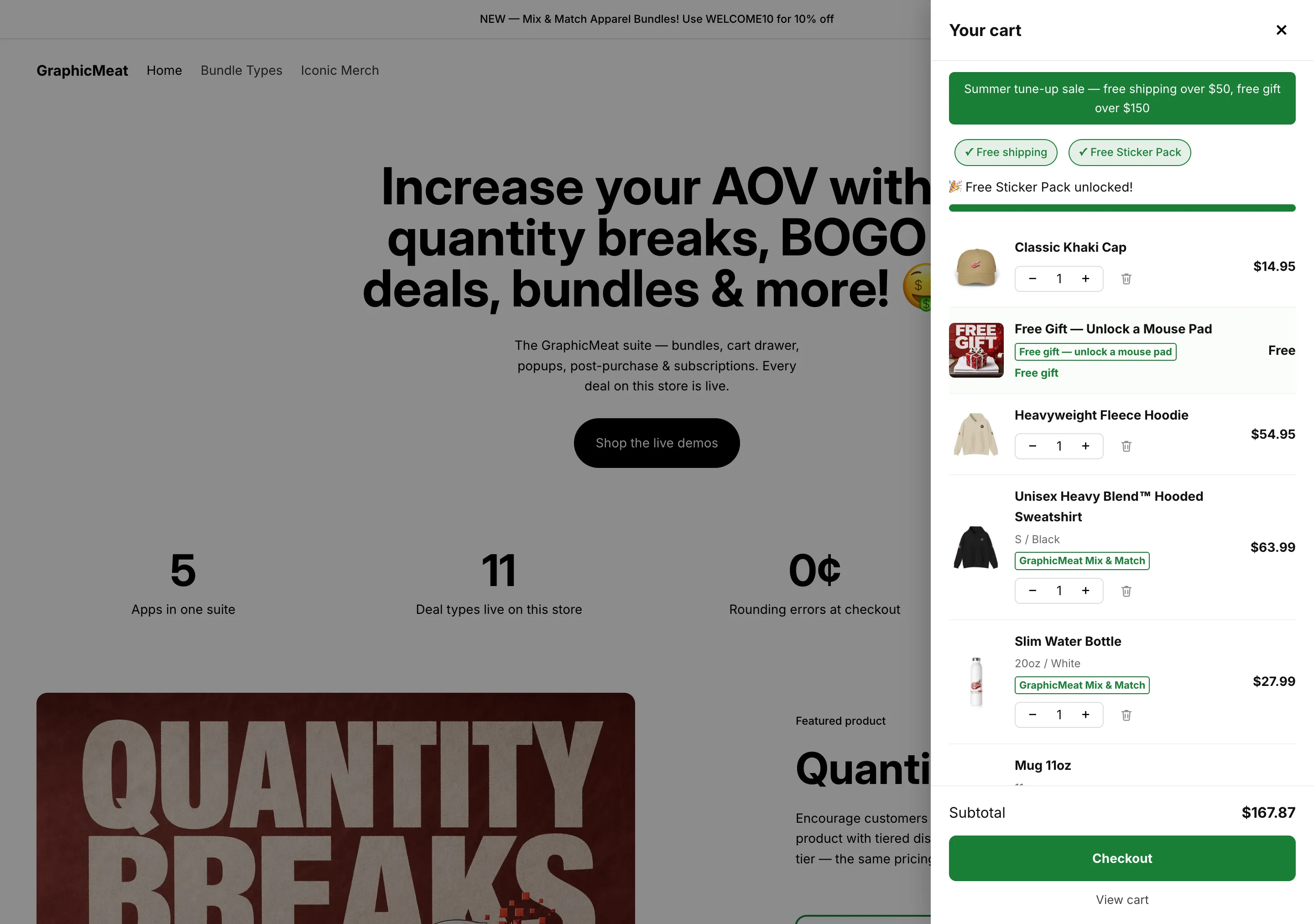
Over the $150 tier: both chips ticked, a celebration line, and the free sticker pack added as a real cart line priced Free. The same thresholds are enforced by a Shopify Function at checkout, so the drawer can never promise a gift the order does not qualify for, and if the cart drops back under, the drawer takes the gift out again.

Demo store homepage with the Smart Cart drawer open past the gift tier: both reward chips ticked, a Free Sticker Pack unlocked line, a full progress bar, the free gift shown as a cart line priced Free, and a $167.87 subtotal
GraphicMeat demo store · Horizon theme · unretouchedClick to enlarge

A multi-step ladder with celebrations

Free shipping at $50, a gift at $150, a better gift at $300, with chips that tick as each unlocks.

Backend · in the app

  1. Rewards: one row per step, ascending Cart amount, up to five (Add tier greys out after that).
  2. Tick Gamified display (“unlock-tier chips with a checkmark and a brief celebration as each reward unlocks”), then Save.

Frontend · theme editor & storefront

Nothing beyond the app embed, already on.

What the shopper sees

A row of chips, locked ones showing the amount still needed; the progress bar fills smoothly across tiers rather than resetting at each one. Full-page capture on the GraphicMeat Smart Cart page.

Check it

Cross a threshold: the chip ticks and celebrates once. Cross it again after dropping below: no second celebration until it unlocks again.

Announcement bar with a schedule

A green bar in the drawer for the length of a sale.

Backend · in the app

Nothing to set in the app for this one.

Frontend · theme editor & storefront

  1. Announcement text “Summer tune-up sale: free shipping over $50, free gift over $150”.
  2. Announcement link (optional) to a collection. Starts at / Ends at as ISO dates, e.g. 2026-07-01T00:00:00Z; leave blank for always-on.
  3. Save.

What the shopper sees

The bar renders at the top of the drawer, empty cart included, only inside the window. Full-page capture on the GraphicMeat Smart Cart page.

Check it

Set an end a few minutes out; the bar disappears on the next drawer open after it.

“You may also like” in the drawer

Show a cap and a hoodie with one-tap Add buttons, including on an empty cart.

Backend · in the app

Nothing to set in the app for this one.

Frontend · theme editor & storefront

  1. Upsell products: pick up to 8 in the order you want them offered.
  2. Max upsells shown: 1–6 (default 3). Products already in the cart are skipped automatically.
  3. Save.

What the shopper sees

A “You may also like” list under the lines (and under the empty-cart message) with Add buttons; items add at their normal price.

Check it

Add one of the picks; it leaves the list and the next pick takes its place.

Worth knowing

Lines added from here are stamped as drawer-sourced: they are what counts as Smart Cart’s attributed revenue.

On the demo store

An empty cart still sells.

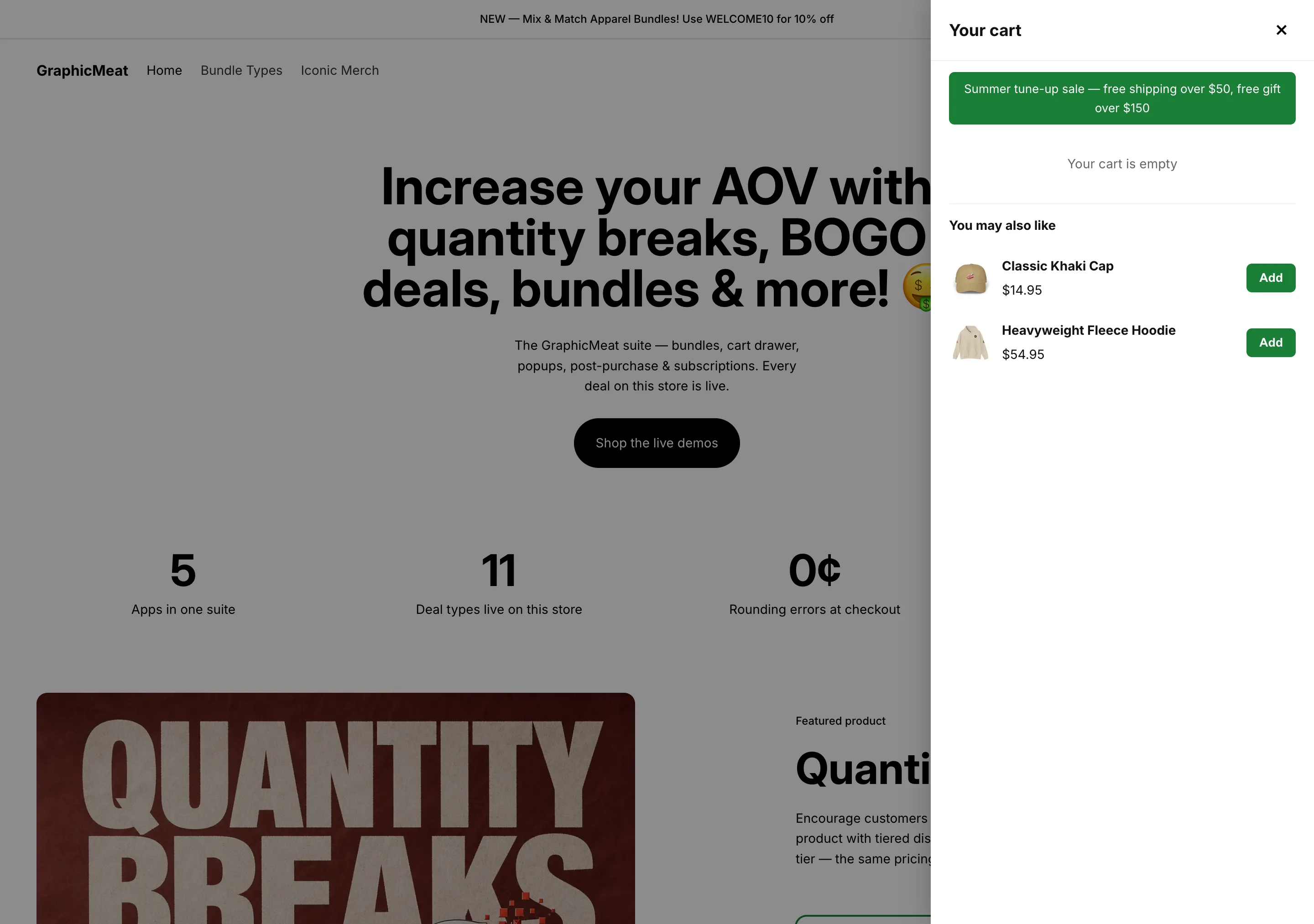
With nothing in the cart the drawer shows the announcement and your picked recommendations with one-tap Add buttons. Which products appear, in what order and how many at once are theme-editor settings: no model guesses for you.

Demo store homepage with the Smart Cart drawer open on an empty cart: the announcement bar, a Your cart is empty line, and a You may also like section offering a cap and a hoodie with Add buttons
GraphicMeat demo store · Horizon theme · unretouchedClick to enlarge

Upsell rules for Popups and Post Purchase

Tell the rest of the suite what to offer with what, and at what discount.

Backend · in the app

  1. Upsell rules → per rule: Select trigger products (optional) (leave empty for an always-on upsell) and Select upsell products.
  2. Discount % for that rule. Add more rows for more rules; Remove drops one.
  3. Save & publish. The rules are published to your shop for GraphicMeat Popups and Post Purchase to read.

Frontend · theme editor & storefront

Nothing beyond the app embed, already on.

What the shopper sees

Nothing changes in the drawer: its list comes from the theme-editor picks above. The rules drive the sibling apps’ offers, so one edit keeps every surface consistent.

Check it

With Popups or Post Purchase installed, their offer pages show the same products and percentage.

Urgency countdown (Pro)

“Offer ends in 2d 4h 12m” above the cart lines for the length of a sale.

Backend · in the app

  1. Plan → Upgrade to Pro ($9.99/month, 14-day free trial), approve on Shopify’s page.

Frontend · theme editor & storefront

  1. Urgency countdown (Pro) → Deadline (ISO date, optional), e.g. 2026-08-31T23:59:00ZSave.

What the shopper sees

A live countdown to that instant; it reads “ended” at zero. Without Pro the field is ignored.

Check it

Open the drawer: the clock ticks every second; set the deadline a minute out and watch it expire.

Bundle upgrade rail (Pro, with Prime Bundles)

“Add 1 more, save 15%” nudges under cart lines that are one unit short of a tier.

Backend · in the app

  1. Have Prime Bundles quantity breaks active on the products. Prime Bundles publishes them for the drawer automatically.
  2. Plan → Upgrade to Pro. No further configuration.

Frontend · theme editor & storefront

Nothing beyond the app embed, already on.

What the shopper sees

Lines show a nudge with the saving one more unit would unlock and a button that adds it; the bundle label pill appears on lines that belong to an offer. Full-page capture on the GraphicMeat Smart Cart page.

Check it

Put one unit of a 2+ product in the cart: the nudge appears; press it: the line goes to 2 and the discount shows at checkout.

Subscribe & save toggle on cart lines

Let shoppers switch a line to a subscription without leaving the cart.

Backend · in the app

  1. Nothing in Smart Cart. The product needs Shopify selling plans, from GraphicMeat Subscriptions or any app that creates native selling plans.

Frontend · theme editor & storefront

Nothing beyond the app embed, already on.

What the shopper sees

Lines whose product has selling plans get a delivery selector; changing it is an ordinary cart change with the plan attached.

Check it

Switch a line to “Every month”; the checkout shows the subscription price and schedule.

Cart page takeover

Shoppers who reach /cart (by URL, bookmark or checkout’s breadcrumb) see the same drawer, not a second cart.

Backend · in the app

Nothing to set in the app for this one.

Frontend · theme editor & storefront

  1. Keep Open drawer from cart links on. With it on, /cart (and /en/cart-style localised routes) opens the drawer over the theme’s cart page, and closing it leaves the page rather than revealing the other cart.
  2. Turn it off to keep the theme’s cart page and cart icon untouched; the drawer then only auto-opens after add-to-cart.

What the shopper sees

One cart everywhere. Behind the drawer the theme cart already shows Shopify’s applied bundle prices.

Check it

Type /cart into the address bar: the drawer opens over it; close it and you are back on the previous page.

On the demo store

The /cart page gets the same drawer.

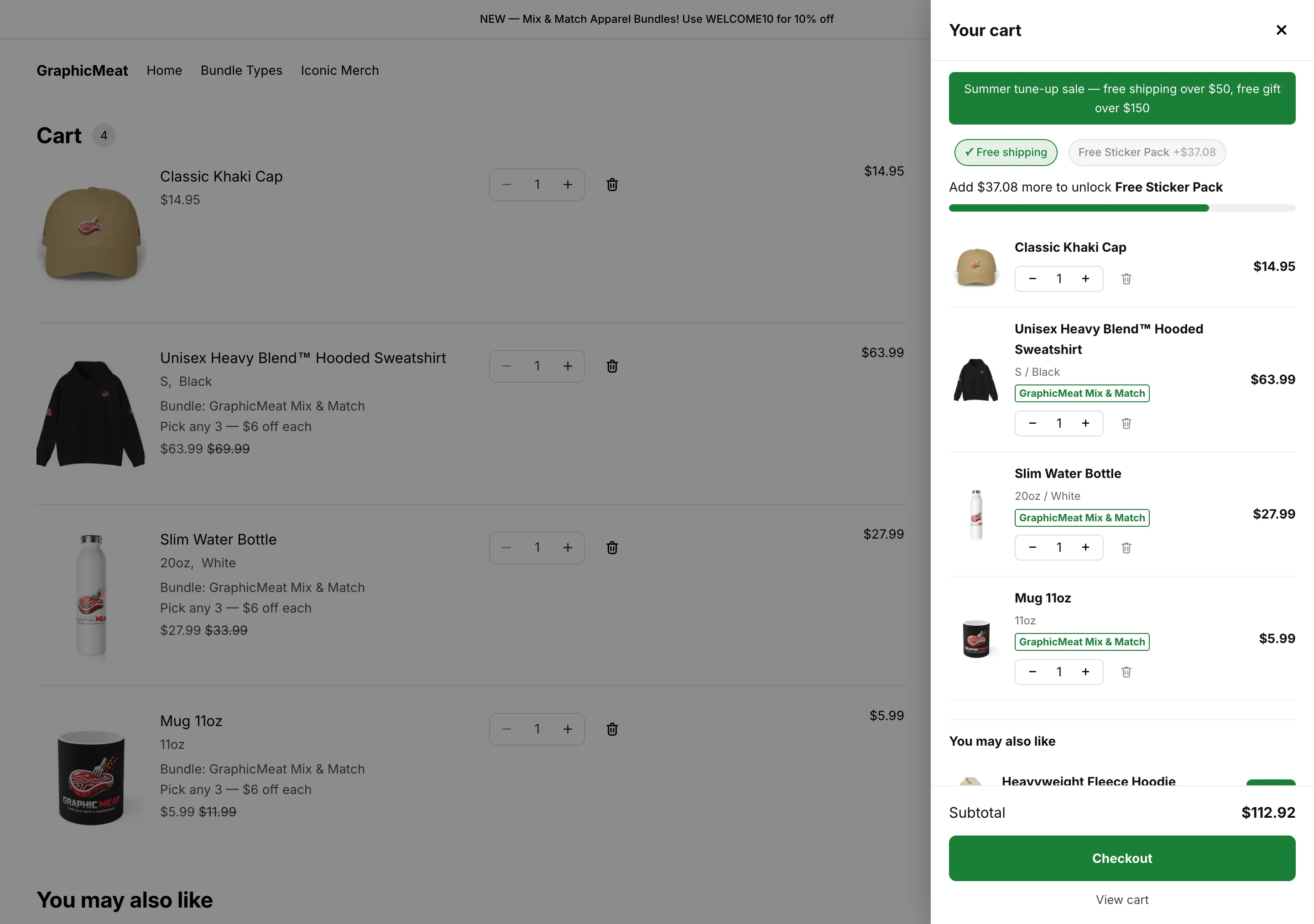
Reaching /cart by URL or from checkout’s breadcrumb opens the drawer over the theme’s own cart page, so shoppers see one cart everywhere. Behind it, Shopify has already applied the bundle prices ($63.99 was $69.99) before anyone reaches checkout.

The demo store cart page with the Smart Cart drawer open over it; the theme cart behind shows lines labelled Bundle: GraphicMeat Mix & Match with discounted prices such as $63.99 struck from $69.99, and the drawer shows the same lines with a reward bar and a $112.92 subtotal
GraphicMeat demo store · Horizon theme · unretouchedClick to enlarge

With GraphicMeat Popups on the same store

Never have a popup and the drawer fight for the screen.

Backend · in the app

  1. Nothing to configure.

Frontend · theme editor & storefront

Nothing beyond the app embed, already on.

What the shopper sees

While a GraphicMeat popup is showing the drawer defers its auto-open; it opens once the popup closes. A popup-granted discount code shows as a “code applied” hint in the drawer.

Check it

Trigger a popup, add a product behind it: the drawer waits.

Wording, side and colour

Make the drawer read and look like the rest of the store.

Backend · in the app

Nothing to set in the app for this one.

Frontend · theme editor & storefront

  1. Drawer title, Checkout button, Slide in from (Right / Left), Accent color, Show remove button on cart items.

What the shopper sees

The drawer inherits the theme’s fonts and your store’s money format. Other labels (“You may also like”, “Add”, “Your cart is empty”) are English today.

Check it

Reload the storefront after saving: embed settings apply on the next page load.

Verify before launch

Prove every promise the drawer makes is kept at checkout.

Backend · in the app

Nothing to set in the app for this one.

Frontend · theme editor & storefront

  1. Cart under the first tier: bar partly filled, nothing unlocked.
  2. Cross the shipping tier: chip ticks; checkout shows free shipping (from your rate or Prime Bundles).
  3. Cross the gift tier: gift line at $0 in the drawer and at checkout.
  4. Drop back under: gift removed, chip unticked.
  5. Edit quantities with the stepper: subtotal and bar follow; checkout matches.

What the shopper sees

Every threshold is validated twice (in the drawer and by the checkout Function) so this pass should never disagree with itself.

Check it

Use a test order or your payment gateway’s test mode for the final checkout.

Plan, attribution, billing

Know what the drawer earned and when Pro becomes necessary.

Backend · in the app

  1. Home: Revenue generated (last 30 days and all time) plus suite revenue.
  2. Attributed revenue counts only lines the drawer added (upsells and bundle-rail adds), price × quantity; free gifts are not counted.
  3. Past $200 in a rolling 30 days, saving new reward or upsell changes needs Pro; the live storefront keeps running. A banner warns from $100.
  4. Plan → Upgrade to Pro; Switch to Free to downgrade. Billing is on your Shopify invoice; development stores are never charged.

Frontend · theme editor & storefront

Nothing beyond the app embed, already on.

What the shopper sees

The Pro-only storefront features are the bundle rail and the countdown; everything else stays free.

Check it

After upgrading, Home reads “Pro plan active — bundle rail and urgency countdown enabled”.

Turn it off or remove it

Go back to the theme cart, temporarily or for good.

Backend · in the app

  1. Uninstall from the Shopify admin to remove it for good: the embed, the gift discount Function and every stored tier and rule go with it.

Frontend · theme editor & storefront

  1. Temporarily: App embedsSmart cart drawer off → Save. Tiers and rules stay saved in the app.

What the shopper sees

The theme’s own drawer and cart page are back on the next page load.

Check it

Click the cart icon: the theme drawer opens.

Going-live checklist

  1. Theme editor: Smart cart drawer embed on and saved.
  2. At least one reward tier saved; gift products in stock or untracked.
  3. Free-shipping tier amount equals the real free-shipping rate (Shopify shipping settings or Prime Bundles).
  4. Upsell products picked in the theme editor, Max upsells shown set.
  5. Announcement and countdown dates in ISO form with the timezone (Z).
  6. Pro active if the countdown or the bundle rail is expected to show.
  7. The verify pass above, done once on desktop and once on a phone.

Still stuck?

Write to [email protected] and the person who built the app answers. The FAQ covers pricing, attribution and data; the app page shows every scenario above live on the demo store.