26 scenarios, each split into what you set in the app and what you set in the theme editor, using the labels you will actually see. Read the one you need; nothing here assumes you read the others.
Updated 23 August 202626 scenarios
Prime Bundles is configured in two places: offers are built in the app inside your Shopify admin (the backend), and the storefront widget is switched on once in the theme editor (the frontend). Below, every scenario the app can fulfil, each split the same way, with the exact labels you will be looking at.
How to read it. Each scenario has two columns. Backend is the app inside your Shopify admin; frontend is the theme editor and what the shopper sees on the storefront. Labels in bold are the exact ones on screen. An empty frontend column means the storefront needs nothing beyond the app embed, which you switch on once, below.
Before any scenario
Backend · in the app
Install from the Shopify App Store. You land on the app’s Home page inside your admin.
On Home, the setup guide’s first step, Activate Prime Bundles on your storefront, opens the theme editor with the Bundle deals embed already toggled on. Press the editor’s Save and come back.
Second step, Create your first bundle deal, opens the offer editor. Every scenario below starts from Offers → Create bundle deal.
Frontend · theme editor & storefront
Online Store → Themes → Customize → App embeds → switch Bundle deals on → Save. The widget places itself above the product form on every product page that carries a deal.
Prefer to choose the spot yourself? In the editor open a product template, Add block → Apps → Bundle deals, and drag it where you want it. A placed block always wins over the embed.
The embed and the block each have one setting, Accent color (default #1a7f37). An offer’s own Style colours override it when set.
Every theme-editor setting
Setting
What it does
Default
Bundle deals (app embed)
Mounts the widget above the product form on product pages with a deal; no theme files touched.
off until you switch it on
Bundle deals (app block)
The same widget, placed by hand inside a product template. Wins over the embed on that template.
not placed
Accent color
Selected bar, badges, countdown and buttons, unless the offer’s Style → Colors override it.
#1a7f37
Where things live in the app
Page
What is there
Home
Revenue generated (30 days / all time), suite revenue from sibling apps, the two-step setup guide and the Create bundle deal button.
Offers
Every offer with its type (Quantity breaks, Mix & match, Buy X get Y, Fixed bundle, Order volume, Shipping discount) and status.
Offer editor
Sections, top to bottom: Choose a discount type · Settings · Who sees this offer · Target by metafield · Method · Products · the type’s own section (Bars, Buy X get Y, Fixed bundle, Order volume tiers or Shipping discount) · Style · Boosters · Checkbox upsells · Translations · Combinations · Active dates · Live preview (with A/B arms and Traffic allocation) · Summary · Save.
Analytics
Metrics over time, Bundles, Features, Conversion funnel, Quantity per order, A/B tests, Export as CSV.
Plan
Plan management: every tier with its included added revenue, Monthly / Annual (3 mo. free), Cancel plan — downgrade to Free, and Enter code for a discount or referral code.
Help / Support
In-app documentation and the support form; messages reach the studio.
A ladder of tiers on a product page (buy 2 for 10% off, buy 3 for 15% off) where the shopper picks a bar and the quantity and price follow.
Backend · in the app
Offers → Create bundle deal → Choose a discount type → Quantity breaks.
Settings: give it a Title (shoppers see it as the discount name at checkout) and set Status to ACTIVE. DRAFT and PAUSED stay off the storefront.
Method: leave Automatic discount selected.
Products → Applies to: Selected products → Select products → pick the product. All products makes the ladder store-wide.
Bars: bar 1 Min qty 2, DiscountPercent off, Percent 10; bar 2 Min qty 3, 15. Add bars as needed. Optional per bar: Title, Subtitle, Label, Badge and Badge style, Product image, and Selected by default for the bar that should be pre-picked.
Save. The offer is published to the storefront and to checkout in the same save.
Frontend · theme editor & storefront
Nothing beyond the app embed, already on.
What the shopper sees
Selectable bars under the product’s price. Picking a bar sets the quantity field and re-prices the line; the checkout Function charges the same number.
Check it
Open the product, pick the 3+ bar, add to cart. The cart and checkout show the discount under the offer’s title, no code entered.
On the demo store
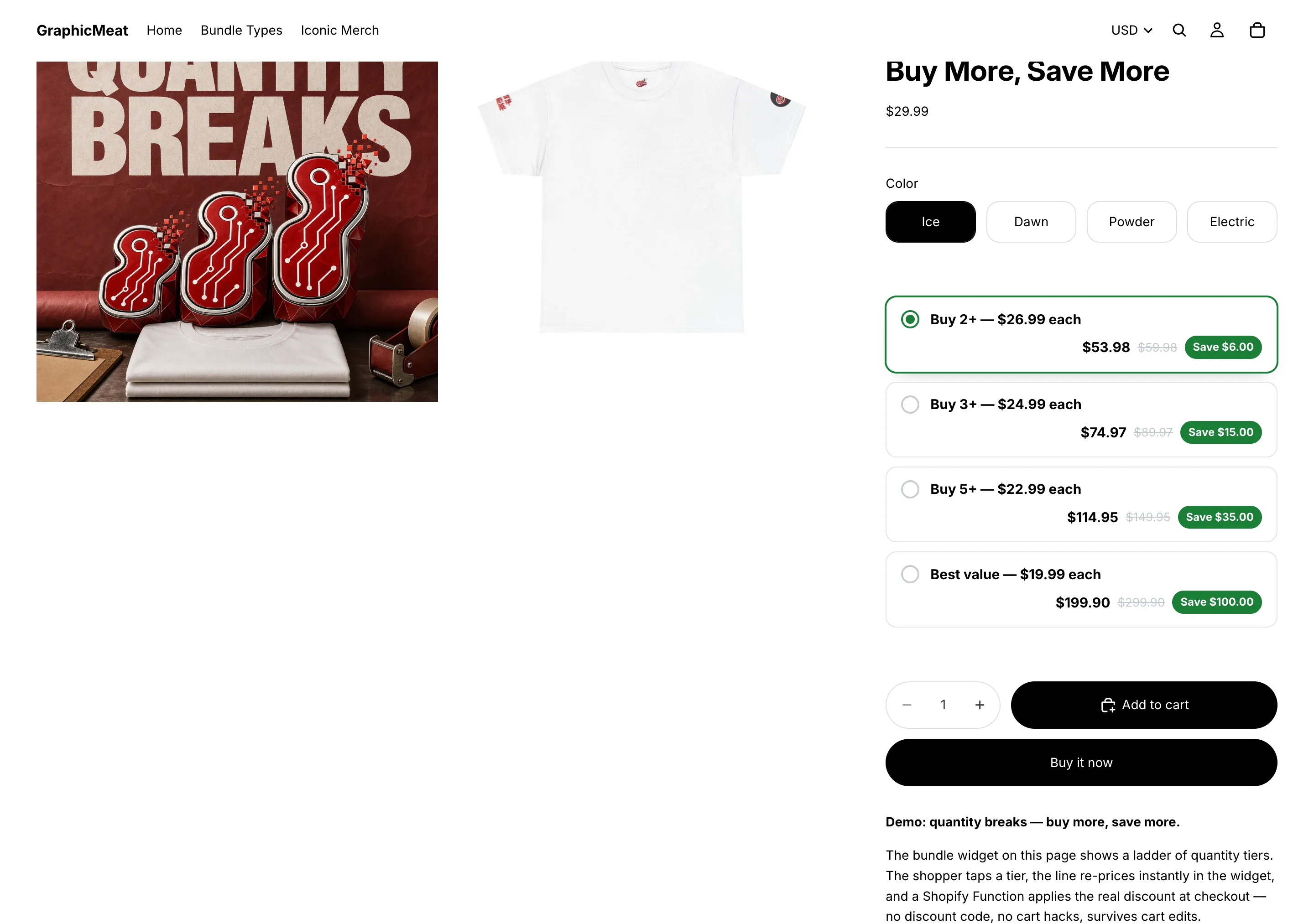
Four tiers, priced before the cart.
Buy 2+ for $26.99 each, 3+ for $24.99, 5+ for $22.99, and a best-value ten for $19.99 each. Every bar prints the line total, the struck-out regular price and the saving, and picking a bar re-prices the product’s own quantity field on the spot.
GraphicMeat demo store · Horizon theme · unretouchedClick to enlarge
Tier prices that end in .99
Percentages produce prices like $16.77. Price the tiers directly instead: $26.99 each at 2, $24.99 at 3.
Backend · in the app
In the same offer, in each bar set Discount to Fixed price per unit and type the unit price, e.g. 26.99. Amount off per unit works the same way for “$3 off each”.
Style → Price display: Price per item or Per item, total underneath, so the bar leads with the number you chose.
Selling in several currencies? A fixed amount is applied as that number in the cart’s currency. Use percentages for multi-currency stores, or check each market with Live preview → Country previewing.
One ladder across a whole collection
Any 2 drinkware items save 10%, any 3 save 15% (a mug and two bottles reach the 3-item tier together).
Backend · in the app
Quantity breaks offer → Products → Applies to: Selected collections → Select collections. Membership is re-expanded automatically when products join or leave the collection.
Exceptions & counting: tick Count quantity across all matching products (collection breaks).
Optional: Select exceptions for products that must never be discounted even though they are in the collection.
Bars as usual, then Save.
Frontend · theme editor & storefront
Nothing beyond the app embed, already on.
What the shopper sees
Every product in the collection shows the same tiles, and the “Mix savings” line follows whatever mix is in the cart.
Check it
Add one mug and two bottles; checkout applies the 3-item tier to all three lines.
On the demo store
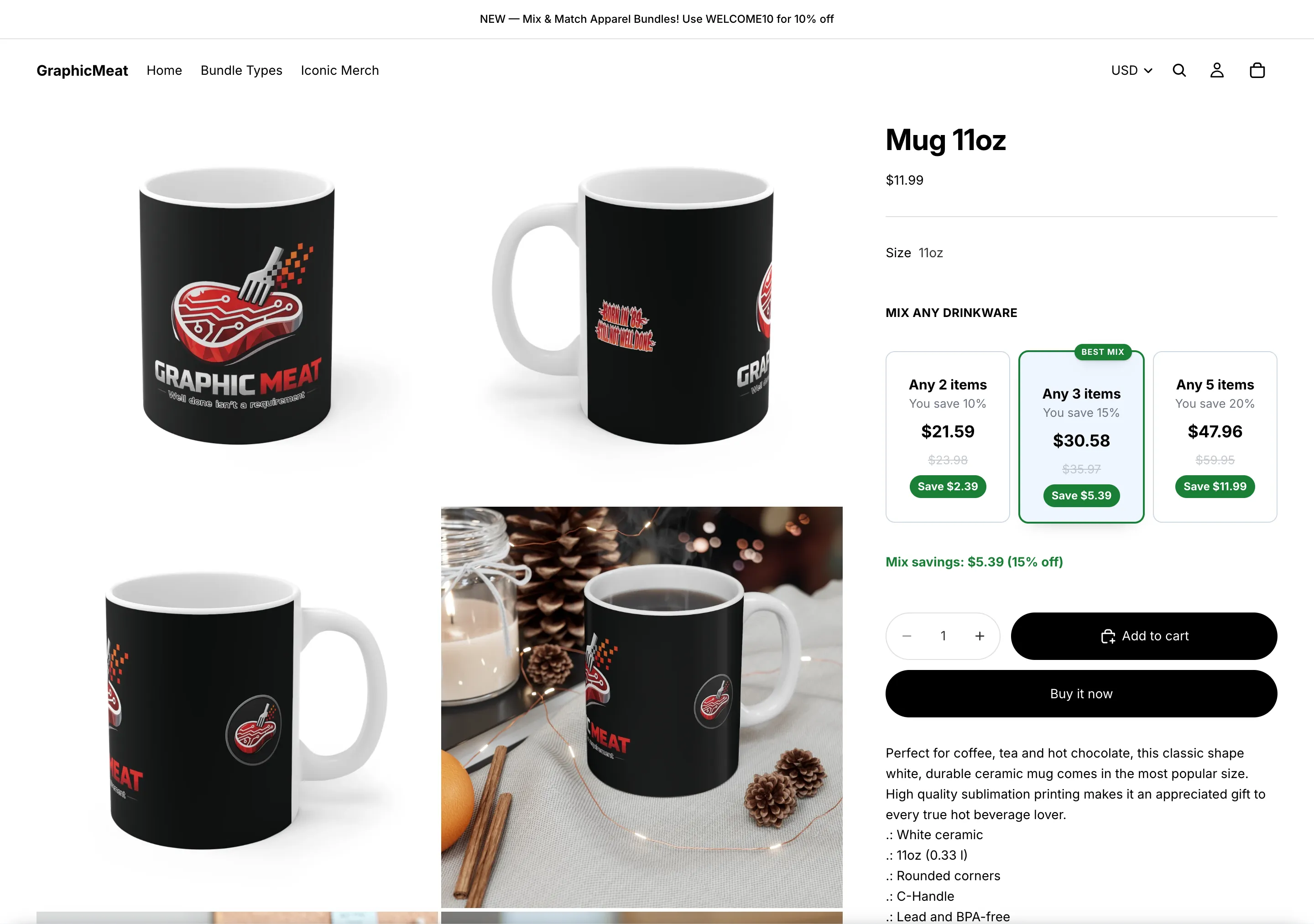
Count units across a whole range.
The drinkware tiers count every qualifying product together: any 2 items save 10%, any 3 save 15%, any 5 save 20%, so a mug and two bottles reach the 3-item tier just as three mugs do. The Mix savings line follows whatever is in the cart.
GraphicMeat demo store · Horizon theme · unretouchedClick to enlarge
Count every unit in the cart toward the tier
Reach the 3+ tier with anything in the cart, but discount only the products in this offer.
Backend · in the app
Quantity breaks offer → Exceptions & counting → tick Volume discount with other products. This implies collection-style counting.
Keep Applies to on the products that should actually be discounted.
Frontend · theme editor & storefront
Nothing beyond the app embed, already on.
What the shopper sees
Nothing changes on the product page; at checkout two unrelated items plus one of these products already hits the 3+ tier for that product.
Check it
Cart: 2 unrelated items + 1 offer product → the offer product is discounted at the 3+ rate.
Pack pricing: 3-pack, 6-pack, case of 12
Sell multipacks from one product without creating pack SKUs, with “Most popular” and “Best value” badges.
Backend · in the app
Quantity breaks offer → Bars: Min qty 3 / 6 / 12 with Percent off 10 / 15 / 25 (or fixed unit prices).
Per bar: Title “3-pack”, “6-pack”, “Case of 12”; Badge “Most popular” on the middle bar and “Best value” on the last; pick a Badge style; tick Selected by default on the one you want pre-picked.
Style → Layout: tiles (side by side) instead of bars. Boosters → Savings summary on, text “You save {amount} ({percent})”.
Frontend · theme editor & storefront
Nothing beyond the app embed, already on.
What the shopper sees
Three tiles with the pack total, the struck-out regular total and the saving, the selected tile outlined in your accent colour.
Check it
Pick the case tile; the theme’s quantity field jumps to 12 and the cart line shows the per-unit discount.
On the demo store
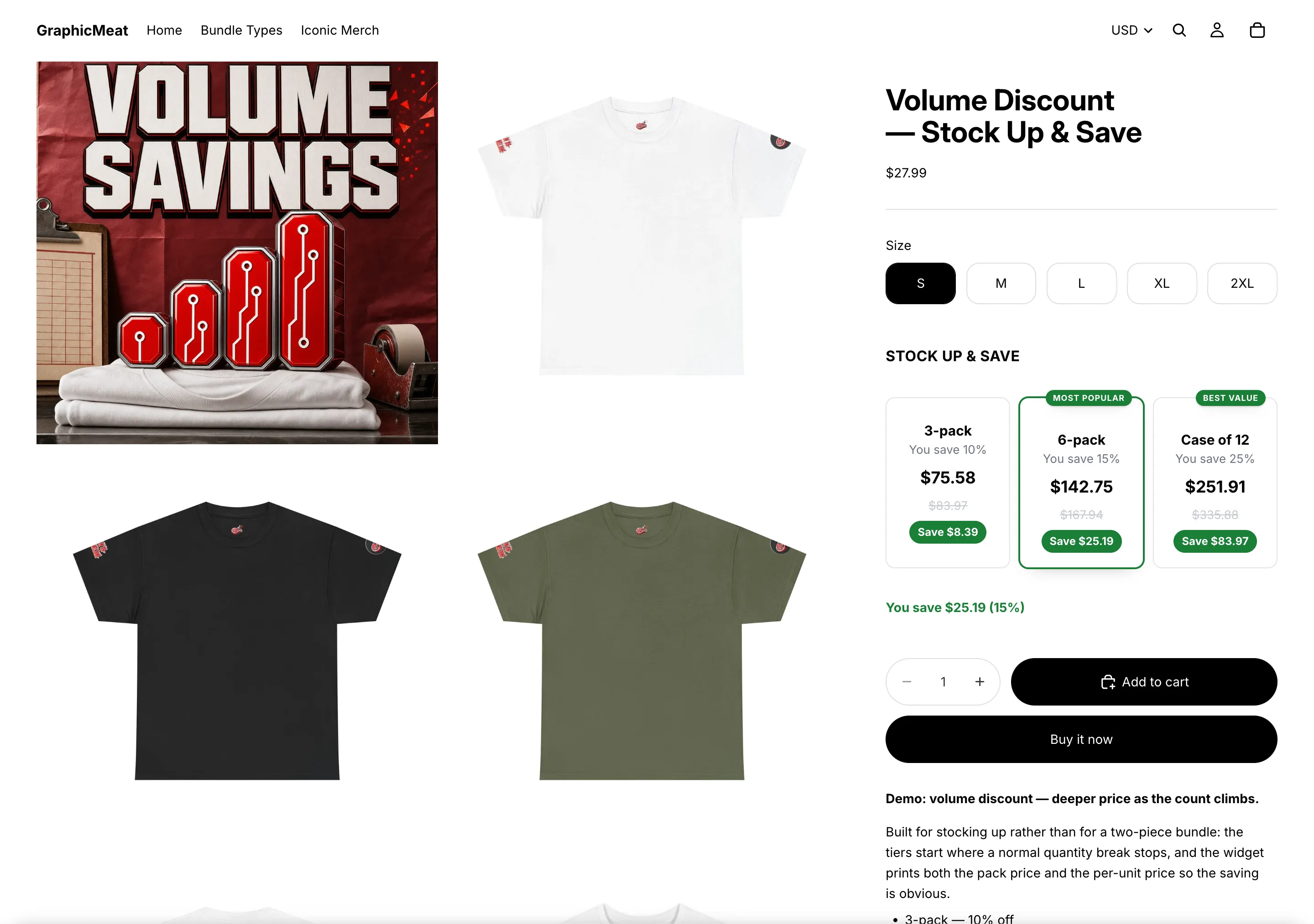
Pack pricing that shows the maths.
A 3-pack at $75.58, a 6-pack at $142.75 flagged Most popular, and a case of twelve at $251.91 flagged Best value, each with its total saving. Labels, badges and which bar is pre-selected are all yours to set.
GraphicMeat demo store · Horizon theme · unretouchedClick to enlarge
Free gift when they buy two
One pack at the regular price; two packs include a free mouse pad.
Backend · in the app
Quantity breaks offer with two bars: Min qty 1 at Percent off 0 (titled “One pack, standard price”) and Min qty 2 with the discount you want, if any.
On the second bar press Add free gift and pick the gift variant. Change free gift swaps it later.
Make sure the gift product is purchasable: in stock, or inventory not tracked. It enters the cart as a normal line.
Frontend · theme editor & storefront
Nothing beyond the app embed, already on.
What the shopper sees
The second bar carries a gift badge and the gift’s name under the bars. Selecting it adds the gift at 100% off; checkout keeps it free only if two packs are really in the cart.
Check it
Select the 2-pack bar, add to cart, then reduce the quantity to 1 in the cart: the gift discount disappears at checkout.
On the demo store
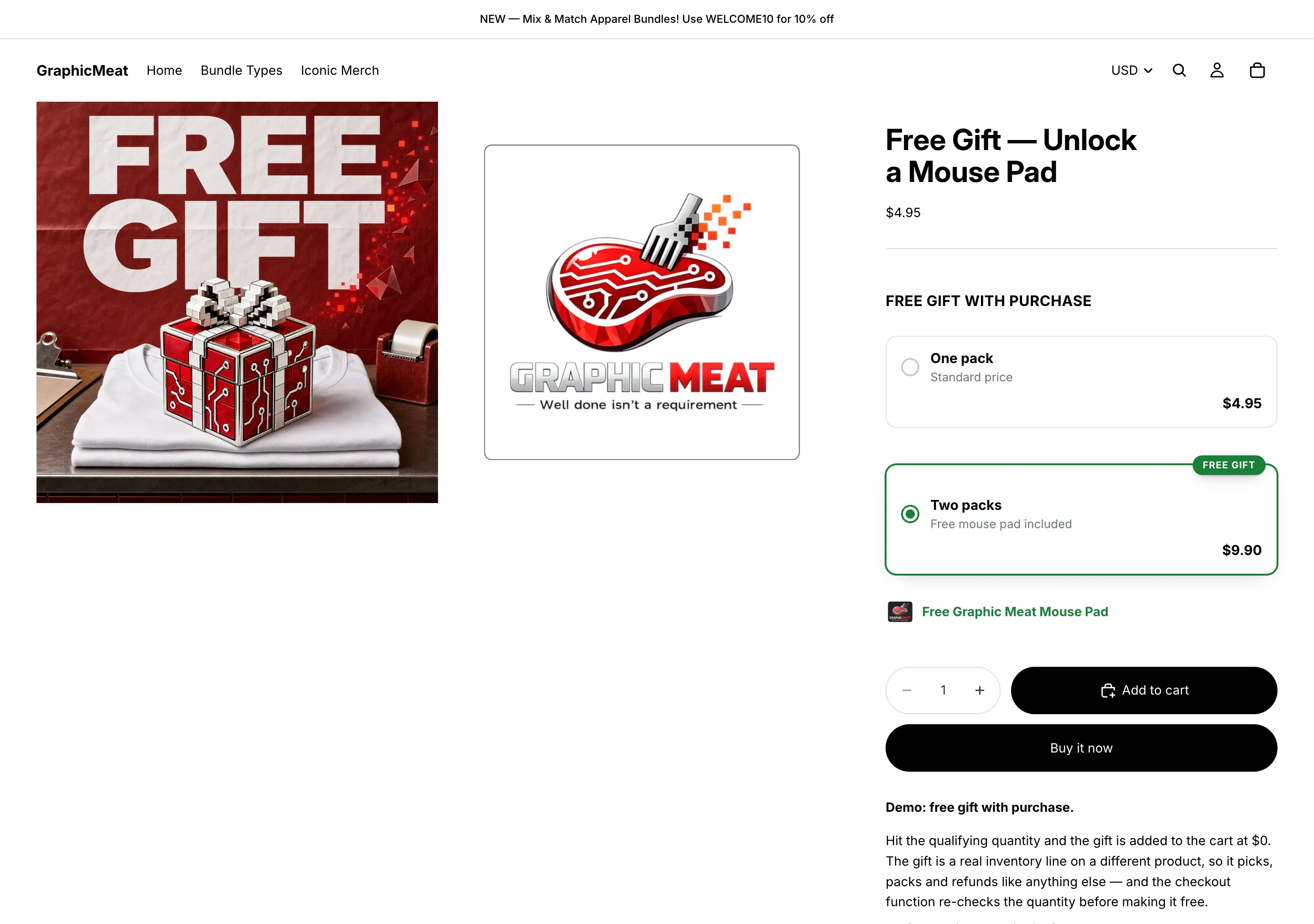
A gift tier, not a coupon.
One pack at the regular $4.95; two packs at $9.90 include a free mouse pad. The gift is a real product line at 100% off, added by the widget and re-checked by the Function at checkout, so it cannot be claimed with a single pack.
GraphicMeat demo store · Horizon theme · unretouchedClick to enlarge
Progressive gifts: a better gift at every tier
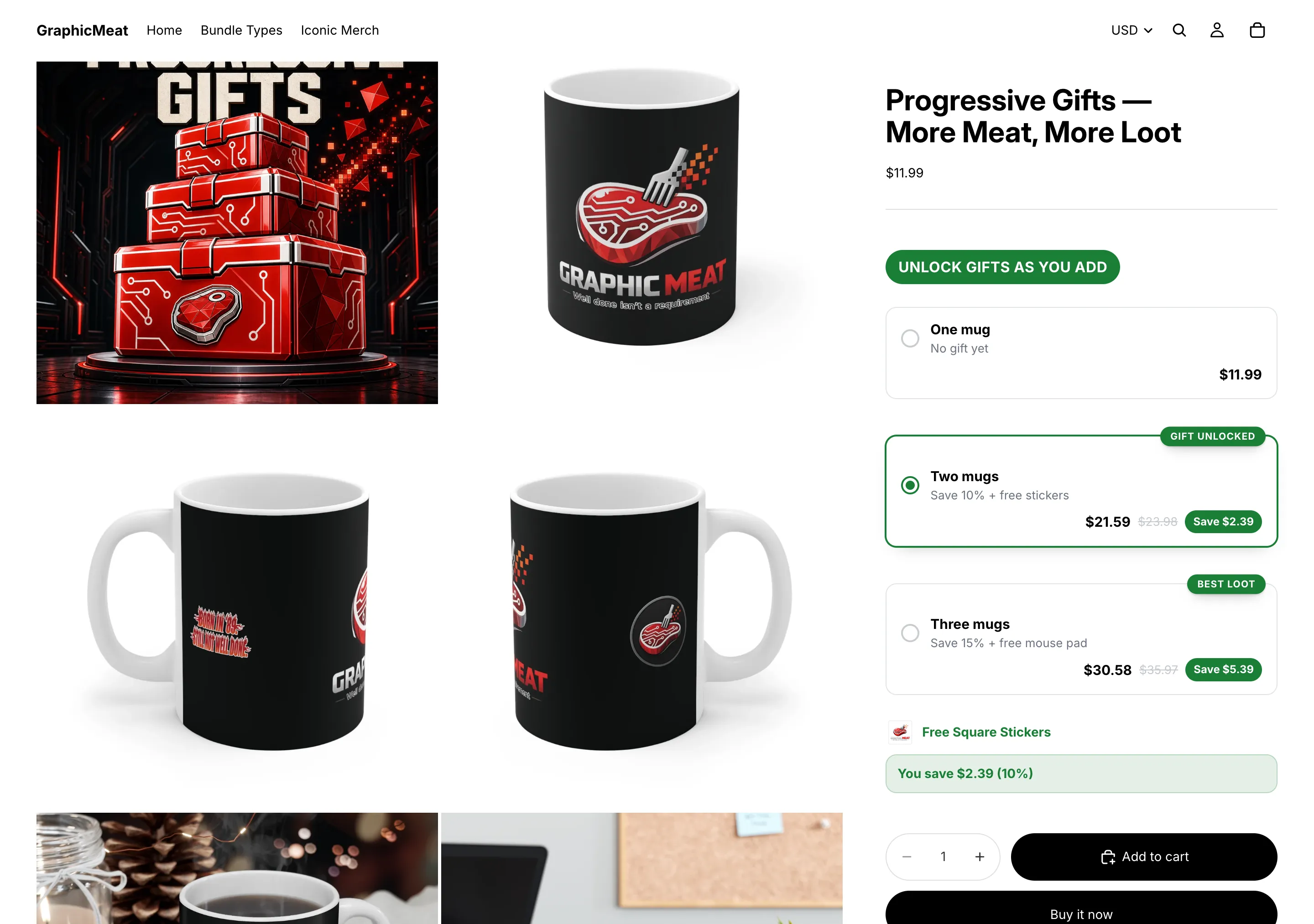
Two mugs save 10% and unlock stickers; three save 15% and unlock a mouse pad.
Backend · in the app
Quantity breaks offer with three bars (1 / 2 / 3). Add free gift on bar 2 (stickers) and on bar 3 (mouse pad); each bar can carry a different gift.
Badge the bars (“Gift unlocked”, “Best loot”) and set Style → Block title to “Unlock gifts as you add”.
Frontend · theme editor & storefront
Nothing beyond the app embed, already on.
What the shopper sees
A ladder where each bar names its gift; the gift line under the bars swaps as the shopper moves up.
Check it
Add three mugs: the cart holds the mugs and one free mouse pad, not both gifts.
On the demo store
Gifts that unlock as the quantity grows.
One mug at $11.99. Two mugs save 10% and unlock free stickers; three save 15% and add a free mouse pad. The gift rides along in the cart at $0 and is honoured at checkout only if the qualifying quantity is really there.
GraphicMeat demo store · Horizon theme · unretouchedClick to enlarge
Mix & match: pick any N from a set
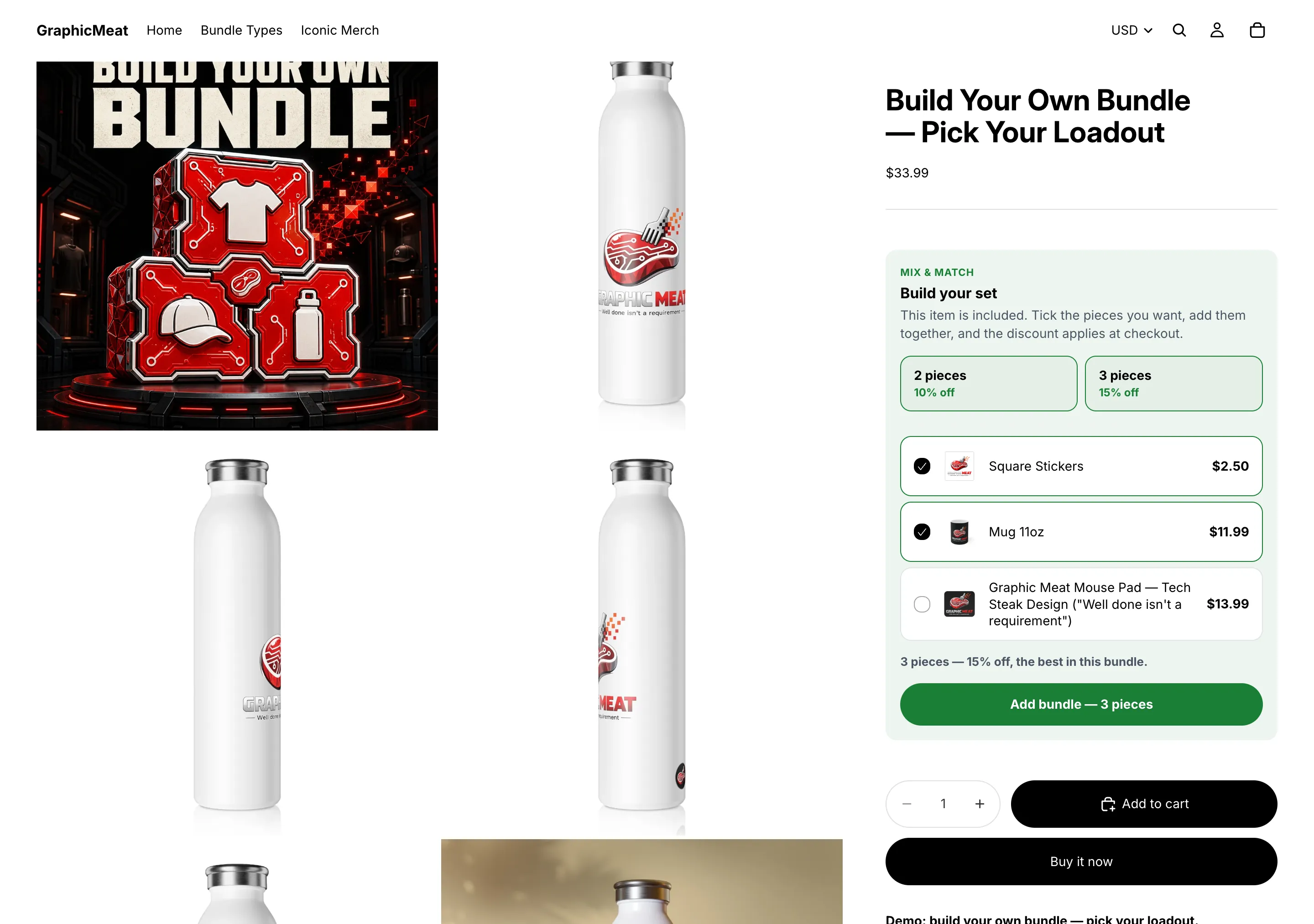
Shoppers build their own set from a pool (stickers, a mug, a mouse pad) and the discount grows with the number of pieces.
Backend · in the app
Create bundle deal → Mix & match.
Products: Select products or Select collections for the pool. Every member gets the card on its own page.
Bars: Min qty 2 Percent off 10, Min qty 3 → 15, or Amount off per unit for “$3 off each”.
Save.
Frontend · theme editor & storefront
Nothing beyond the app embed, already on.
What the shopper sees
A “Build your set” card with a checkbox per member and tier tiles that light up as pieces are ticked; one button adds the whole set, stamped so checkout prices the pieces together.
Check it
Tick two pieces on a member’s page, press Add bundle; the cart lines carry the offer’s label and checkout discounts all three.
Worth knowing
The card only renders on a product that has no quantity-break offer of its own: a quantity ladder on the same product takes precedence.
On the demo store
Build your set, tick by tick.
Shoppers tick the pieces they want from a pool you choose (here square stickers, a mug and a mouse pad) and the card counts them toward the 2-piece (10% off) and 3-piece (15% off) tiers. Two pieces are ticked here: the card reads 3 pieces, 15% off, and one button adds the whole set, stamped so checkout knows which lines belong together.
GraphicMeat demo store · Horizon theme · unretouchedClick to enlarge
Buy one, get one free
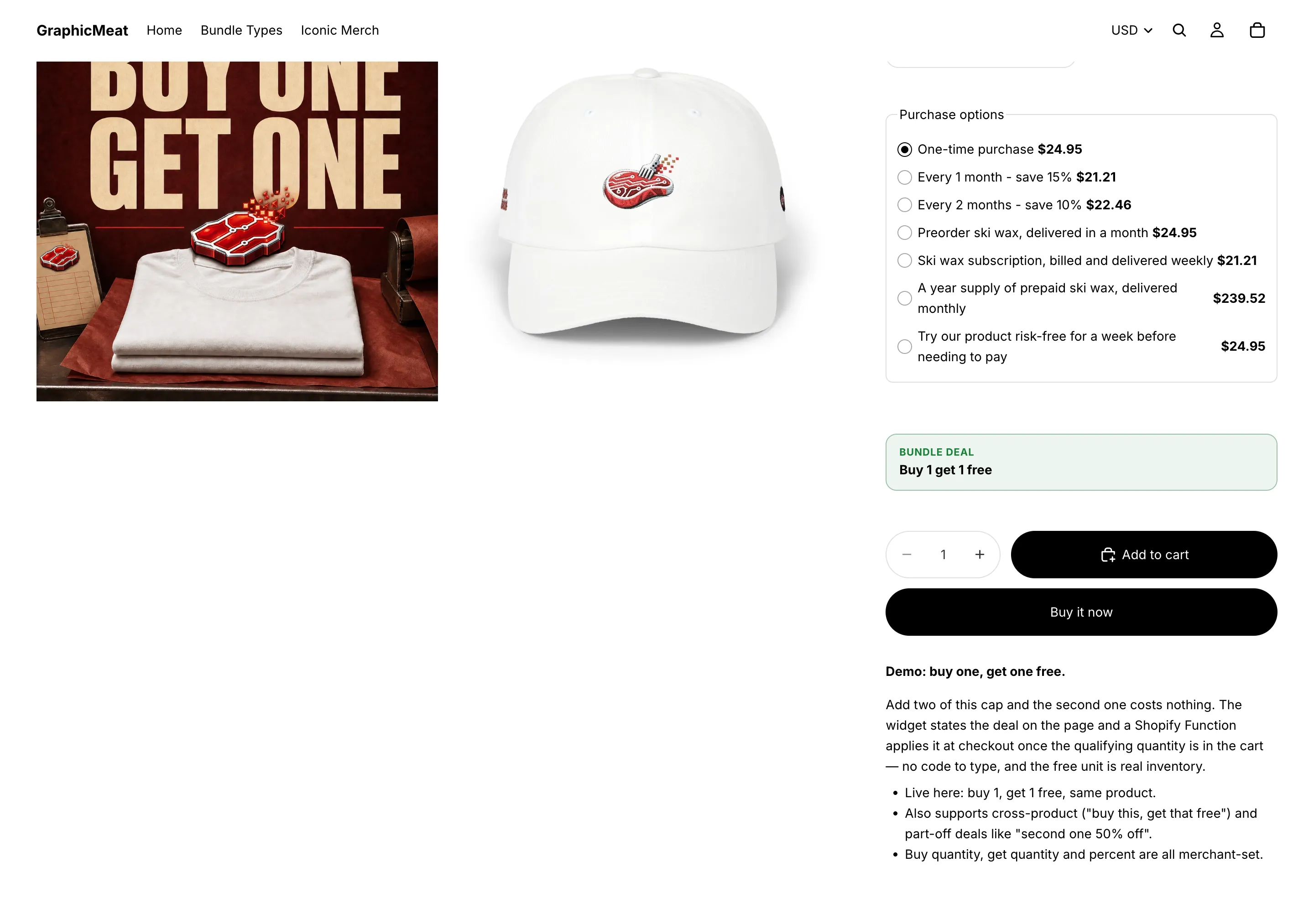
Two of the same cap, the second one free.
Backend · in the app
Create bundle deal → Buy X get Y.
Buy quantity 1, Get quantity 1, Get % off (100 = free) 100.
Tick Buy and get are the same product(s), then Products → Select products → the cap.
Save.
Frontend · theme editor & storefront
Nothing beyond the app embed, already on.
What the shopper sees
A compact “Bundle deal: Buy 1 get 1 free” strip on the product page; the second unit is zeroed at checkout.
Check it
Quantity 2 in the cart → one unit discounted 100%. Quantity 3 → still one free; 4 → two free.
On the demo store
Stated on the page, applied at checkout.
Buy 1 get 1 free on a cap, same product: a compact Bundle deal strip under the purchase options, nothing to type at checkout, and the free unit is real inventory. Cross-product deals (“buy this, get that free”) and partial ones (“second one 50% off”) use the same strip.
GraphicMeat demo store · Horizon theme · unretouchedClick to enlarge
Buy this, get that: free or half price
Buy a hat, get a mouse pad free; or the second item at 50% off.
Backend · in the app
Buy X get Y with Buy and get are the same product(s) unticked.
Pick the buy set and the get set with their Select products buttons. Leave a set empty to mean every product.
Get % off 100 for free, 50 for half price. Buy quantity 2 / Get quantity 1 gives “buy two, get one”.
Hat alone → no discount. Hat + mouse pad → mouse pad free.
A kit at one price
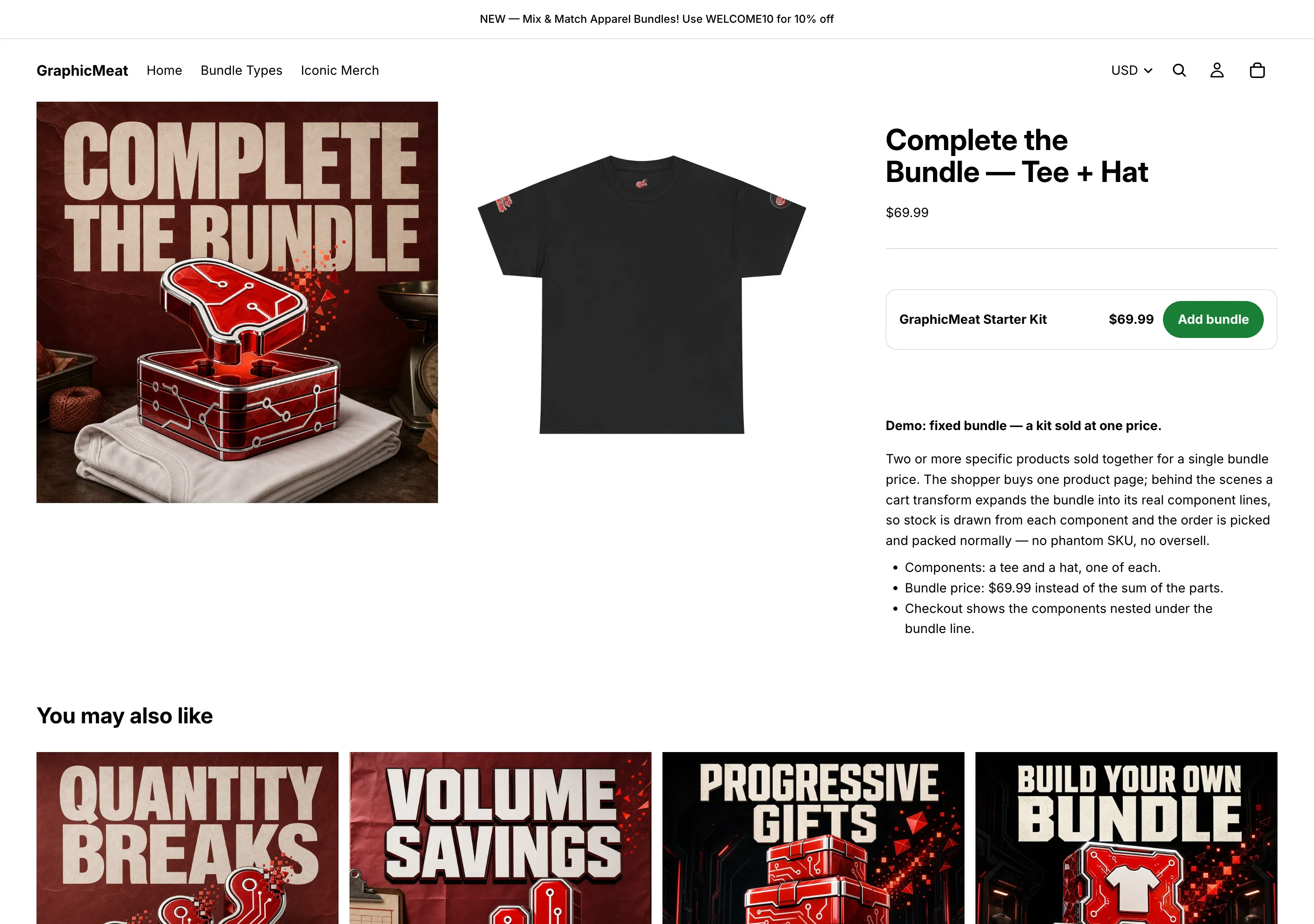
A tee and a hat sold together for $69.99 from one button, without a phantom kit SKU overselling.
Backend · in the app
First, in Shopify: Products → Add product for the kit itself (“Starter Kit”), price $69.99, inventory not tracked. It represents the bundle on the order; stock comes from the components.
Create bundle deal → Fixed bundle.
Select component variants → tee (Black / M) and hat → set Qty for each.
Bundle price 69.99: “total price the merged bundle line is sold at”.
Select bundle product variant → the kit product you created. Image URL (optional) for the card.
Save. The app registers a cart transform for the merge.
Frontend · theme editor & storefront
Nothing beyond the app embed, already on.
What the shopper sees
An “Add bundle” card on the component products’ pages. The pieces enter the cart as real lines and are merged into one kit line at checkout, at the bundle price.
Check it
Press Add bundle, go to checkout: one line “Starter Kit” at $69.99. Set the tee to 0 stock and the button reports it unavailable.
On the demo store
A kit at one price, without phantom stock.
The Starter Kit sells a tee and a hat together for $69.99 from one Add bundle button. The components enter the cart as real, inventory-tracked lines and a cart transform merges them into a single bundle line at checkout, so the kit can never sell stock you do not have.
GraphicMeat demo store · Horizon theme · unretouchedClick to enlarge
Spend $X, get Y% off the whole order
Cart-wide tiers: 10% off over $100, 15% off over $200, or by item count.
Backend · in the app
Create bundle deal → Order volume.
Order volume tiers → Based on: Cart subtotal or Item count.
Rows: Min subtotal (or Min items), DiscountPercent off or Amount off, Label (optional): the label is what checkout prints.
Save.
Frontend · theme editor & storefront
No product-page widget exists for this type; it prices the cart at checkout. Advertise the thresholds with Smart Cart’s Announcement text, its reward tiers, or your theme’s announcement bar.
What the shopper sees
Checkout shows an order discount line with your label once the subtotal or item count clears a tier.
Check it
Cart at $99 → nothing; add one item past $100 → the order discount appears.
Free (or cheaper) shipping over $X
Free shipping once the subtotal passes $50, without touching shipping profiles.
Backend · in the app
Create bundle deal → Shipping discount.
Minimum subtotal 50, Percent off shipping 100 (“100 = free shipping”); 50 halves the rate instead.
Save.
Frontend · theme editor & storefront
Pair it with a Smart Cart reward tier at the same amount so the drawer shows the progress bar. See the Smart Cart guide. The numbers must match; the discount here is what actually makes shipping free.
What the shopper sees
At checkout the shipping line is discounted to $0 once the subtotal qualifies. Product pages show nothing for this type.
Check it
Checkout at $49 pays shipping; at $51 the shipping line reads free.
Checkbox add-ons under the bars
Offer stickers at 50% off and a mug at 25% off as tick-boxes beneath a quantity ladder.
Checkbox rows under the bars with the add-on price and discount; ticked add-ons are added with the main product and discounted at checkout.
Check it
Tick an add-on, add to cart: two lines, the add-on discounted by its percentage.
Worth knowing
Available on Quantity breaks offers only.
Schedule a sale, with a countdown
A weekend deal that switches itself on Friday, off Sunday night, and shows a ticking clock meanwhile.
Backend · in the app
Active dates: Start date + Start time, tick Set end date, then End date + End time. Times are in your store’s timezone, shown in the label. Keep Status ACTIVE: the dates do the switching.
Boosters → Countdown timer on. End date for a fixed deadline everyone shares, or Minutes per visitor for an evergreen timer that starts on first view and survives a reload.
Optional: Label (“Offer ends in”), Icon, Button text (optional) to add the selected bar straight from the timer, Expired text (blank removes the timer at zero), plus Design, Alignment and Colors.
Frontend · theme editor & storefront
Nothing beyond the app embed, already on.
What the shopper sees
The clock sits above the bars; after the end date the offer drops off the storefront and checkout by itself.
Check it
Set an end time ten minutes out and watch the widget and the checkout discount disappear together.
Squeeze more out of the same widget with the optional add-ons, each off until switched on.
Backend · in the app
Boosters → Sticky add to cart: pins the selected bar to the bottom of the screen once the widget scrolls away; Button text.
Savings summary: “You save {amount} ({percent})” under or above the bars (Text, Design, Alignment & position, Icon, Colors).
Quantity selector: a − / + stepper inside the selected bar, with Maximum quantity.
Pick a variant per item: “buy 3, pick your sizes” (Style Dropdowns or Swatches, Button text); each unit becomes its own cart line and they still count together.
Skip cart — go straight to checkout: after add-to-cart the shopper lands on checkout.
Frontend · theme editor & storefront
Nothing beyond the app embed, already on.
What the shopper sees
Each booster renders only when enabled; nothing changes for offers that leave them off.
Check it
Scroll past the widget with the sticky bar on: the bar appears and adds the selected quantity.
A scratch card that reveals the deal
Hide the best bar under a foil card the shopper scratches open, optionally applying a real discount code.
Backend · in the app
Boosters → Scratch-off on. Choose a Cover finish, toggle Glitter, Confetti on reveal and Holo card after reveal; set Card text (“Scratch to reveal your deal”), Card text style and Text size.
In Bars, tick Hide behind the scratch card on the bar(s) to hide. With no bar hidden the card stands alone and shows Prize text.
To hand out a code: create it in Shopify Discounts first, then paste it into Discount code (optional); the card applies it on reveal so checkout honours it.
Frontend · theme editor & storefront
Nothing beyond the app embed, already on.
What the shopper sees
A scratchable cover over the hidden bar; scratching reveals and selects it, with confetti.
Check it
Scratch on a phone and on desktop; the revealed bar is selected and, if set, the code is applied to the cart.
A coded offer (customer types a code)
A bundle price only for people who have the code: newsletter, influencer, support.
Backend · in the app
In any offer, Method → Discount code → type the code into Discount code.
Build the tiers as usual and Save. The app creates a code discount in Shopify for it.
Frontend · theme editor & storefront
Nothing beyond the app embed, already on.
What the shopper sees
Nothing renders on the product page for a coded offer; the pricing applies at checkout when the code is entered.
Check it
Checkout without the code → regular prices. Enter the code → the tiers apply.
Only some shoppers: countries, B2B, metafields
A deal for US and Canada only, for wholesale buyers only, or only for products tagged by a metafield.
Backend · in the app
Who sees this offer → Audience: Everyone, B2B (company) buyers only or Retail customers only.
Countries: ISO codes, comma separated (“US, CA”). Blank means every market.
Target by metafield: Level (Product metafield / Variant metafield) → Metafield → Equals a value; only matching products join the offer.
Frontend · theme editor & storefront
Nothing beyond the app embed, already on.
What the shopper sees
Outside the audience the widget hides the offer and the checkout Function refuses to price it: both sides agree.
Check it
Live preview → Country previewing shows what each market sees before you save.
A/B test two versions of an offer
Does “Buy 2, save 10%” or “Buy 2, save 15%” earn more? Split traffic and read the result.
Backend · in the app
In the Live preview card press Start an A/B test, then + Add variant for each extra arm. The first arm is the offer as configured.
Per arm, override Bars, Style or the Block title.
Traffic allocation: a % per arm; leave blank for an even split. Save.
Read results under Analytics → A/B tests; tallies are aggregates, never per shopper.
Frontend · theme editor & storefront
Nothing beyond the app embed, already on.
What the shopper sees
Each visitor is assigned an arm and sees it consistently; checkout prices whichever arm they saw.
Check it
Open the product in two private windows: each sticks to one arm across reloads.
Translate the widget
French shoppers read French bars.
Backend · in the app
In Shopify, Settings → Languages: add and publish the language. Only published, non-primary languages appear in the app.
Offer → Translations → Language → fill in each listed string (block title, bar titles, subtitles, badges, button texts) → Save.
Frontend · theme editor & storefront
Nothing beyond the app embed, already on.
What the shopper sees
The widget reads the storefront locale and swaps the strings; anything left blank keeps the original.
Check it
Switch the storefront language selector and reload the product page.
Match the widget to your theme
The widget looks like it shipped with the theme.
Backend · in the app
Style: Block title (“BUNDLE & SAVE”), Title alignment & style, Uppercase; Theme; Layout (bars, tiles, grid, list); Corner radius; Spacing; Price display (Bundle total, Price per item, Total, per item underneath, Per item, total underneath, No price); Colors; Typography.
Watch Live preview while you change things: Test product, Country previewing, Unit price drive the sample.
Frontend · theme editor & storefront
The embed’s Accent color is the fallback for everything the offer’s Colors leave unset.
What the shopper sees
Per-offer styling, so a clearance ladder and a premium bundle can look different on the same store.
Check it
Compare the preview with the live product page at desktop and phone widths.
Let offers stack, or keep best-of
Decide what happens when a quantity ladder and a BOGO both match one line.
Backend · in the app
Default: one offer per line. The app keeps the one that saves the shopper most.
To apply an offer on top of others instead, open it and tick Combinations → Combine with other discounts (“applies on top of other offers instead of best-of”).
Shopify discount codes stack according to the code’s own combination settings in Discounts; the app’s discounts are created to allow combining.
Frontend · theme editor & storefront
Nothing beyond the app embed, already on.
What the shopper sees
The widget never advertises a combined saving checkout would not give.
Check it
Two offers on one product, combine off → the bigger one applies. Combine on → both lines appear at checkout.
Pause, end or remove an offer
Take a deal down without deleting it, or end it for good.
Backend · in the app
Status → PAUSED: off the storefront and checkout, config kept. DRAFT is the same for an offer that never went live.
For a planned end, set Active dates → Set end date instead.
Uninstalling the app removes its discounts, cart transform and all stored offers at once.
Frontend · theme editor & storefront
Switching the Bundle deals embed off hides every widget at once but leaves checkout pricing active: use Status for a true pause.
What the shopper sees
Paused offers vanish from product pages and stop pricing within the same save.
Check it
Pause, reload the product page, add to cart: regular price at checkout.
See what it earned
Know which offers work before paying for anything.
Backend · in the app
Home: Revenue generated (30 days) and (all time), plus suite revenue from sibling apps.
Analytics: Metrics over time, Bundles (per offer), Features, Conversion funnel, Quantity per order, A/B tests, Export as CSV.
Frontend · theme editor & storefront
Nothing beyond the app embed, already on.
What the shopper sees
Attributed revenue is the subtotal of every order where one of your offers discounted a line; it is also the number the plan threshold watches.
Check it
Place a test order with a discounted line; it shows on Home within the webhook’s delay.
Plans, annual billing, referral codes
Stay free until the app earns its keep; pick a plan when it does.
Backend · in the app
Plan: every tier lists its monthly price and included added revenue. Toggle Monthly / Annual (3 mo. free), press the plan’s select button, approve the charge on Shopify’s page, and you are back in the app.
Below $200 of attributed revenue per rolling 30 days nothing is required. Past it, saving new or edited offers asks for a plan; live offers keep running.
Cancel plan — downgrade to Free ends a paid plan. Enter code takes a Discount or referral code.
Frontend · theme editor & storefront
Nothing beyond the app embed, already on.
What the shopper sees
Billing goes on your Shopify invoice; development stores are never charged.
Check it
After approving, the Plan page marks the tier as current and the upgrade banners disappear.
Going-live checklist
Theme editor: Bundle deals embed on (or the block placed) and saved.
Every live offer has Status ACTIVE and, if scheduled, the right dates and timezone.
Gift and add-on products are in stock or untracked.
One product, one ladder: a mix & match card hides behind a quantity-break offer on the same product.
Multi-currency store? Percent tiers, or each market checked with Country previewing.
A test order at each tier, one with the cart edited downwards, and one with a discount code.
Smart Cart installed? Its reward tiers match your shipping and order thresholds to the cent.
Still stuck?
Send a message through the contact form and the person who built the app answers. The FAQ covers pricing, attribution and data; the app page shows every scenario above live on the demo store.
// Hear the day GraphicMeat Prime Bundles goes live
 GraphicMeat Prime Bundles setup guide