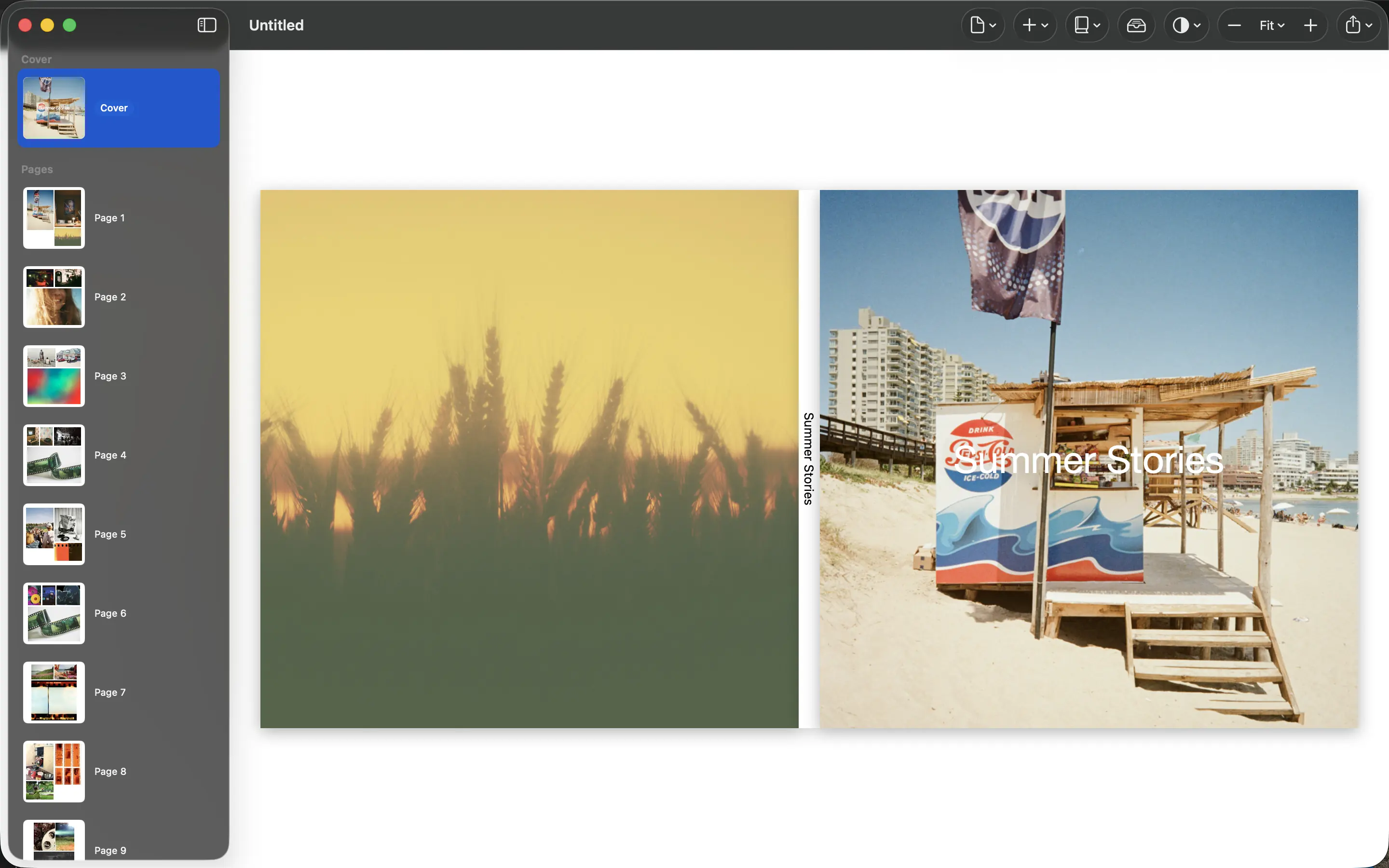
The back cover of a photo book works best when it is quiet: one calm photograph, a short closing line, the date and place, or simply a plain color. It is the last thing a reader sees, and the side that shows whenever the book lies face down on a table.
What to put on the back of a photo book
Choose one of these, not all of them. The back cover supports the front; it does not compete with it.
- A single quiet photograph: a landscape, a detail or the last moment of the trip.
- A closing line in your own words, such as where everyone was going next.
- The date, the place and the names of the people in the book.
- A plain color taken from the front cover photo, with no image at all.
- A small group photo of everyone who was there, if it did not fit inside.
Avoid repeating the front cover photo, and avoid a second busy collage. If the inside of the book is full of activity, a calm back cover gives it an ending.
Front, spine and back cover are one printed wrap
On most photo books the cover is printed as one flat sheet that wraps around the book. Laid flat, it reads from left to right as back cover, spine and front cover. On a hardcover, the outer edges of that sheet fold around the boards, so the printer’s template marks which areas will be hidden.
The spine sits between the two covers, and its width usually depends on the page count. Add pages and the spine gets wider, which moves the fold lines. That is why a cover should be checked again after the page count changes.
In PhotoBooks, selecting Cover shows the full wraparound view: back cover, spine and front cover together. The back cover has its own photo, which you can crop or replace like any other, and the spine width follows the page count of the book.
Keep the back cover readable and safe
Treat the back cover with the same care as the front. Keep faces and text away from the trim edges and the spine fold, according to the printer’s template. Check whether the template reserves an area of the back cover for the printer’s own use before you place text there.
Look at the whole wrap in the exported file, not only the front. In PhotoBooks, the Blurb Book export writes the cover as its own PDF next to the interior: one sheet with back cover, spine and front cover, so inspect both files. The Print PDF is a page-by-page file that starts with the front cover, so if your printer wants a separate wraparound cover, check its instructions for how to supply one.
For the front cover photo and title, read the cover design guide. What makes a good photo book cover?
Cover types: hardcover, softcover, padded cover and layflat
Print services name their options differently, but most fall into these groups. Availability, sizes and prices vary by service and product.
| Option | What it is | Trade-offs |
|---|---|---|
| Hardcover with printed cover | The printed wrap is glued over rigid boards. | Durable and stands well on a shelf. Heavier and usually more expensive than softcover. |
| Softcover | A flexible printed card cover. | Lighter and easier to post. Bends and scuffs more easily with frequent handling. |
| Padded cover | A thin layer of foam under the cover material, which gives a cushioned feel. Some printers offer it only on hardcover books. | Feels softer and heavier and resists small dents. Usually an extra option with its own cost. |
| Layflat binding | A binding with thick pages that open completely flat. | A photo can run across both pages without a fold. Thicker pages make a heavier book, often at a higher price. |
Layflat describes the binding and the pages rather than the cover, but services often list it next to the cover choices because it changes the price and feel of the whole book.
Choosing a cover for your photo book
Match the cover to how the book will be used. A children’s book that will be handled every day benefits from a hardcover or a padded cover. A book you post to relatives may be easier as a softcover. For a yearly series, keep the same size and cover type so the books line up on the shelf.
Whatever you choose, get the printer’s cover template before you finish the wrap, and order one copy first if the book is a gift.
Check the finished file against the printer’s specification before you order. Preparing a photo book PDF for printing
Sources and product details
- PhotoBooks: features and workflow
- PrintNinja: Padded covers
- Blurb: Layflat photo books
- PhotoBooks documentation: Review the front, spine and back cover
Keep reading
- What makes a good photo book cover?
- Photo book title ideas: examples for every occasion
- Preparing a photo book PDF for printing
Make a book from your own photographs. Choose an Apple Photos album, refine the pages and export a PDF for printing or sharing.
Explore PhotoBooks →