Covers, titles and text
Finish the wraparound cover, rename the book and add editable text to your pages.
PhotoBooks 1.2.0 · User guide · Reviewed
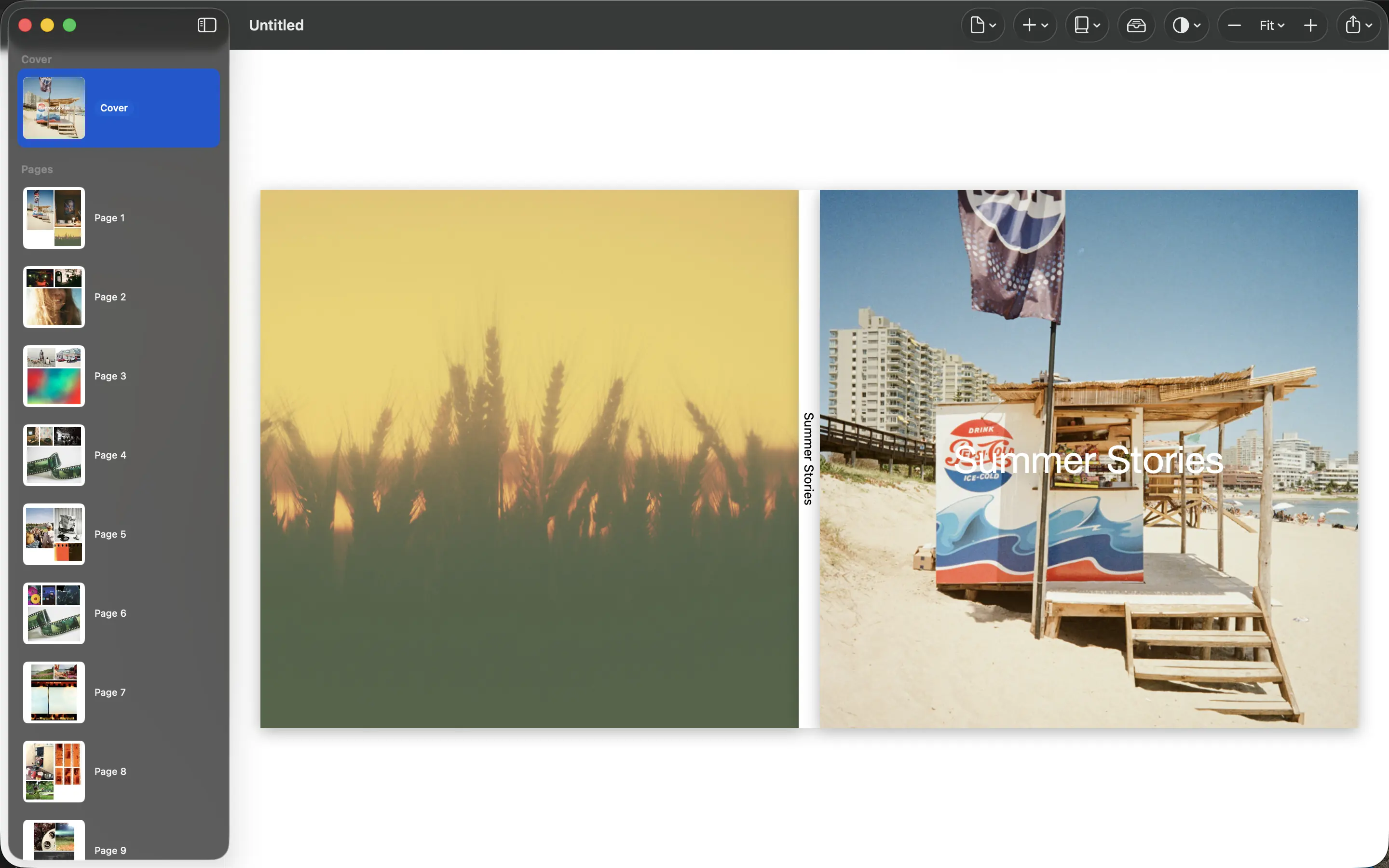
Review the front, spine and back cover#
- Select Cover in the page browser.
- Inspect the full wraparound view: back cover, spine and front cover.
- Select the cover photos to adjust their crops or replace them. Check both sides; the back cover has its own photo.
- Review the cover again after changing book format or page count, and inspect the exported cover PDF before ordering.
Keep important faces and text away from trim edges and the spine. A cover preview is a design view; the final printer’s template remains the reference for the order you place.
Rename the book and edit text#
Choose Book → Rename Book… to edit the book title used for the spine. Check the front-cover text separately so it says what you intend.
- Select a page and choose Add → Add Text.
- Select the new text box and choose Edit to change its text and style.
- Move and resize the box to fit the page. Lock it when you want to protect its position.
- Use the text action’s Delete to remove an unwanted box. Inspect the PDF for clipped text.
Fix text that does not fit#
A preflight text-overflow warning means some text will be cut off. Open the affected page, edit the text box, and make the text shorter, reduce the text size or give the box more room. Repeat preflight and inspect the exported page. A box that looks acceptable at a small preview scale may still need correction.