
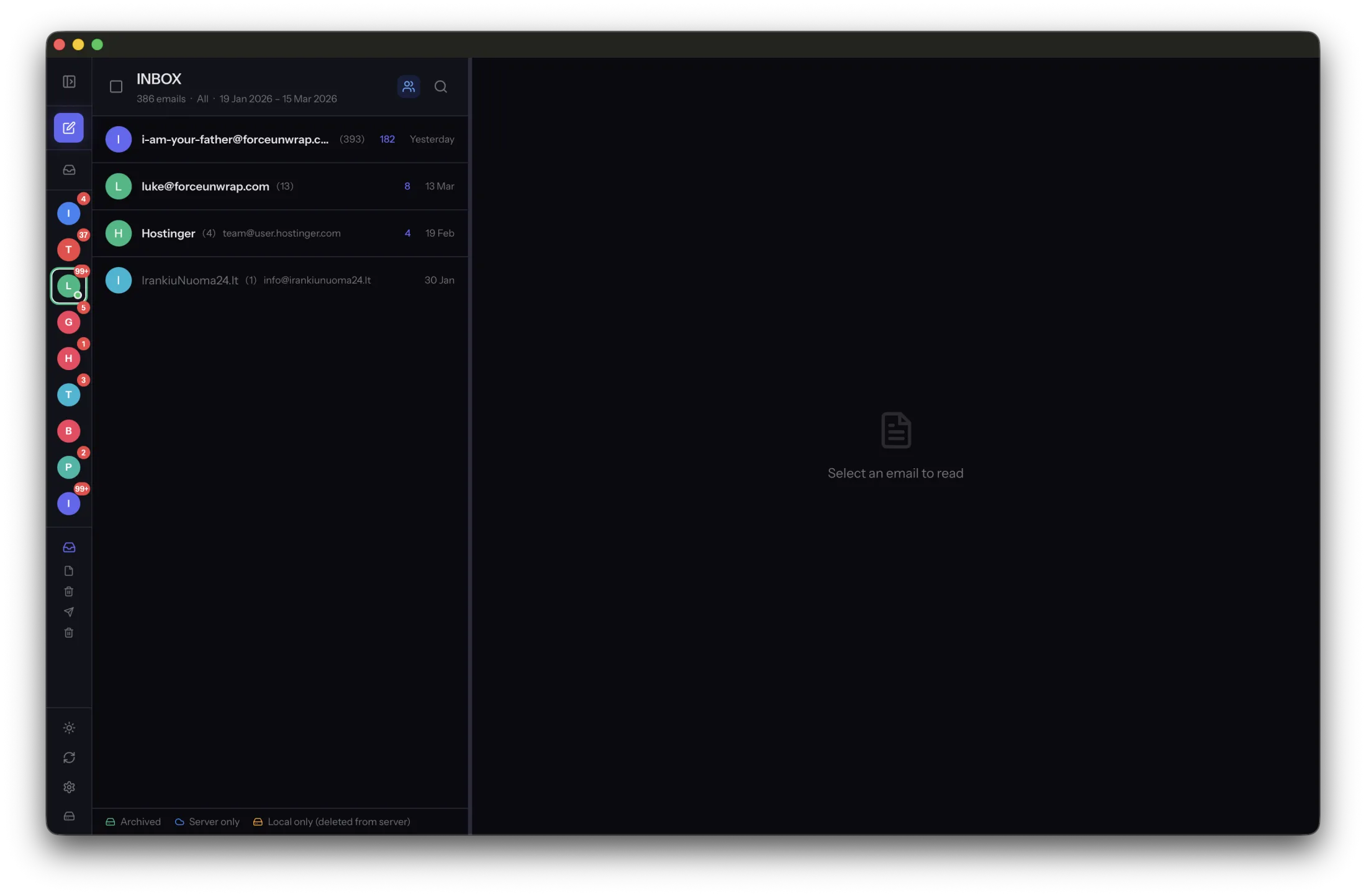
It is easy to mistake a phone and laptop for separate stores of email. With a synchronized account, they often show the same mailbox. Deleting from one can change what the others see because the action reaches the server.
Separate hiding, moving and deleting
An app may offer archive, trash, remove or delete actions with different meanings. Moving to a server Archive folder usually changes location rather than creating a private backup. Removing an account from a device is another operation again.
Read the provider and client’s explanation when the action is unclear. Trash retention and permanent removal behavior differ. Avoid relying on a remembered icon or a folder name as proof that a message remains recoverable.
Do not rely on a temporarily offline device
A disconnected laptop may still show an older cached copy. When it reconnects, synchronization can reflect the server’s deletion. Its temporary display does not establish an independent recovery path.
Before clearing important mail, save it to a deliberate local archive such as MailVault’s EML collection. Open the saved message and attachments without the network, then create a separate backup. That is a test of the material you want to retain.
Respond to an accidental deletion promptly
Check the provider’s trash or recovery tools and current retention rules. Avoid making more changes while you determine what is missing. If you have a verified archive, read the preserved messages there and plan any restoration carefully.
For future cleanup, work in small batches with a clear scope. Record which messages were archived before deleting their server copies. Multiple synchronized devices are useful for access, but a separately verified archive and backup provide the independence that synchronization itself does not promise.
Sources and product details
Keep reading
- Keeping receipts and order confirmations easy to find
- How to organize email history from multiple accounts
- What happens to your email archive when you change computers?
Keep the email history you need. MailVault archives messages as standard EML files on your computer, with local search and optional paid automation.
Explore MailVault →