Old emails can go three ways. You can delete them and clear Trash, tuck them out of sight with Archive, or export them to your own computer first and then remove them from the server. Deleting and exporting both give storage back; archiving does not. Exporting is the only route that frees the space and keeps the mail.
A decision table
| Your situation | What to do | Why |
|---|---|---|
| You will never need it: newsletters, notifications, expired offers | Delete and empty Trash | It frees space and there is nothing worth keeping |
| The inbox is cluttered but storage is fine | Archive | A clean inbox without losing anything |
| Storage is full but the history matters | Export, check the copy, then delete | The space comes back and the mail stays yours |
| You are not sure | Export first | You can always delete the copy later; you cannot undelete an emptied Trash |
Most people end up in the third row without realising it. An old mailbox is quietly a filing cabinet: proof of purchase, signed agreements, the reply where a client said yes.
Delete: cheapest and final
For mail with no future, find it by date or sender, select every match, delete, and clear Trash. Until Trash is cleared, the mail stays counted and can usually be restored, for up to 30 days. Once it is cleared, the only way back is a copy you made somewhere else.
There is a small bonus beyond storage. A lighter mailbox syncs to a new phone or app more quickly, and searches have less to wade through.
Archive: tidy, not lighter
Archiving clears the inbox view and leaves everything searchable. It frees nothing, because the provider still stores every archived message and counts it against your quota. Use it for clutter, never as a fix for a full account. For clutter it is hard to beat: it costs nothing, loses nothing and is undone with a single click.
The details by provider, and the one exception: Archived email and your storage quota
Export: two shapes of copy
An export is a copy of your mail that lives outside the provider, and it comes in two shapes. A Google Takeout download or an Outlook PST file packs a whole account into one large file: a snapshot you store, and open in another tool when you need something from it.
The other shape is a desktop archive that keeps every message as something you can open and search on your own disk. That is what we built MailVault to be: one .eml file per message, so a single email opens in any mail app that reads .eml, with or without MailVault. Whichever shape you choose, keep a second copy on a backup drive.
Then test the copy before you delete anything from the server. Open a few old messages, including one with an attachment, and make sure they read correctly. A copy nobody has opened is a hope, not a backup.
Export, then delete, in MailVault
- Open the account's Server view: that is what still lives at the provider.
- Open Bulk Email Operations from the Select messages box and pick the old years, or a custom range.
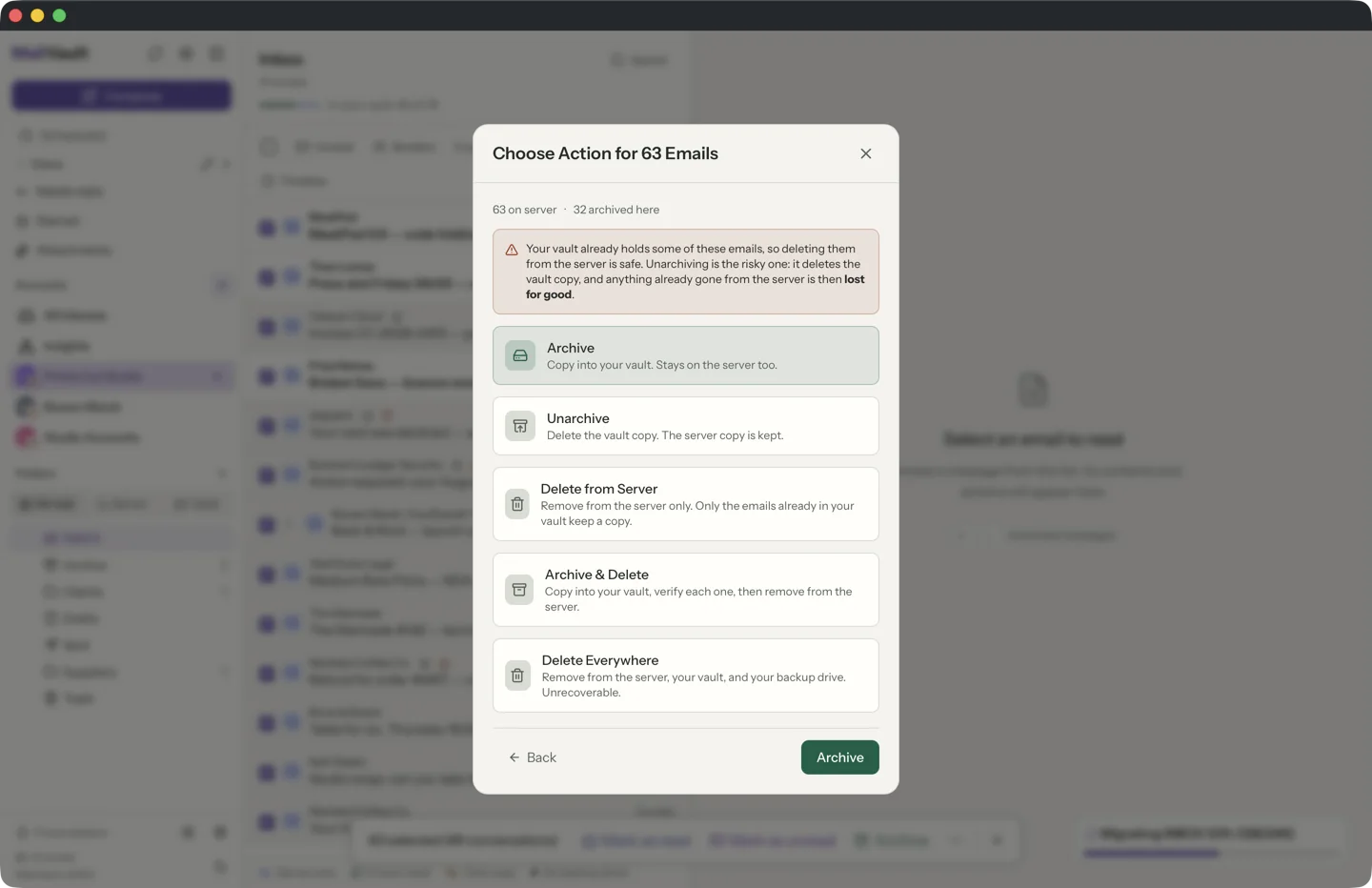
- Choose Archive. The emails are copied into your vault and the server is left alone.
- Check a few of them in the Vault view.
- Come back to the same years and choose Delete from Server.
Archive and Delete from Server are both free. Premium can run them as one Archive & Delete pass, which holds back each server delete until that email's vault copy is verified.
The MailVault version of this comparison, with every dialog, is on its own site. How do you get rid of old emails? Delete, archive or export
Sources and product details
Keep reading
- Archived email and your storage quota: what actually counts
- Deleting thousands of emails: a checklist before you press Delete
- Clear old emails for good: one purge, then rules that keep it clear
Keep the email history you need. MailVault archives messages as standard EML files on your computer, with local search and optional paid automation.
Explore MailVault →