To clear old emails, do one purge by date, such as an older_than:2y search in Gmail, then add rules so the backlog does not grow back. Gmail filters only see incoming mail, Outlook.com Sweep handles one sender at a time, and clearing everything past a certain age on a schedule takes an app that runs the rule for you.
Two jobs, not one
A one-off clean-up has a built-in weakness. You spend an evening clearing years of mail, the storage bar drops, and then mail keeps arriving at the same rate as before. The purge was fine. What was missing was the second job: something that holds the mailbox at the size you just got it to.
So treat it as two separate pieces of work. The purge happens once and deserves care. The rules are small and boring and should run without you.
The purge
Gmail: search older_than:2y, extend the selection to every match, delete. Outlook.com: search the folder for older messages, delete them, then clear Deleted Items. Apple Mail: sort by date and work up from the oldest. In all three, the space only comes back once Trash has been cleared.
Choose the purge age the same way you will choose the rule age. If the rule will keep two years, purge everything past two years, so the rule inherits a mailbox it can maintain rather than one it has to catch up on.
And if any of it might matter, make the copy before the purge, not after.
For a mailbox with thousands of old messages, run through the checklist first. Deleting thousands of emails: a checklist
What each kind of rule can automate
| Tool | Acts on | Clears by age | Keeps a copy |
|---|---|---|---|
| Gmail filters | Mail arriving after the filter exists | No | Only on the server, if the filter archives |
| Outlook.com Sweep | One sender's mail | Keeps only the latest, or deletes their emails older than 10 days | No |
| Unsubscribing | Future mail from that sender | Not needed: the mail never arrives | Nothing to keep |
| MailVault Auto-Cleanup (Premium) | A folder, an account or all accounts | Yes, older than an age you set | Yes, with Archive then delete |
Unsubscribing is the cheapest rule there is. Mail that never arrives never needs clearing.
Age rules in MailVault
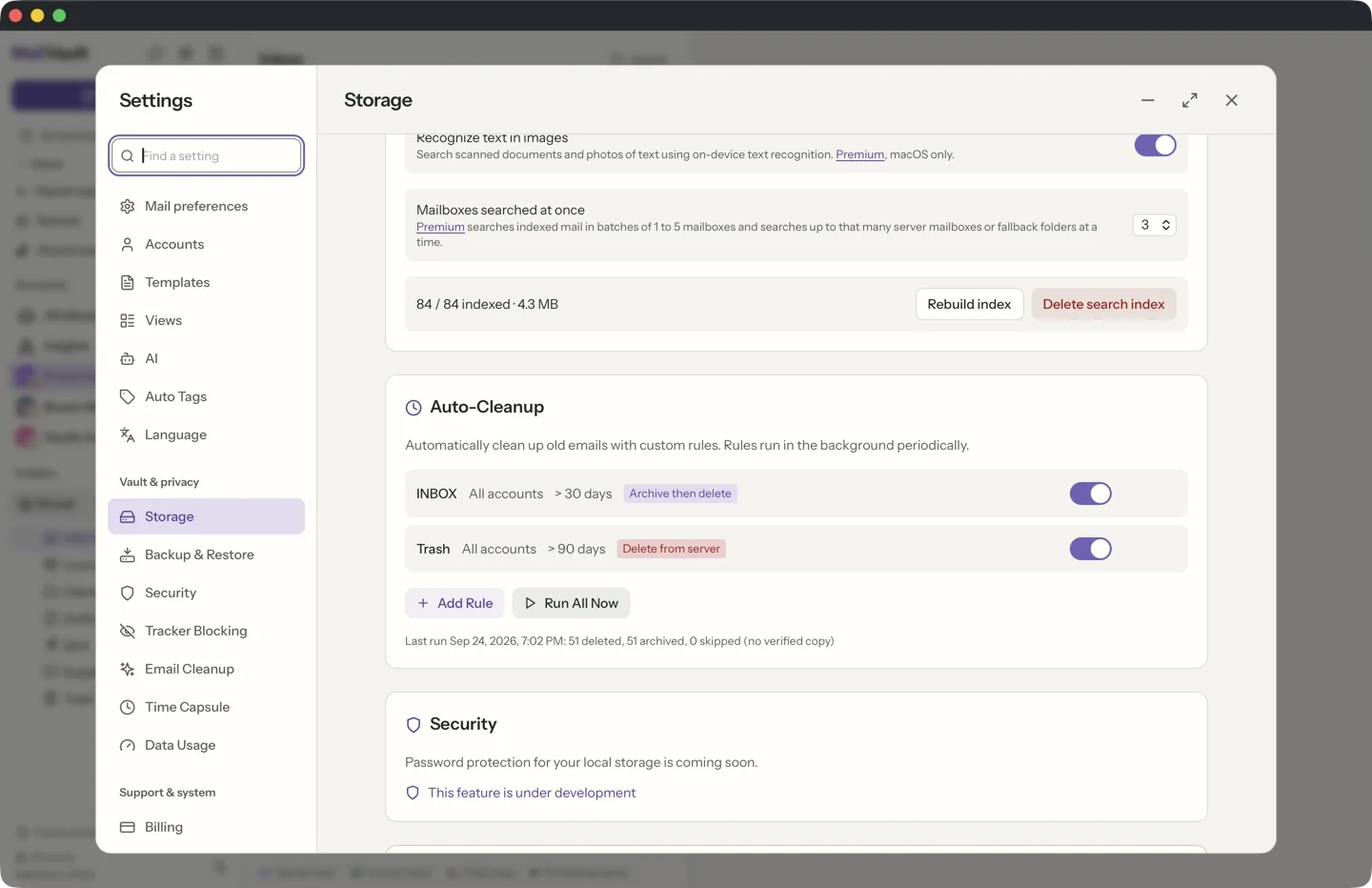
Auto-Cleanup lives in Settings, Storage, and is part of Premium. Each rule combines a scope, an age and one of two actions: Archive then delete, which saves a vault copy before the server copy goes, or Delete from server, which saves nothing. The screenshot above shows a sensible pair: inbox mail older than 30 days archived then deleted, and Trash older than 90 days simply cleared. Rules run on their own in the background, and Run All Now triggers them when you want.
The design choice I care most about is the skipped count in the last-run line. If MailVault cannot confirm a vault copy, that email is left on the server and counted as skipped. Anything that deletes mail while you are not watching should fail that way.
Without Premium, the manual equivalent is a few minutes in Bulk Email Operations a few times a year: pick the old years, Archive, then Delete from Server.
Both routes, one-time and automatic, are on the MailVault site. How to clear old emails, once and then automatically
Trade-offs and what can go wrong
- A short age keeps the mailbox small but makes you rely on the copy more. One or two years is a sensible place to start.
- A Delete from server rule keeps no copy. Point it at folders like Trash, not at the inbox.
- A Gmail filter that archives the wrong sender hides mail you needed. Check new filters against a week of real mail.
- Read the last-run line now and then. A rule that skips everything is telling you something.
Sources and product details
Keep reading
- Deleting thousands of emails: a checklist before you press Delete
- Getting rid of old emails: delete, archive or export, compared
- Gmail archive explained: where archived mail goes and when to use it
Keep the email history you need. MailVault archives messages as standard EML files on your computer, with local search and optional paid automation.
Explore MailVault →