If you have thousands of emails, remove them by date rather than one page at a time. Choose a cutoff year, search for everything older, select every match and delete the lot, then clear Trash. If those years might hold something you need later, put a copy on your computer first and check that it opens.
The checklist
- Choose the year before which nothing matters to you any more, for example 2022.
- Note what has to survive from those years: tax records, warranties, contracts, and the emails that prove which address an account belongs to.
- Decide whether to keep a copy of everything. Often that is simpler than sorting, and it takes the fear out of the delete.
- Start with the noise: one newsletter sender, searched and cleared.
- Run the date search, make sure every match is selected rather than just the visible page, and delete.
- Clear Trash, and allow a day or more before judging the storage figure.
What I would do with a 40,000-email Gmail
This is a thought experiment, not a measured case. Suppose a Gmail account holds about 40,000 emails going back a decade, and the storage bar is close to the 15 GB that Gmail shares with Drive and Photos. Here is the order I would work in, and why.
First, size. A search such as larger:10M finds the few messages using most of the space, and the list is short enough to read. Second, the obvious noise: two or three newsletter senders cleared with a from: search. Third, a copy of the old years on my own computer, because I cannot predict which 2019 receipt I will need. Only then the big step: a before:2022/01/01 search, every matching conversation selected, Delete, and Trash cleared.
The order matters. With the copy made first, the purge stops being a decision about what to keep. It becomes a decision about what Google should store, which is far easier to make.
The size round has its own guide. Find and delete large emails
The mechanics in Gmail and Outlook.com
Gmail: type before:2022/01/01 in search, use the select-all checkbox, then the extra link that extends the selection to every match, and Delete. Adding from:[email protected] narrows the batch to one sender.
Outlook.com: Sweep clears everything from one sender once you select one of their emails. For a date range, search the folder and delete what comes back. Either way, the mail goes to Trash or Deleted Items first and is still counted until that folder is cleared.
Mistakes that cost people mail
- Deleting before the copy exists, or before anyone has opened the copy to check it.
- Using select-all in Gmail without the second link, so one page goes and the rest of the backlog stays.
- Throwing away old account notices that were the only record of which address an old account uses.
- Clearing Trash the same evening as a big purge, before noticing what went with it.
- Watching the storage figure, seeing it not move, and deleting more in a panic.
Doing it by year in MailVault
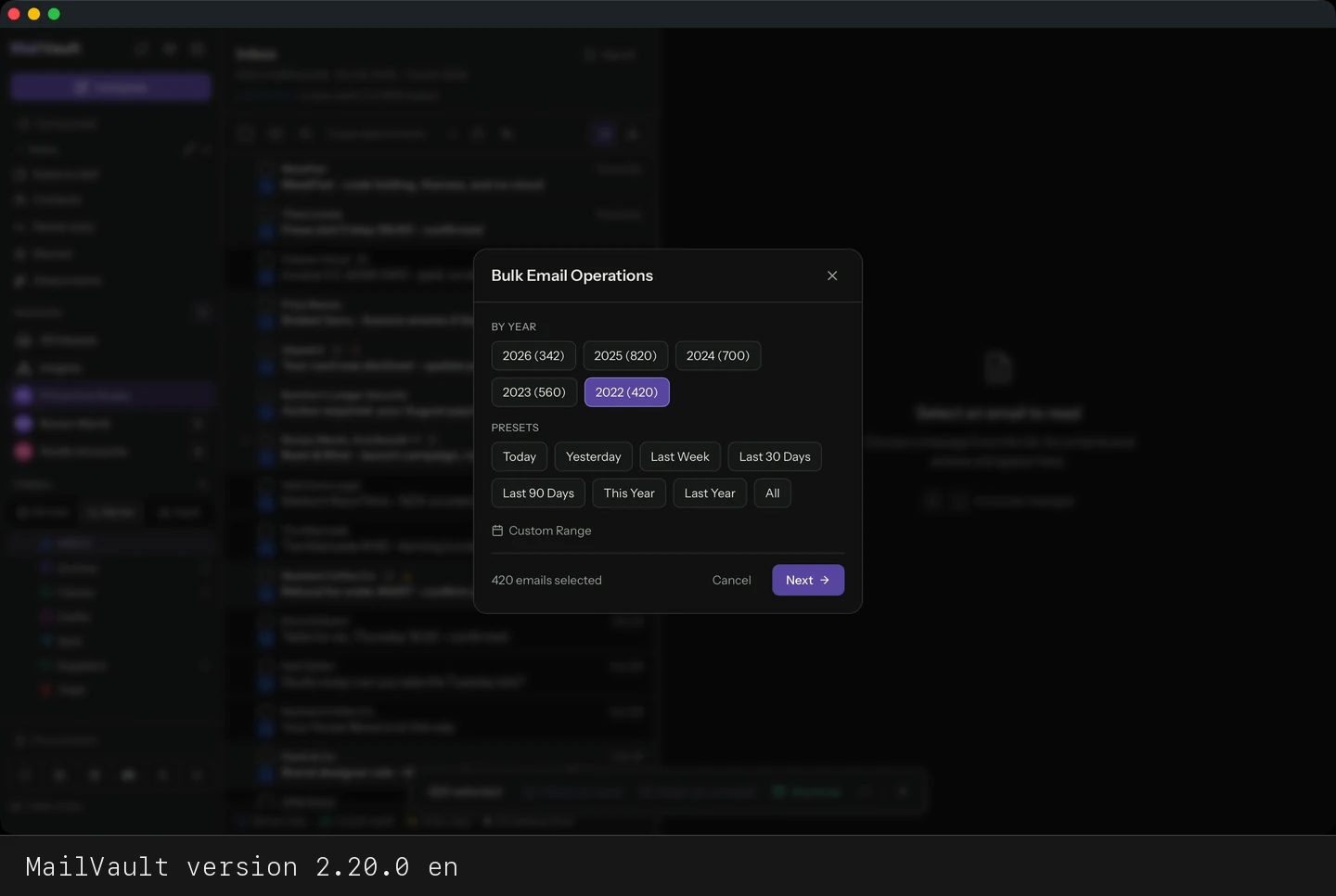
MailVault connects to Gmail, Outlook, Yahoo, iCloud and other IMAP accounts, and the copy step is what it is for. Its Bulk Email Operations dialog groups the server mailbox by year and shows how many emails each year holds, so a cutoff like 2022 becomes one or two clicks rather than a search you have to trust. Archive puts those years in your vault; Delete from Server removes them from the provider once you have looked at the copy. Both are free.
Premium adds Archive & Delete in one step, which verifies every copy before removing the original, and a background Archive & delete job for clearing several folders at once. I would still open a handful of messages in the Vault view first. Trust, then verify, then delete.
Every dialog, step by step, is on the MailVault site. I have thousands of emails. How do I delete them?
Sources and product details
Keep reading
- Find and delete large emails: the size search for each mail service
- Clear old emails for good: one purge, then rules that keep it clear
- Getting rid of old emails: delete, archive or export, compared
Keep the email history you need. MailVault archives messages as standard EML files on your computer, with local search and optional paid automation.
Explore MailVault →