
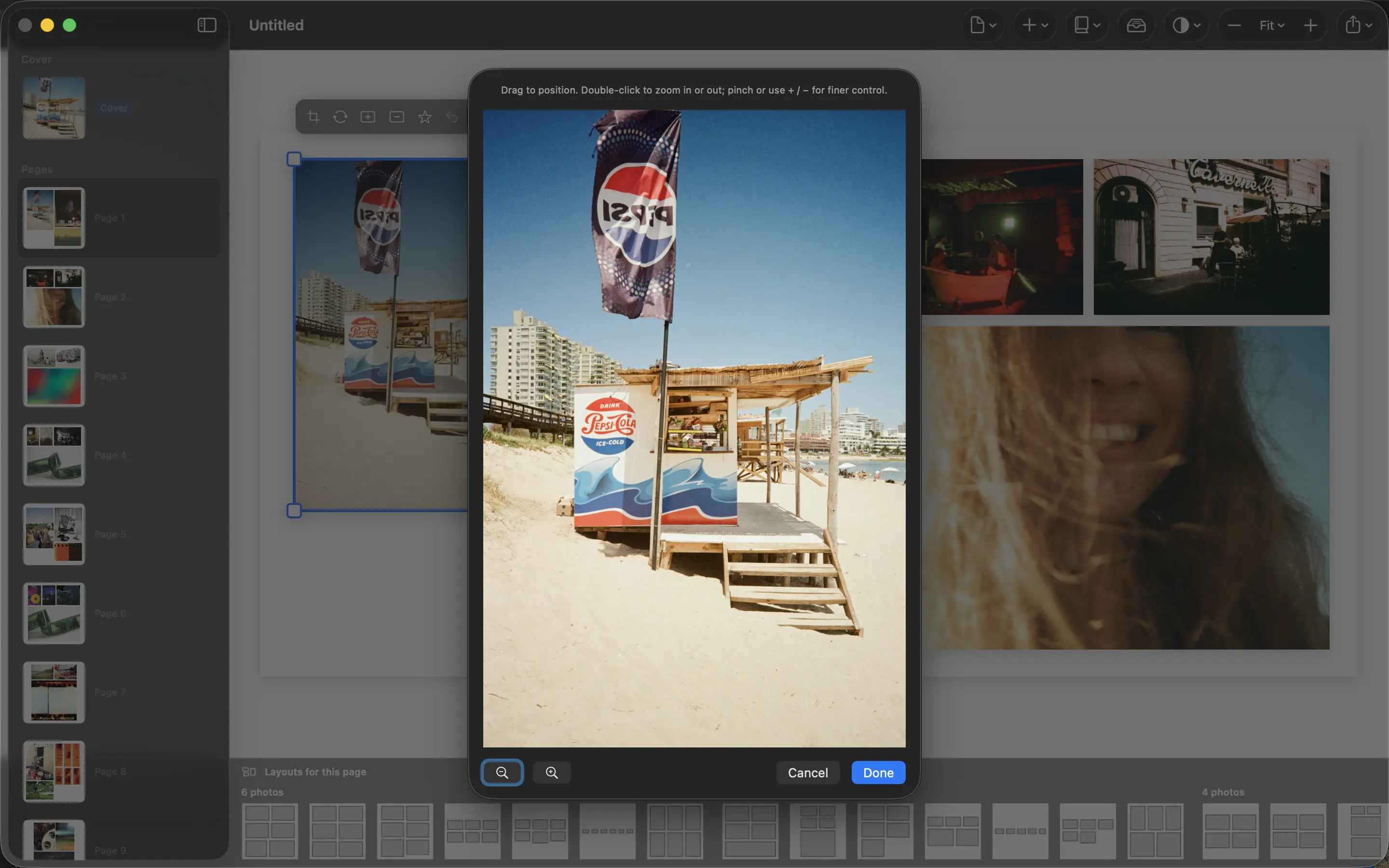
A small photograph is not automatically unusable. It needs a placement that matches the detail it contains. Enlarging a file changes its size on the page; it does not recover the information missing from the original.
Find the best available source
Look for the original camera file before using a picture downloaded from social media or saved from a message. Ask the person who took it for the full-resolution version. Avoid repeated screenshots and resaves when a better source exists.
Check pixel dimensions rather than file size alone. Compression can make a detailed photograph small on disk, while a large file can still contain a low-resolution image. A crop also reduces the pixels available for the part you print.
Match the placement to the detail
Pixels divided by printed inches gives a rough pixels-per-inch estimate. For example, a 1200-pixel-wide image placed four inches wide provides 300 pixels per inch; at eight inches wide it provides 150. This is a planning calculation, not a promise of quality.
Follow the printer’s guidance and consider the subject. Soft detail may be tolerable in a small atmospheric scene and distracting in a large group portrait. Use a smaller layout in PhotoBooks or avoid an aggressive crop when the file is limited.
Judge a physical sample
Inspect the exported PDF for visible artifacts, then use a print proof if the image is important. Screen zoom can reveal problems but does not show exactly how the paper will look at normal reading distance.
Keep a meaningful photograph even if it cannot fill a page. A small image with context can work well in a family book. Be cautious with enhancement tools: they may change faces or invent texture. Compare any edited result with the original and choose fidelity over a misleading impression of sharpness.
Sources and product details
Keep reading
- White space in photo books: giving your pictures room
- Making a baby’s first-year photo book
- A final checklist before printing your photo book
Make a book from your own photographs. Choose an Apple Photos album, refine the pages and export a PDF for printing or sharing.
Explore PhotoBooks →