To archive in Gmail, pick one or more messages and press the Archive button, or the E key once keyboard shortcuts are on. Gmail removes them from the inbox and keeps them under All Mail, where they still turn up in searches. Nothing is deleted, so archived mail keeps using your Google storage.
Archive, delete or filter: pick the right button
Gmail offers several ways to move a message out of the inbox. They sit next to each other in the toolbar and behave very differently.
| Action | What happens to the message | Use it for |
|---|---|---|
| Archive | Leaves the inbox and keeps any other labels; lives in All Mail | Finished mail you may want again |
| Delete | Goes to Trash and is removed for good after up to 30 days | Mail you will never need |
| Filter with Skip the Inbox (Archive it) | Matching new mail bypasses the inbox on arrival | Newsletters and notifications you read later, if at all |
| Move to Inbox | An archived message returns to the inbox | Undoing an archive |
A good habit: archive whatever is finished, and delete only what you are certain about. Undoing an archive takes one click. Undoing a delete is impossible once Trash is empty.
Three ways to archive a message
- In a browser: tick the messages you want, or open a single one, then use the Archive button in the toolbar.
- From the keyboard: switch on keyboard shortcuts in Gmail settings, and E archives whatever is selected or open.
- On a phone: inside an open message, tap the Archive icon; in the list, swipe. If your swipe sends mail to Trash, the swipe action can be changed in the app settings.
Look at that swipe setting before a long session on the train. Clearing a hundred messages with your thumb is easy, and finding out later that they went to Trash instead of All Mail is not fun.
Archiving a backlog in one pass
An inbox holding years of read mail is quicker to empty with a search than with scrolling. Use in:inbox before:2024/01/01, then the select-all checkbox. Gmail ticks only what is on screen, and a link appears offering everything the search found. Take the link, then Archive.
That link is the step people skip. Without it, one page goes and the rest of the backlog stays. For senders you never want in the inbox again, build a filter from the search options with Skip the Inbox (Archive it). Bear in mind a filter only handles mail arriving after you create it.
Getting archived mail back
On a computer, All Mail hides in the left menu under More, though searching by sender or subject is usually faster. Select the message and choose Move to Inbox to bring it back.
One behaviour surprises people: a new reply to a conversation you archived pulls the whole conversation back into the inbox. That is intended. In Gmail, archive means done for now, not gone.
What archiving does not do
It does not give you any space back. All Mail is part of the 15 GB that Gmail, Drive and Photos share. Space only returns when mail is deleted and Trash is cleared, and the figure Google shows may take a day or more to catch up.
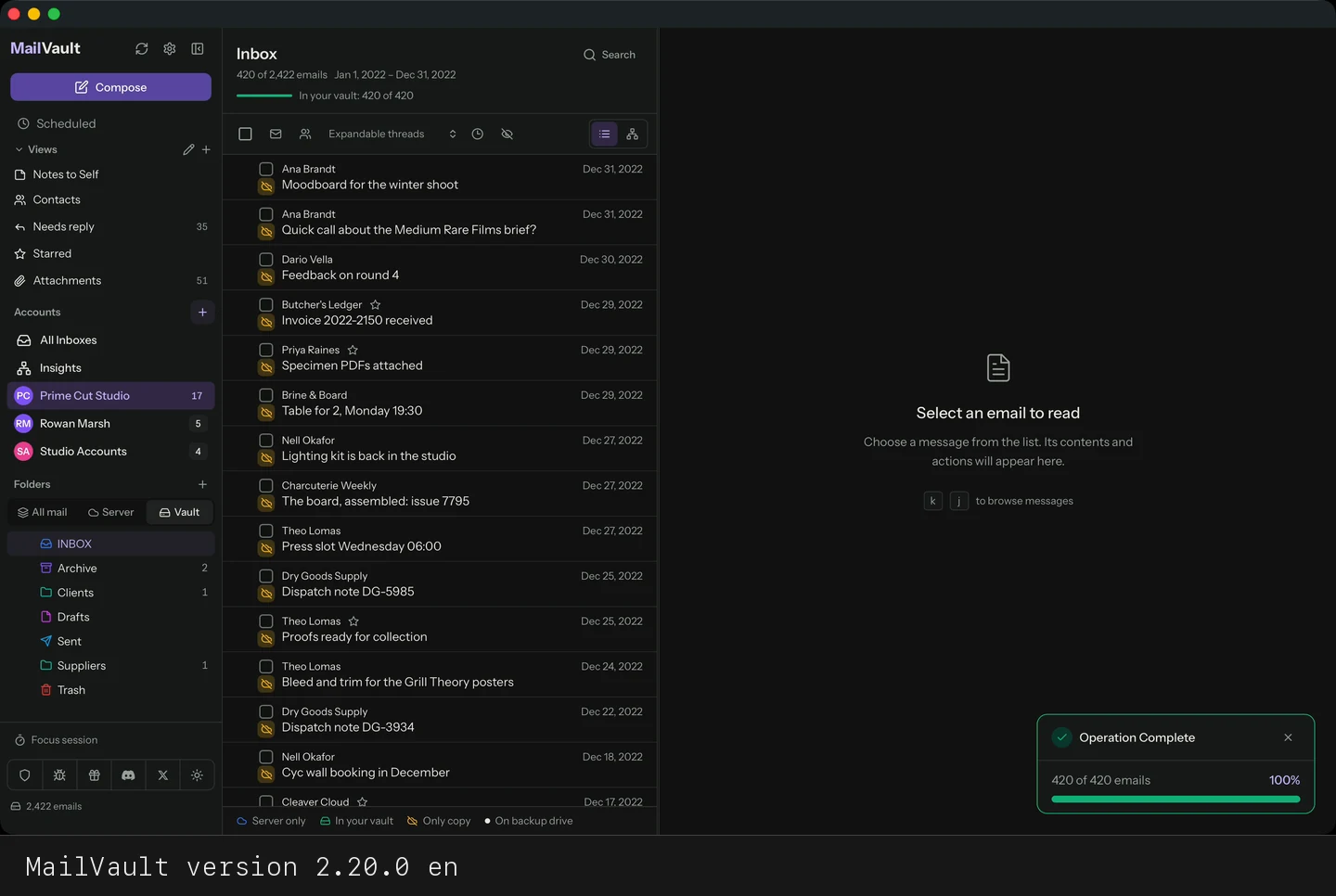
If you would rather keep the old years but stop storing them at Google, the copy has to live somewhere else first. That is what we built MailVault for: it signs in with your Google account, copies the years you pick onto your own computer as .eml files you can search offline, and leaves Gmail untouched until you decide otherwise. Archiving is free and has no limit.
The full walkthrough, phone steps included, is on the MailVault site. How to archive mail in Gmail, and where it goes
Why Archive never frees space, in Gmail or anywhere else: Archived email and your storage quota
Sources and product details
Keep reading
- Archived email and your storage quota: what actually counts
- Find and delete large emails: the size search for each mail service
- Clear old emails for good: one purge, then rules that keep it clear
Keep the email history you need. MailVault archives messages as standard EML files on your computer, with local search and optional paid automation.
Explore MailVault →