Apple no longer prints photo books. Its own print service in Photos took final orders on September 30, 2018, and Apple pointed users to Photos project extensions from the Mac App Store instead. Today you have three practical ways to make a photo book on a Mac.
What happened to Apple photo books and iPhoto books
For about 16 years, starting in 2002, you could design a book in iPhoto, and later in Photos, and order the printed copy from Apple. In July 2018 a notice in Photos on macOS 10.13.6 told users to place their final orders for books, cards, calendars and prints by September 30, 2018.
Apple did not replace the service with a new Apple-branded one. Instead, Photos suggests downloading a project extension from the Mac App Store: a third-party tool that runs inside Photos and handles the design and the order. So when you search for an Apple photo book creator today, what you find is either one of those extensions or a separate app or service.
Books you ordered before the deadline are of course still yours. What changed is where a new book is made and who prints it.
Three ways to make a photo book on a Mac now
Each route below can produce a good book. They differ mainly in where your photos go and who controls the final file.
| Route | How it works | Good to know |
|---|---|---|
| Photos project extension | In Photos, choose File, Create, a project type, then App Store, and install an extension. You design and order inside the extension. | The extension’s developer handles ordering, printing and support. Each extension has its own formats and prices. |
| Online print service | Upload photos to a print service’s website or app, design the book in its editor and order there. | Your photos are uploaded before you start designing. The project usually stays with that one service. |
| Layout app plus PDF | Design the book in an app on your Mac, export a print-ready PDF and upload it to a printer that accepts PDF files. | You can choose the printer, but you have to check its size, bleed and page-count requirements yourself. |
How to choose an Apple photo book replacement
Answer a few questions before you install anything. They usually point clearly to one route.
- Do you want one company to handle everything from layout to delivery? An extension or an online service is the shortest path.
- Do you want your photos to stay on your Mac until the finished book is ready? A layout app that exports a PDF keeps the design work local.
- Will you print the same book more than once, or perhaps with a different printer next time? A PDF you keep can be uploaded again.
- Do you also want a digital copy to share with family? Check whether the route gives you a file you can keep.
- How much control do you want over each page? Some editors favor speed, others let you change every crop.
There is no single right answer. Someone who orders one holiday book a year may prefer a service that does everything. Someone making an annual family series may value keeping the same file format and choosing the printer each time.
Where PhotoBooks fits
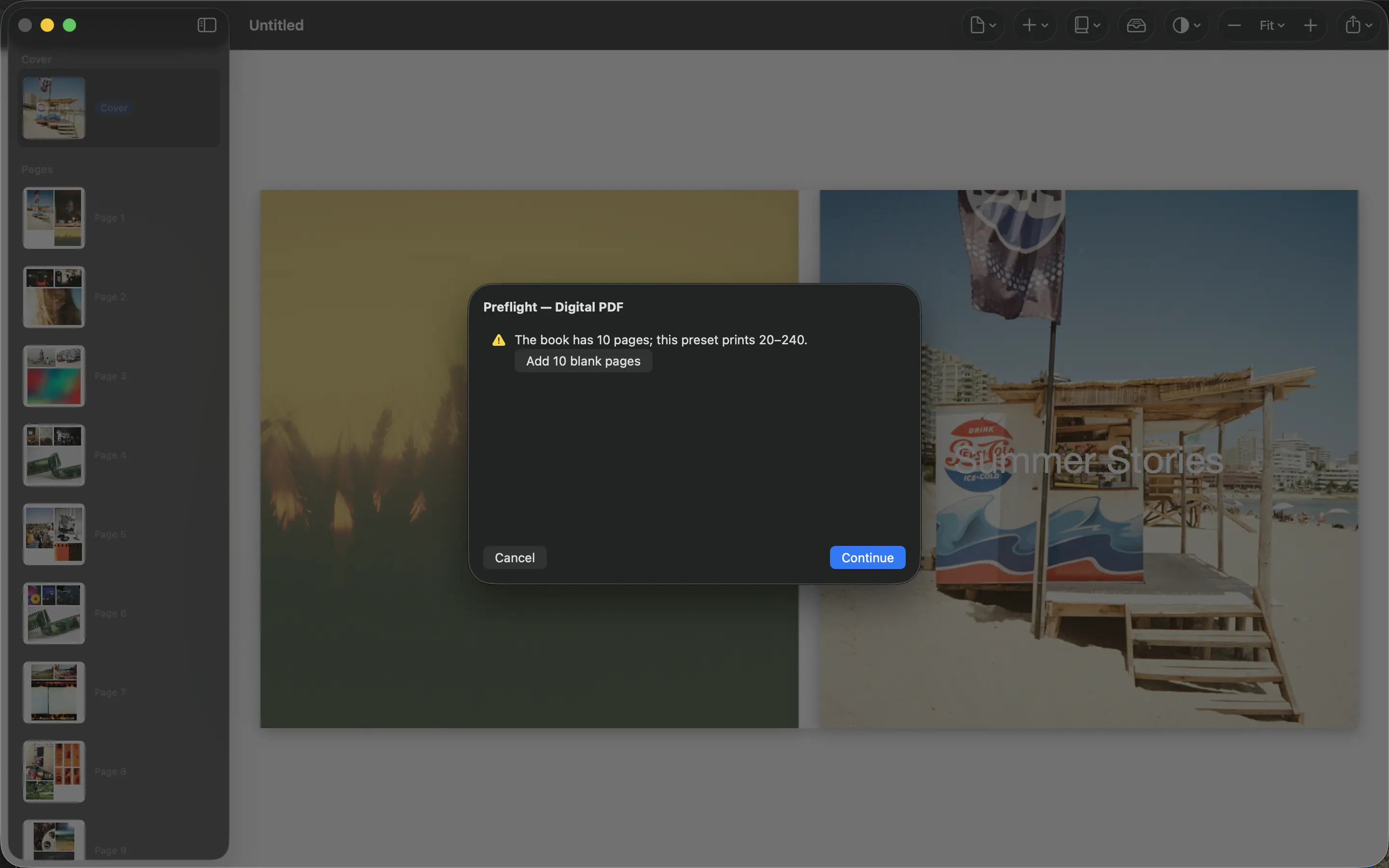
PhotoBooks, our free app for Mac (also available for iPhone and iPad), belongs to the third route. You choose photos from your Apple Photos library or from a folder, PhotoBooks arranges the pages automatically, and you adjust crops, layouts and the cover yourself. Photo selection analysis and layout run on your device, and there is no account and no export watermark.
It does not print or sell books. Export gives you a Digital PDF for screens, a Print PDF with bleed, or a Blurb Book export with separate interior and cover PDFs. Export does not place an order: you upload the file to a print service that accepts your chosen size and file setup, and pay that service for printing.
For the full workflow from an album to a finished file, read the step-by-step guide. Turn an Apple Photos album into a photo book
From an Apple Photos album to a printed book
If you used to make books in iPhoto or Photos, the familiar part stays the same: start with an album. The difference is that the print step is now separate.
- Collect the photos for the book in an album in Photos.
- Pick a print service and read its requirements: book sizes, bleed, page count and how it wants the cover supplied.
- Create the book in PhotoBooks with a format that matches those requirements, then edit the pages and the cover.
- Export the PDF and open it outside the app to check every page.
- Upload the file to the print service and order a single copy first if the book matters.
Before you upload, check the file against the printer’s specification. Preparing a photo book PDF for printing
Sources and product details
- PhotoBooks: features and workflow
- 9to5Mac: Apple discontinuing Photos print products (July 2018)
- Macworld: Apple ends its photo printing service after 16 years
- Apple Support: Create and order print products in Photos with Project Extensions
- PhotoBooks documentation: PDF export and printing
Keep reading
- How to make a photo book from Apple Photos on a Mac
- How to make a photo book from iPhone photos
- Preparing a photo book PDF for printing
Make a book from your own photographs. Choose an Apple Photos album, refine the pages and export a PDF for printing or sharing.
Explore PhotoBooks →