PDF export and printing
Choose Digital PDF, Print PDF or Blurb Book, resolve preflight issues and check the finished files.
PhotoBooks 1.2.0 · User guide · Reviewed
Choose the right export#
| Export | What you receive | Use it for |
|---|---|---|
| Digital PDF | A screen-resolution PDF. | Sharing and reading on a device. |
| Print PDF | A print-ready PDF with bleed. | A print service accepting the chosen dimensions and file setup. |
| Blurb Book | Separate interior and cover PDFs. | Blurb PDF-to-Book workflows using a matching book specification. |
Export does not place a print order. Check the service’s accepted page dimensions, bleed, page count and cover requirements before uploading. A Digital PDF is intended for viewing, not as a substitute for the print export.
Resolve missing photos and review print warnings#
- Choose Export in the editor. Read the preflight list before continuing.
- Relink or remove missing photos; missing originals block export.
- For a low-resolution warning, replace the image with a higher-resolution original, use a smaller frame or reduce crop zoom. PhotoBooks flags effective resolution below 200 DPI.
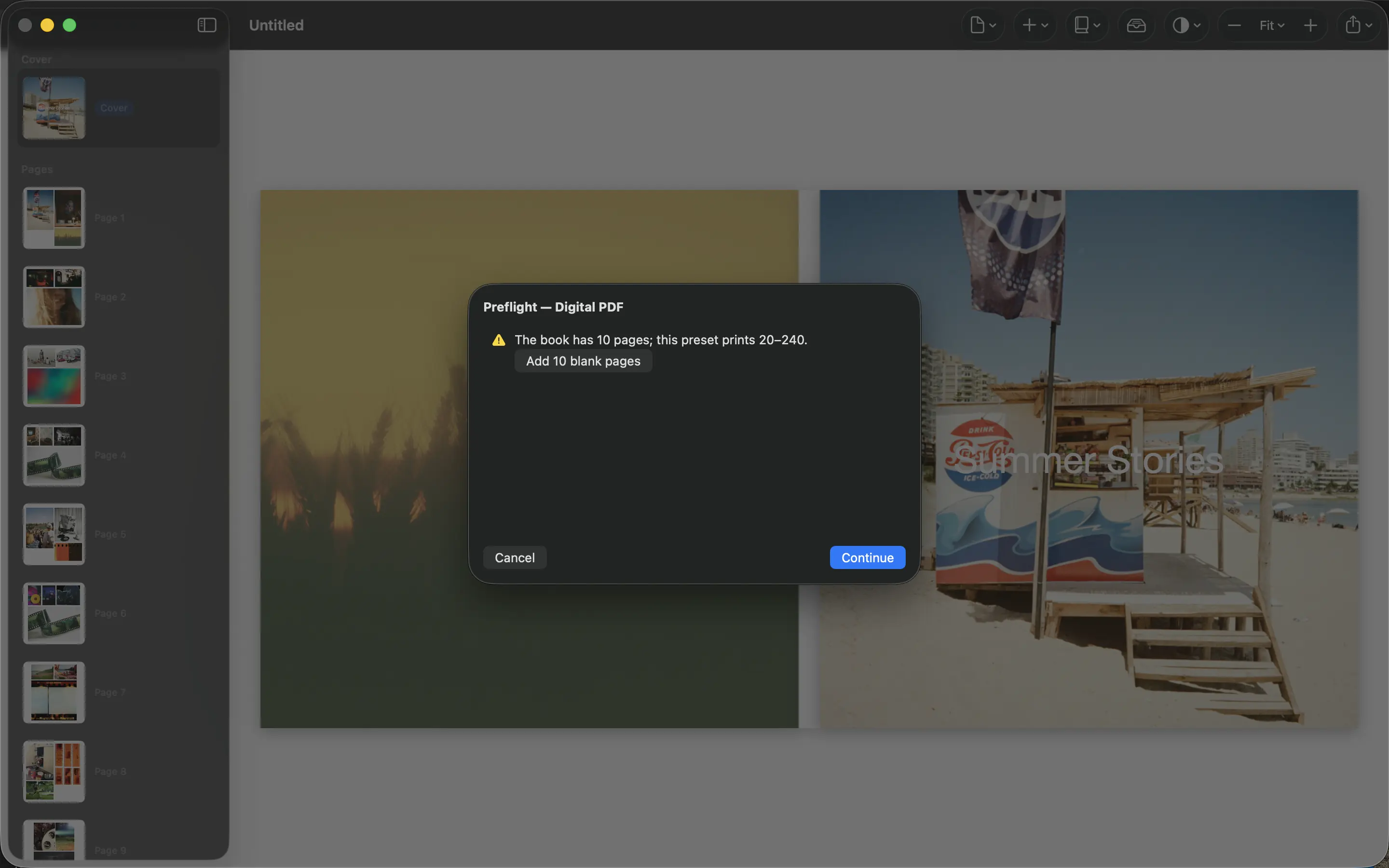
- For a page-count warning, check the selected preset’s allowed range. If the book is too short, the offered Add blank pages action can bring it to the minimum.
- Fix overflowing text on the affected page. Review non-blocking warnings even when Continue is available.
Preflight can point you back to the affected page or photo. The absence of a blocking error does not replace checking the exported PDF and your printer’s requirements.
Export and inspect the finished files#
- Continue from preflight and select the export type.
- For Blurb Book, choose a destination folder. PhotoBooks writes an interior PDF and a cover PDF there.
- For Print PDF or Digital PDF, choose Export…, wait for the PDF to render, then choose where to save it.
- Open the saved PDF outside the app. Check the cover, page order, crops, captions and any blank pages. For Blurb, inspect both files.
- Keep the editable PhotoBooks document as well as the PDFs. A PDF is the finished output, not an editable book backup.
Read the video transcript
Open Export and review the preflight checks. This small demonstration book retains non-blocking page-count and low-resolution warnings; it is not a print-readiness example.
Continue, explicitly select Digital PDF, and choose Export.
Choose a destination folder and filename in the native save panel, then save. PhotoBooks shows Your book is ready. The saved demonstration PDF was verified as a readable two-page PDF.
Recover from an interrupted export#
If export fails, read the displayed error. Retry Failed Photos retries image-fetch failures; Try Again retries other failures. Make sure source folders or drives are still available and that Photos can retrieve any iCloud originals. If the destination is unavailable, close the flow and choose an accessible destination.
After cancellation or a failed two-file export, verify that you have a complete interior/cover pair before uploading anything to a printer.