Yes, you can make a photo book from your iPhone photos. The dependable route is to gather them in an album, make sure the full-resolution originals are available, lay out the pages, export a PDF and send it to a print service. The camera is rarely the weak point; the workflow is.
Start with an album on your iPhone
Choosing photos is easiest on the device you took them with. Create a new album in Photos on your iPhone and add every picture that might belong in the book. Be generous at this stage; you will narrow it down later.
Name the album after the book, for example the trip and the year. If you use iCloud Photos, changes you make on one device appear on your other devices too, so the album you start on the phone is usually waiting in Photos on your Mac as well.
If the shortlist keeps growing, a three-pass selection helps. How to choose photos for a book
Get the photos to your Mac at full quality
Apple describes three ways to move photos from an iPhone to a Mac. All of them can give you full-quality files, but each has one thing to watch.
| Method | How it works | Watch out for |
|---|---|---|
| iCloud Photos | Photos sync automatically between your iPhone and your Mac. | With Optimize Storage on, a device keeps smaller versions and the originals stay in iCloud until they are downloaded. |
| USB cable | Connect the iPhone to the Mac and import in the Photos app. | Only the photos you choose to import arrive on the Mac. |
| AirDrop | Send selected photos wirelessly to the Mac. | Practical for a handful of photos, slower to manage for a whole book. |
If your Mac uses Optimize Storage, you can switch it to keep full-size originals: in Photos, open Settings, choose the iCloud tab and select Download Originals to this Mac. Avoid moving photos through a messaging app. Many send a reduced copy by default, which can look fine on a phone and soft on a printed page.
Can you make the photo book on the iPhone itself?
Yes. PhotoBooks runs on iPhone and iPad with iOS or iPadOS 18 or later, as well as on Mac with macOS 15 or later, and it can use photos from your Photos library on each of them. On the phone you work with taps instead of a mouse, and the toolbar is arranged for the smaller screen.
For the final review, a larger screen still helps. Checking crops near the page edge, small captions and a whole two-page spread is easier on a Mac or an iPad. A practical split is to choose the photos on the phone and finish the book on the larger screen.
You do not need to convert your photos first. An iPhone can save photos in the High Efficiency format or as Most Compatible JPEG files, set in Settings, Camera, Formats. PhotoBooks reads both.
Lay out the book, export it and print it
Once the album is ready, the rest is the same on any device.
- In PhotoBooks, start a new book, choose From Photos and select the photos from your album in the photo picker.
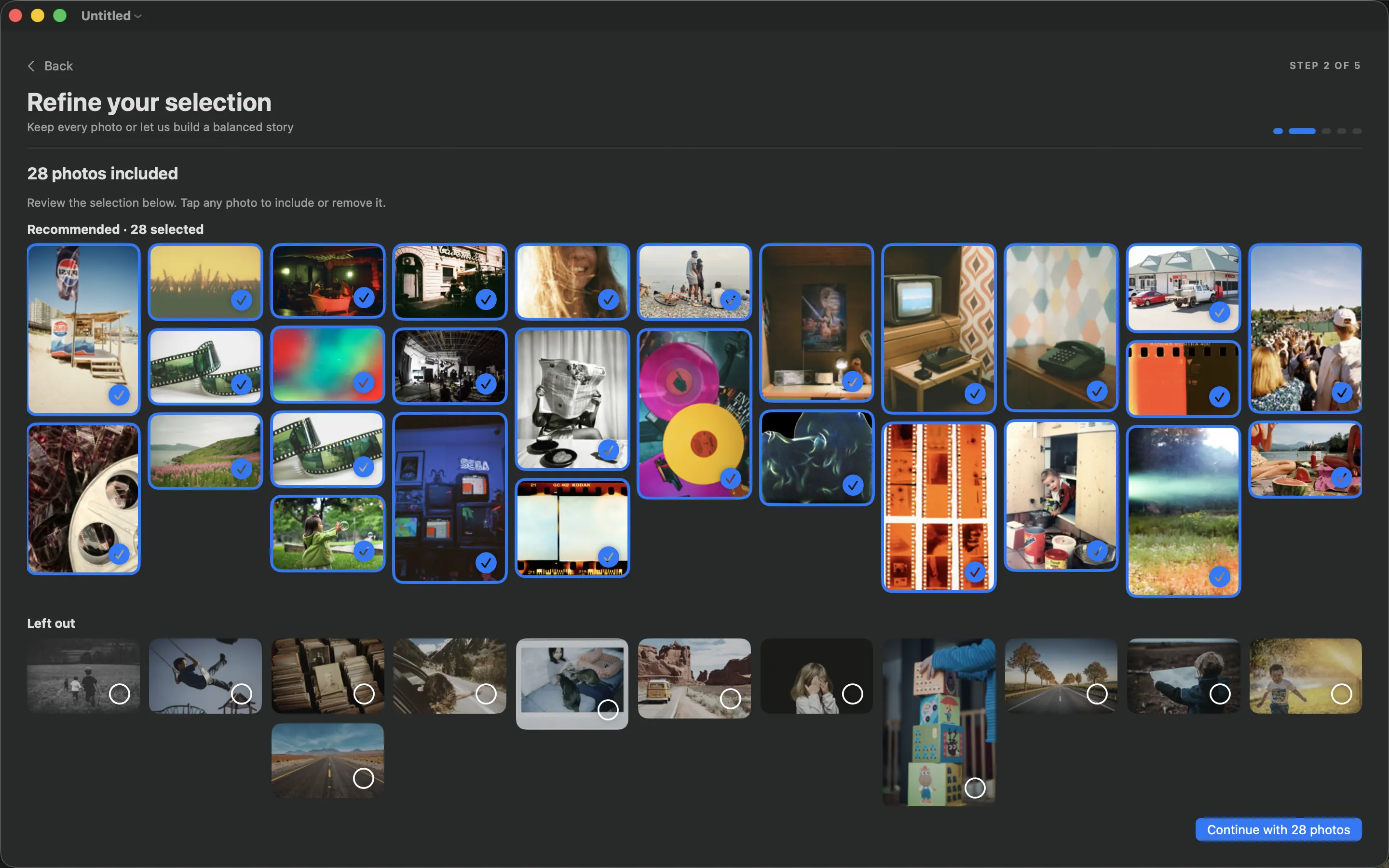
- In Refine your selection, keep every photo or let the app propose a balanced selection, then review what is included.
- Choose a shape and a size that your print service offers, and let PhotoBooks arrange the pages.
- Fix crops, try other layouts and give the cover a title.
- Choose Export and read the preflight list. PhotoBooks warns when a photo would print below 200 DPI at its size on the page.
- Export a Print PDF, open it and check every page, then upload it to the print service.
PhotoBooks makes the file; it does not print the book. The print service you choose handles the order, the price and delivery.
Common problems with iPhone photo books
Most disappointing prints from phone photos trace back to the file, not the camera.
- A photo saved from a chat or social media instead of the original from the camera roll.
- A screenshot of a photo used in place of the photo itself.
- A photo that was cropped heavily, leaving only a small part of the original pixels for a large frame.
- An original still stored only in iCloud, which needs to download before export can finish.
- A tall portrait photo forced into a wide frame, cutting off heads or feet.
To see how many pixels each page size needs, use the resolution table. Photo resolution for a photo book
Sources and product details
- PhotoBooks: features and workflow
- Apple Support: Transfer photos and videos from your iPhone or iPad to your Mac or PC
- Apple Support: Set up and use iCloud Photos
- Apple Support: Using HEIF or HEVC media on Apple devices
- MacRumors: How to send high resolution photos in WhatsApp
- PhotoBooks documentation: Getting started
Keep reading
- How to make a photo book from Apple Photos on a Mac
- Photo resolution for a photo book: pixels per size
- A final checklist before printing your photo book
Make a book from your own photographs. Choose an Apple Photos album, refine the pages and export a PDF for printing or sharing.
Explore PhotoBooks →