
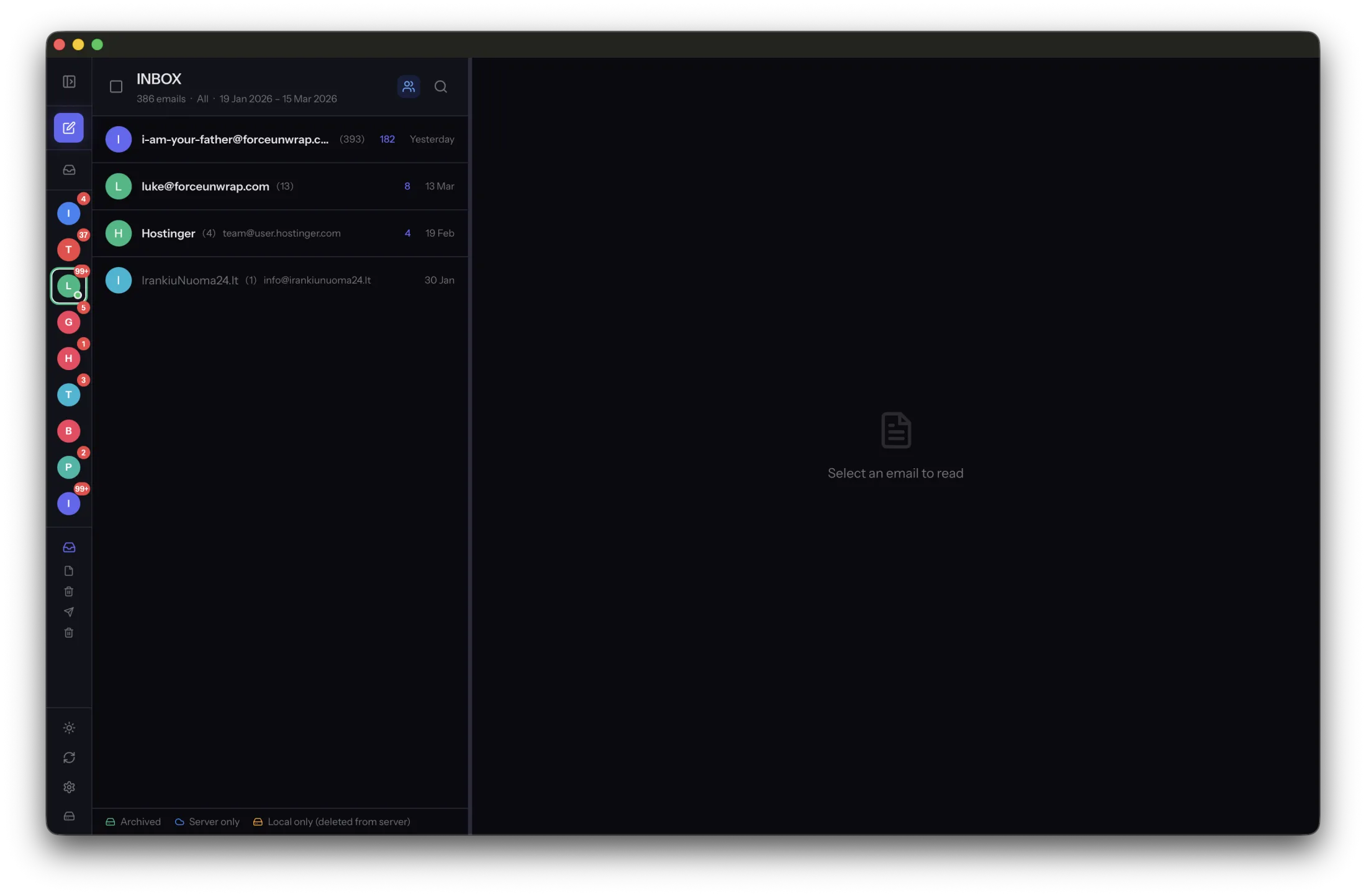
A full mailbox creates pressure to delete first and think later. Reverse that order. Decide what to preserve, save it independently and verify it before removing anything from the server.
Find the material worth moving
Review old periods and large attachments, but do not assume the oldest message is the least valuable. Completed projects and past purchases may be useful long after the conversation ends. Choose a small date range or folder for the first batch.
Record the scope of the batch and the provider’s current storage usage. A message count alone does not tell you how much space you will recover, and provider storage reporting may take time to update.
Check the local copy before deleting
Archive the selected messages in MailVault. Open several from the oldest and newest dates, including ones with attachments. Confirm the message bodies are available locally; a searchable subject or cached preview is not enough.
Create a backup on a separate destination and inspect it too. MailVault’s one-step Archive & Delete and Archive, Back up & Delete workflows are Premium features. Separate manual archiving and deletion remain available; whichever path you choose, do not skip verification.
Remove a small batch and confirm the result
Delete only the server messages covered by the verified batch. Check your provider’s trash and retention behavior before expecting storage to be freed. Avoid emptying unrelated trash merely to make the storage number change.
Then confirm the archived messages still open without relying on the server. Compare the before-and-after storage report and repeat with the next batch. Keep recent or active conversations online when convenient. The objective is usable history and a healthier mailbox, not the largest possible deletion in one sitting.
Sources and product details
Keep reading
- What is an EML file, and why does it matter?
- A practical folder structure for your email archive
- How to keep old emails readable without the original app
Keep the email history you need. MailVault archives messages as standard EML files on your computer, with local search and optional paid automation.
Explore MailVault →