Importing and selecting photos
Import from Apple Photos or folders, handle permissions and refine an automatic selection.
PhotoBooks 1.2.0 · User guide · Reviewed
Choose photos from Apple Photos#
- Choose From Photos in the new-book setup.
- Allow the requested Photos access. Pick the photos you want in the native picker and finish the selection.
- Review the selection before generating the book. If you use limited library access, make sure the intended photos are available to PhotoBooks.
If access is denied, the app offers Open Settings and Use Folder Instead. Grant access in your device’s Photos privacy settings, or import image files from a folder. Photos stored only in iCloud may need to download from Apple before import or export can finish.
Import a folder and its subfolders#
- Choose From Folder and select a folder containing your original images.
- When the app finds several folders containing images, use Choose folders to select the folders to include. Review the photo previews and exclude unwanted images.
- Continue to selection review. Keep the source folder available while editing and exporting.
Folder import supports JPEG, HEIC/HEIF, PNG, TIFF and supported RAW files. A file must contain a readable image; changing its extension does not convert it. If import reports no images, try a folder of known-good JPEGs to check whether the issue is the files or access to the folder.
Read the video transcript
Choose New book from a photo folder. Select the folder of photos in the native folder chooser; that separate chooser is omitted from this window-only recording, and its waiting time is cut.
In Refine your selection, choose Keep every photo.
PhotoBooks advances to Choose a book shape with the imported photographs retained.
Review a balanced selection#
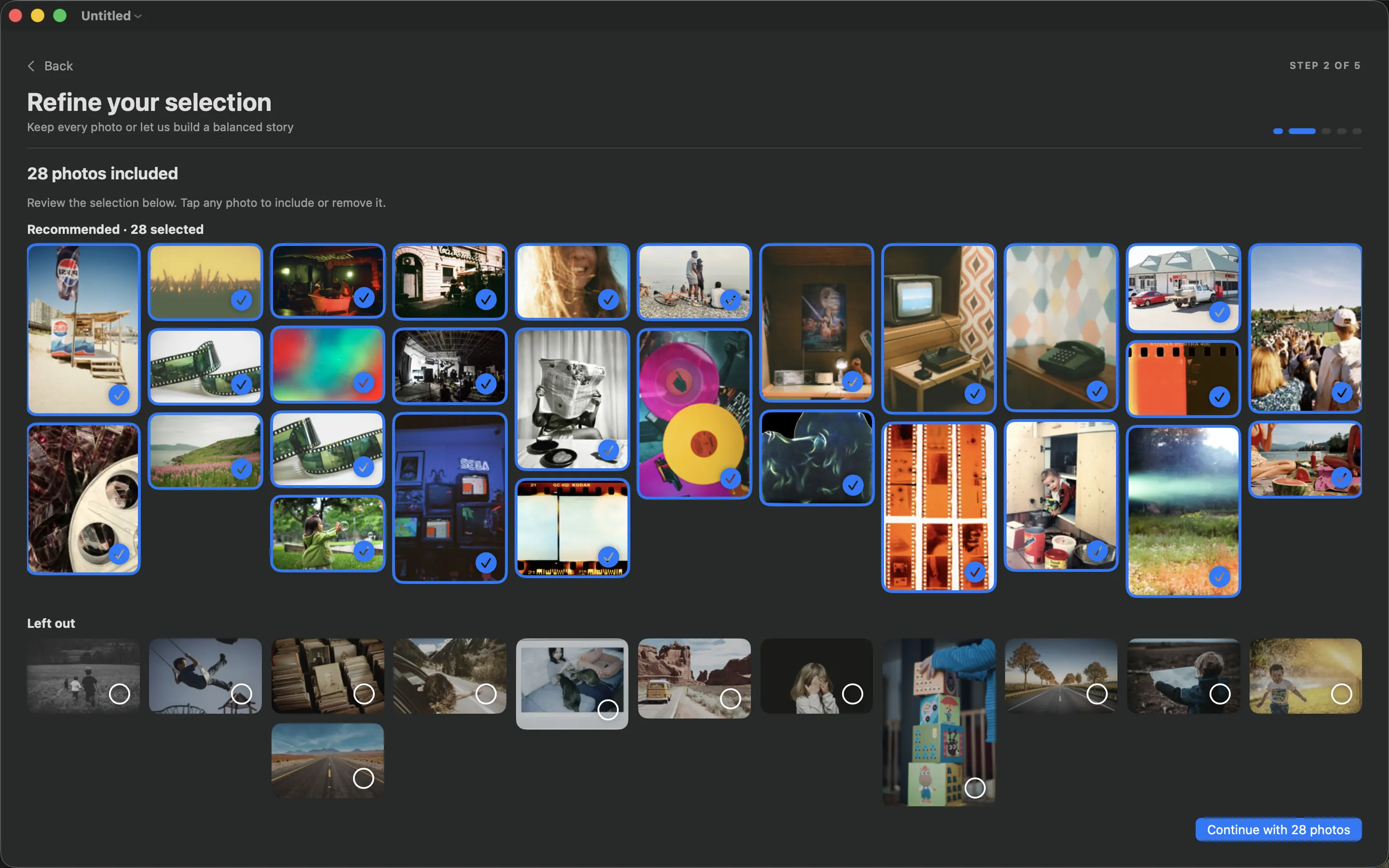
- In Refine your selection, choose Keep every photo to skip selection analysis, or set a target and choose Create a balanced selection.
- Wait for the on-device analysis. It proposes a selection using image quality, similarity and the distribution of moments.
- Review the recommended and left-out photos. Tap or click a photo to include or remove it.
- Continue with the selected photos. The target is a starting point; the final layout and page count still depend on your format and editing choices.
Leaving a photo out of this book does not delete it from Apple Photos or its source folder.