Cropping and photo tools
Fix a crop, swap images, emphasize a photo and use the unplaced-photo tray.
PhotoBooks 1.2.0 · User guide · Reviewed
Adjust a photo’s crop#
- Select a photo and choose Adjust photo, or double-click it on Mac.
- Drag the image to position it inside its frame. Pinch or use the zoom buttons for finer control; double-click in the crop editor to change zoom.
- Check the subject against the frame edges and the book’s gutter.
- Choose Done to apply the crop and lock the frame, or Cancel to leave it unchanged.
Crop zoom changes the photo inside its frame. The main toolbar’s zoom only changes your view of the book. Heavy cropping reduces the effective resolution available for printing.
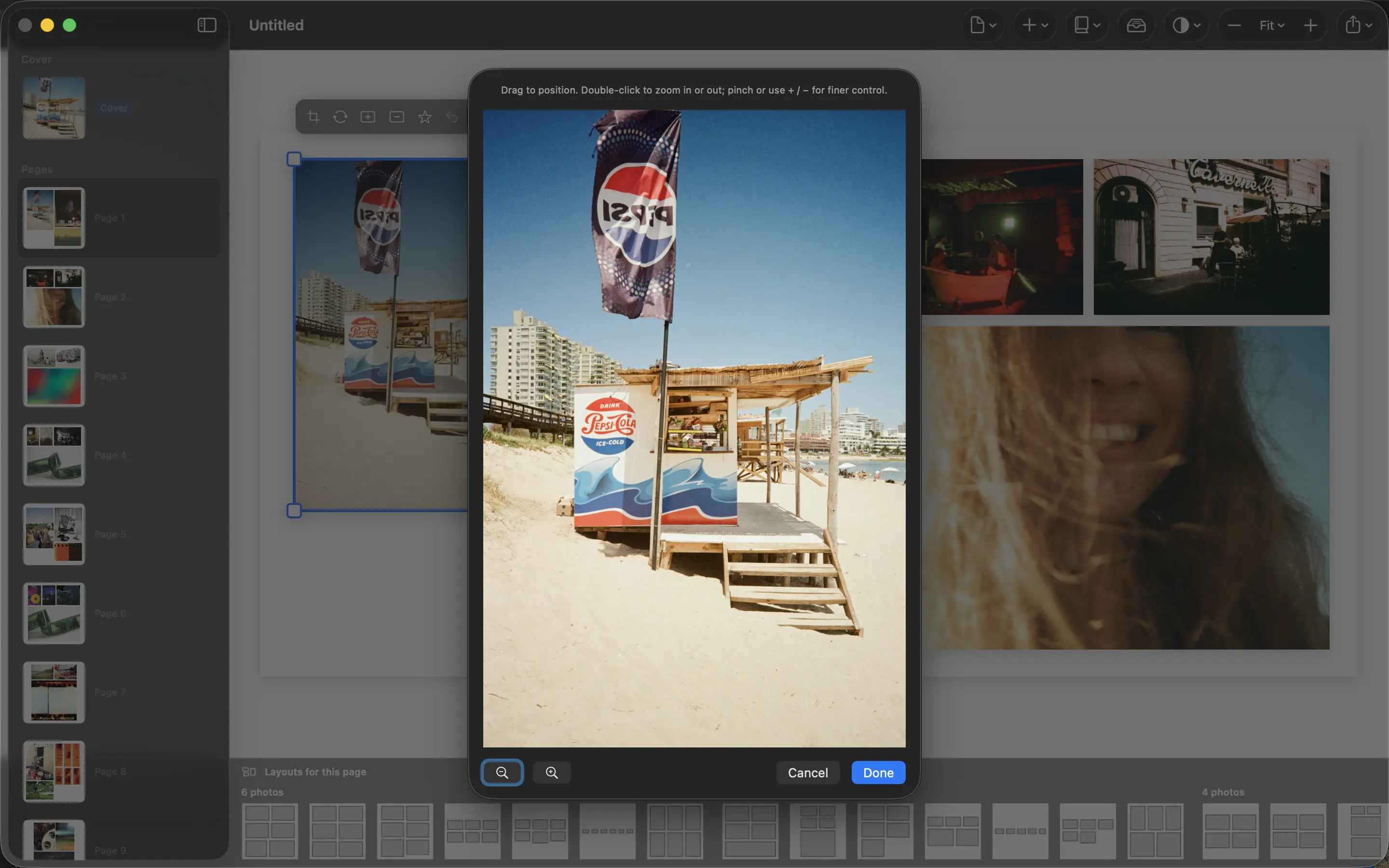
Read the video transcript
Select the street photo on an interior page, then choose Adjust photo.
Click Zoom in twice, then drag the image to reposition the street within its frame.
Choose Done. The page shows the tighter crop, and PhotoBooks locks that photo frame.
Replace or emphasize a photo#
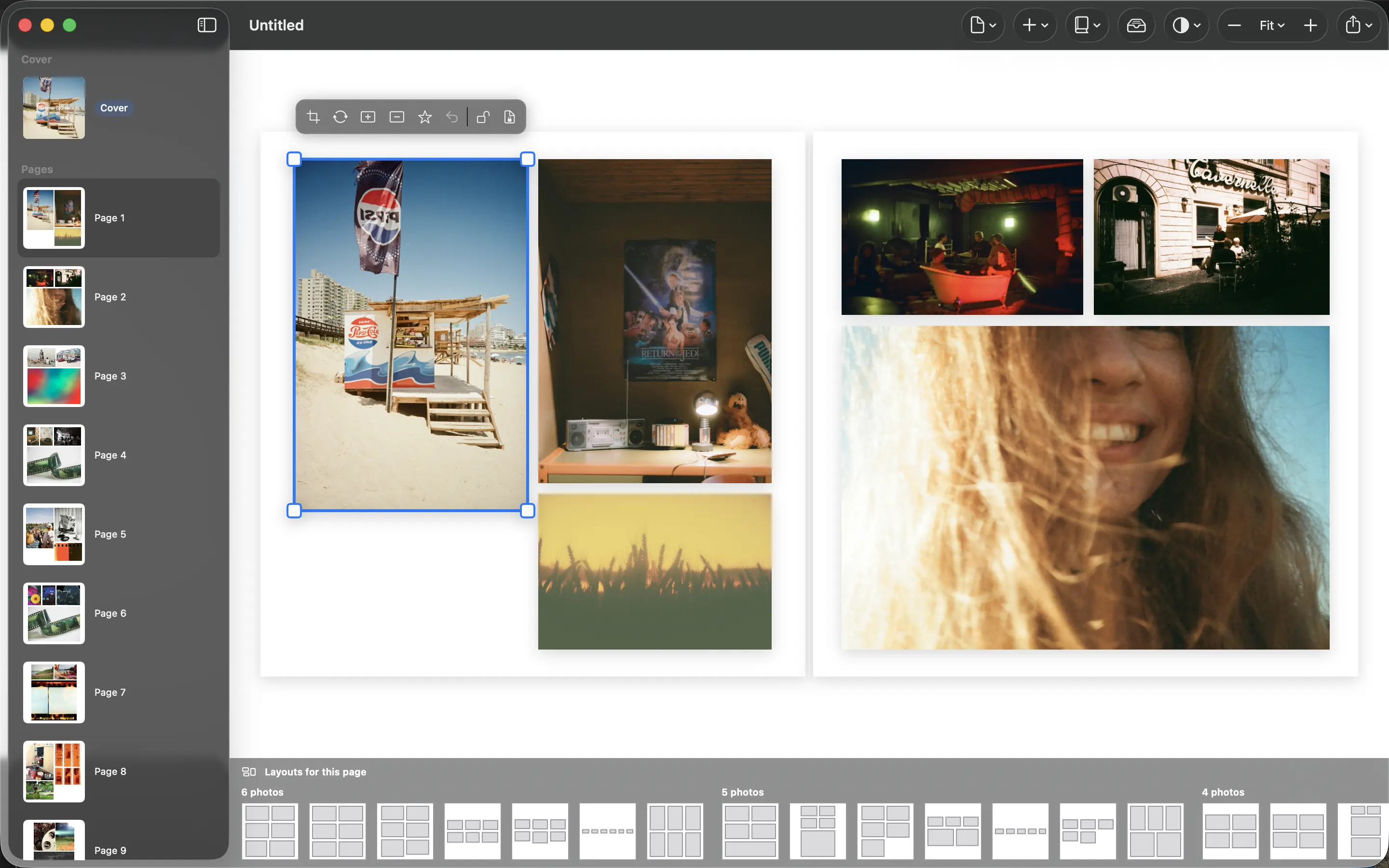
- Select the photo you want to change and choose Replace.
- Tap or click another placed photo or a photo in the tray to swap it in. On Mac, Escape exits replacement mode.
- Choose Make key to emphasize an eligible photo by reducing surrounding photos. If the action is unavailable, check whether the photo is locked or already cannot grow further.
You can also drag a selected frame and resize it using the corner handles. To hand placement back to the layout engine, use Reset to auto layout when available.
Use photos that have not been placed#
Choose Photos to show the unplaced-photo tray. These images belong to the book’s selection but are not currently used on its pages. Use them as replacements, or choose Add → Place Remaining Photos to place the remaining images.
A photo in the tray is not missing. Missing photos have unavailable source files or Photos-library assets; follow the relinking guide for those.