Pages, layouts and book format
Try layouts, adjust photo density, protect finished pages and change the book’s size.
PhotoBooks 1.2.0 · User guide · Reviewed
Choose a layout and adjust photo density#
- Select an interior page in the page browser.
- Choose an alternative in Layouts for this page. Review the resulting crops and spacing.
- Use Page → Add One Photo or Remove One Photo to change density when available. The photo actions offer the same choices as More and Fewer.
- Inspect neighboring pages afterward: adding draws a photo from the next page, and removing moves one onward.
Use Merge Facing Pages to convert an eligible facing pair into a spread. Split Spread returns it to separate pages. Availability depends on the selected page, its locks and its current layout.
Read the video transcript
Select the interior page showing five demo photographs.
Choose the second layout in the five-photo group in the layout strip.
The five photographs remain on the page in a changed arrangement: narrower cells with a gap in the lower middle.
Keep a photo or page in place#
Lock photo protects one photo’s frame during reflow. Lock page protects the whole page. You can also open a page thumbnail’s context menu and choose Lock Page. Unlock the corresponding item when you want automatic layout to move it again.
- Finish the pages you want to preserve and lock them.
- Choose Book → Rebuild Unlocked Pages to try another arrangement for the remaining pages.
- Review the result and use Undo if you prefer the previous arrangement.
Locks protect automatic layout; they are not a read-only mode. Deliberate style changes can still change a locked page’s appearance. Applying a crop also locks that photo’s frame.
Set edges and page backgrounds#
| Choice | Appearance |
|---|---|
| Framed | A margin around the page and gaps between photos. |
| Tiled | Photos reach the page edge, with gaps between them. |
| Borderless | Photos tile edge to edge without gaps. |
Choose Book → Default Photo Edges and Book Background for the book. Use Page → Photo Edges or Page Background for the selected page, and Reset Page Style to return it to the book defaults.
Canvas changes the workspace behind the book. That workspace color is not printed; use the page or book background controls for color in the exported PDF.
Change size or shape and review the result#
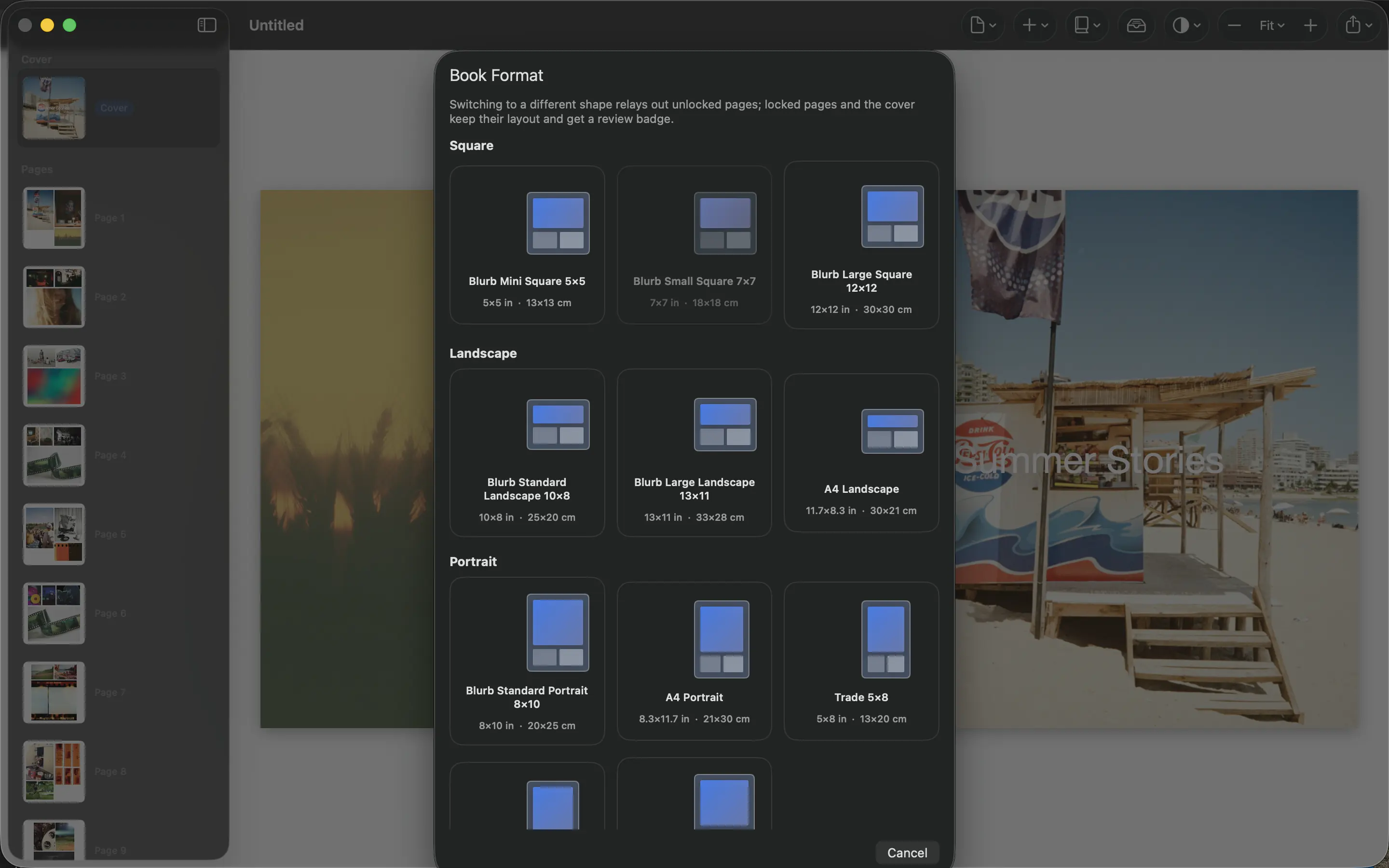
- Choose Book → Book Size and Format….
- Select a preset with the dimensions you need. Check the printer’s requirements before choosing a print format.
- When changing shape, review the rebuilt unlocked pages. Locked pages and the cover retain their layouts and receive review badges.
- Open the flagged pages and inspect their framing, text and margins at the new size. Run export preflight again.
Changing format late in the process can change the visual balance and effective print resolution. Keep a saved copy before trying a substantially different format.
Reorder the story#
Reorder interior pages in the page browser. On compact layouts, use the Reorder control and finish with Done. The cover stays first. After moving pages, inspect the facing pairs to make sure the story still reads in the intended order.