Snippets, commands and macros
Insert reusable text, run reviewed shell transformations and record repeatable editing actions.
MeatPad 0.31.4 · Released 13 October 2026 · Reviewed 20 October 2026
Create and insert a snippet#
- Open Settings → Snippets. Select a built-in snippet to inspect its trigger and language scope.
- Choose Duplicate as editable copy to customize a built-in, or Add snippet to make a new one.
- Fill in Name, Trigger and Body; expand Languages to choose a scope; choose Save. No selected languages means all languages.
- Focus an editor and choose Commands → Insert Snippet, then the snippet. You can also expand its trigger with Tab when the trigger matches.
- Use Tab / Shift-Tab to move between placeholders and Escape to finish the snippet session.
Snippet bodies support numbered tab stops such as $1, placeholders such as ${1:name} and a final $0 position. Nested placeholders and repeated numbered stops (mirrors) are supported. Escape literal dollar signs, backslashes or closing braces in snippet syntax. Regex transforms such as ${1/…/…/} are not supported. A user copy with the same trigger and language scope can shadow a built-in snippet. Built-ins are read-only; delete your user copy to remove that customization.
Save and run a shell command#
- Open Settings → Commands and choose Add command.
- Set Name and Script. Choose Input: None, Selection or Document.
- Choose Output: Replace Selection, Insert at Caret, New Note or Output Panel. Set a Key Equivalent if needed.
- Review the timeout (default 30 seconds), Restricted environment and the Languages disclosure for scope, then choose Save.
- Focus an editor and choose your command from the Commands menu. Check the produced text or output panel. Choose Cancel Command to stop an active execution. To test safely, select
helloin disposable text and runtr a-z A-Zwith Selection input and Replace Selection output; only that selection becomesHELLO.
To run an ad-hoc transformation, choose Commands → Filter Through Command… (⌥⌘R). Selection input with no selection receives the entire document; Replace Selection with no selection replaces the whole document. Commands act on the current selection, not every caret, and only one command runs at a time. Failed commands, stderr or timeout send output to the output panel rather than replacing text; note windows use a new note instead. Commands are real shell scripts: they can read, change or send data according to their contents and your permissions. Restricted environment retains TM_* context plus PATH, HOME, SHELL, LANG and TMPDIR instead of the full inherited environment; it is not a macOS security sandbox. Avoid shortcuts already owned by standard menus; a clash is marked in Settings.
Filter text through a one-off shell command#
- Select some disposable text in the focused editor.
- Choose Commands → Filter Through Command… (⌥⌘R).
- Enter
sort -uin Shell command to sort selected lines and remove duplicates, or enter your reviewed transformation. - Choose Input (None, Selection or Document) and Output (Replace Selection, Insert at Caret, New Note or Output Panel).
- Choose Run and inspect the result, or Cancel to close without running. The dialog remembers the last command and mode choices.
Selection/Replace Selection without a selection means the entire document. Output Panel opens a new note when run from a note window. The project output panel shows status/output and provides Cancel for a running process and Close output panel. A typed command is trusted by authorship, so review it before pressing Run.
Use editor context in a command script#
Saved commands receive TextMate-style context variables when that context exists. Use them in your shell script with normal shell quoting, and do not assume project-only values exist in a note window.
| Variable | Context |
|---|---|
| TM_SELECTED_TEXT | Current selected text, when present |
| TM_FILE_PATH / TM_DIRECTORY | Active project file and its containing directory |
| TM_PROJECT_DIRECTORY | Project root |
| TM_LINE_NUMBER / TM_COLUMN_NUMBER | Current line and column |
| TM_CURRENT_LINE / TM_CURRENT_WORD | Text around the caret |
| TM_MODE | Current language identifier |
The command’s Input setting controls standard input separately from these variables. Restricted environment limits inherited environment values while retaining the supported command context; it does not block filesystem or network operations.
Import a bundle and review command trust#
- In Snippets or Commands settings choose Import Bundle… and select a TextMate
.tmbundledirectory. ItsSnippets/*.tmSnippetandCommands/*.tmCommandentries are imported when compatible. - Read the import report, including any skipped items. Import adds supported snippets/commands; it does not promise that every bundle feature can be converted.
- Inspect every imported command’s script, input and output before running it. Imported commands start untrusted.
- On first run, review the confirmation. In Commands settings, right-click a command for Trust or Revoke Trust.
Choose Run Once for a single invocation without saving trust, or Trust and Run to remember it. Authored commands begin trusted. Trust suppresses future confirmation; it does not make a script harmless. Snippet import and command import are not the same as restoring a complete MeatPad library. Themes have their own import control.
Record, replay and save editing actions#
- Focus the editor in which you want to record. Choose Commands → Start Recording Macro (⌥⌘M).
- Perform the editing sequence you want to repeat.
- Choose Stop Recording (the same ⌥⌘M shortcut).
- Place the caret at the intended target and choose Replay Last Macro (⇧⌘M). Inspect the result.
- Choose Save Last Macro As…, enter a name and save it. Saved macros appear in the Commands menu for later use.
Macros record supported editor key events; mouse actions and shortcuts consumed by menus (such as ⌘D) are not recorded. They are not a recorder for arbitrary app windows, mouse workflows, shell sessions or other applications. Test a macro on disposable text before applying it to valuable work.
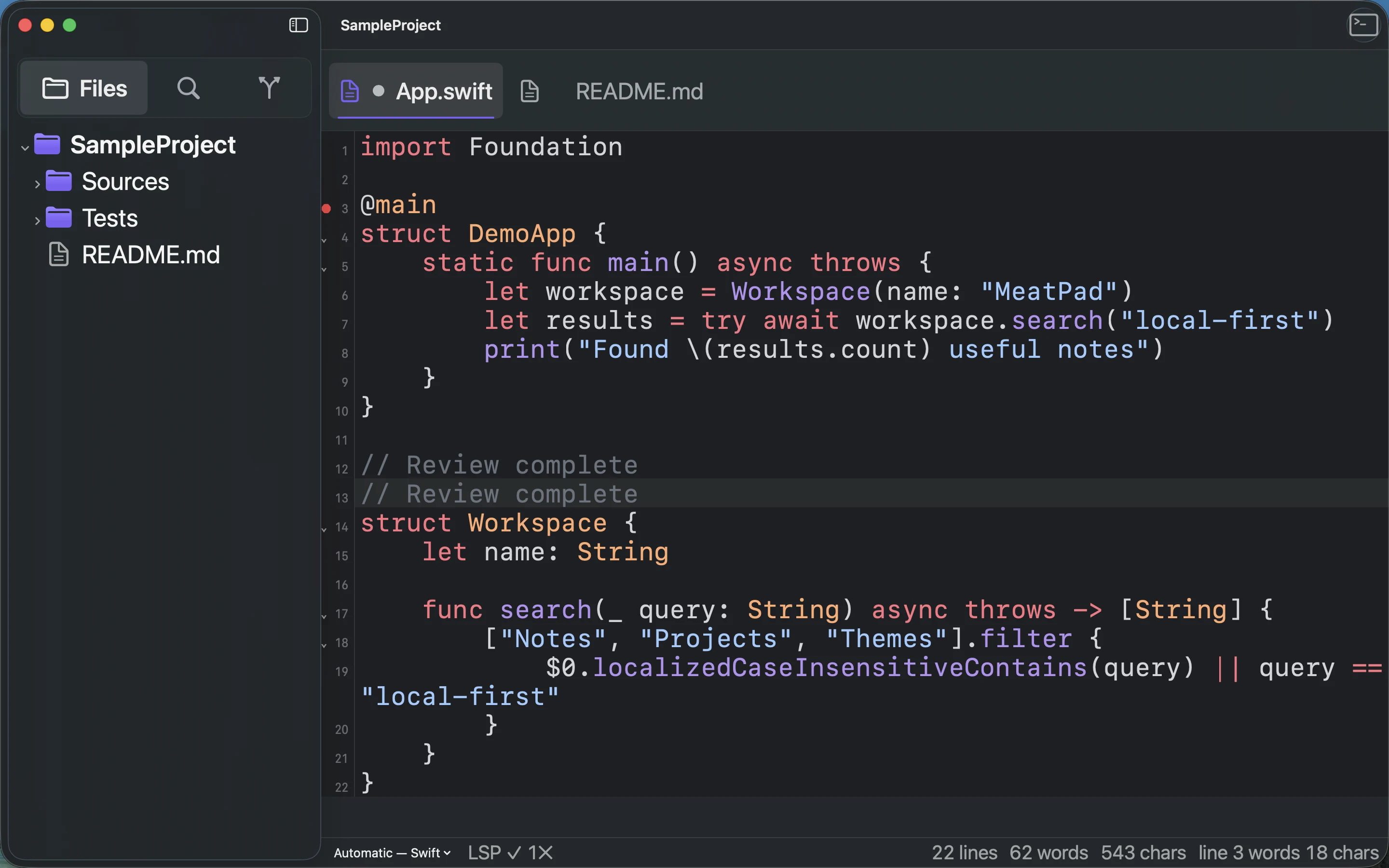
Recording transcript
Focus the project editor. Press Command-Option-M to start recording. Type a Review complete comment. Press Command-Option-M to stop. Press Command-Shift-M to replay; verify the comment appears twice.