Getting started
Install MeatPad, choose a notes or project window, and keep the app up to date.
MeatPad 0.31.4 · Released 13 October 2026 · Reviewed 20 October 2026
Install and open MeatPad#
This guide covers MeatPad 0.31.4, released 13 October 2026. MeatPad is a native Mac app for macOS 14 or later. Download the release from the product page, open the downloaded disk image, and copy MeatPad to Applications.
- Open the MeatPad product page and follow its download link.
- Open the downloaded image and place MeatPad in your Applications folder. Launch it from there.
- Read the welcome explanation of local storage, shell commands, updates and language servers. Choose Continue to enter the app.
- Choose File → New Note to start writing, or File → Open… to open a project folder.
Use the macOS version requirement shown with your download. This documentation describes the released app, rather than an unreleased development build.
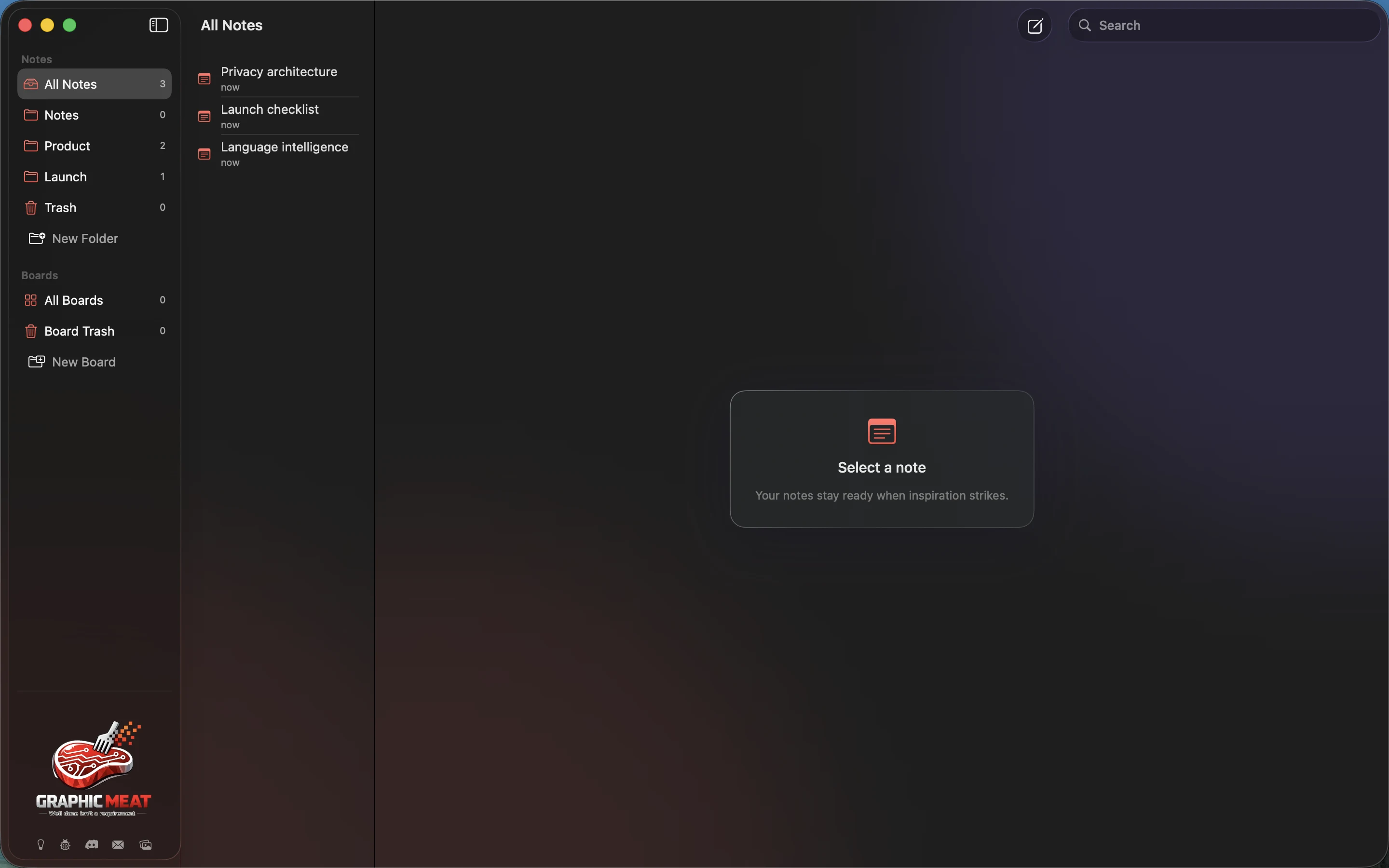
Choose your workspace#
| Task | Where to start |
|---|---|
| Write or collect text | File → New Note (⌘N). Each note can have its own window. |
| Browse your collection | File → All Notes (⇧⌘L). Select a note to edit it beside the list. |
| Plan work with cards | File → Boards (⇧⌘B). Use the board sidebar and columns. |
| Edit files on disk | File → Open… (⌘O), then select a project folder. |
| Return to a folder | File → Open Recent. Clear Menu clears the recent-project list. |
Notes belong to MeatPad’s library. Project tabs edit files in the folder you opened. Saving a project file and backing up the note library are different tasks.
Check the version and install updates#
- Choose MeatPad → About MeatPad to inspect the installed version.
- Choose MeatPad → Check for Updates… to request an update check. Follow the updater’s prompts if an update is available.
- To control background checking, open Settings → Privacy and change Automatically check for updates.
Turning off automatic checks does not disable a manual check. Back up your library and project folders before changes that matter to your work.