Boards, columns and cards
Plan across boards, edit and move cards, use dates and labels, attach files and present your work.
MeatPad 0.31.4 · Released 13 October 2026 · Reviewed 20 October 2026
Create and arrange boards and columns#
- Open File → Boards (⇧⌘B). Choose New Board in the sidebar, enter its name and choose Create.
- Select the board. Choose Add Column to add a named stage.
- Right-click a board to Rename…, Set Emoji…, Choose Image…, Remove Icon or Delete….
- Right-click a column heading to Rename…, set an emoji or image, remove its icon, or choose Move Left / Move Right. You can also drag a column header to change its order.
- Choose Mark as Done Column for a completion stage; choose Not a Done Column to undo that designation.
Use View → Sort Boards By → Manual / Name / Date Created to choose the sidebar order. Icon changes affect the board or column you selected, rather than every board.
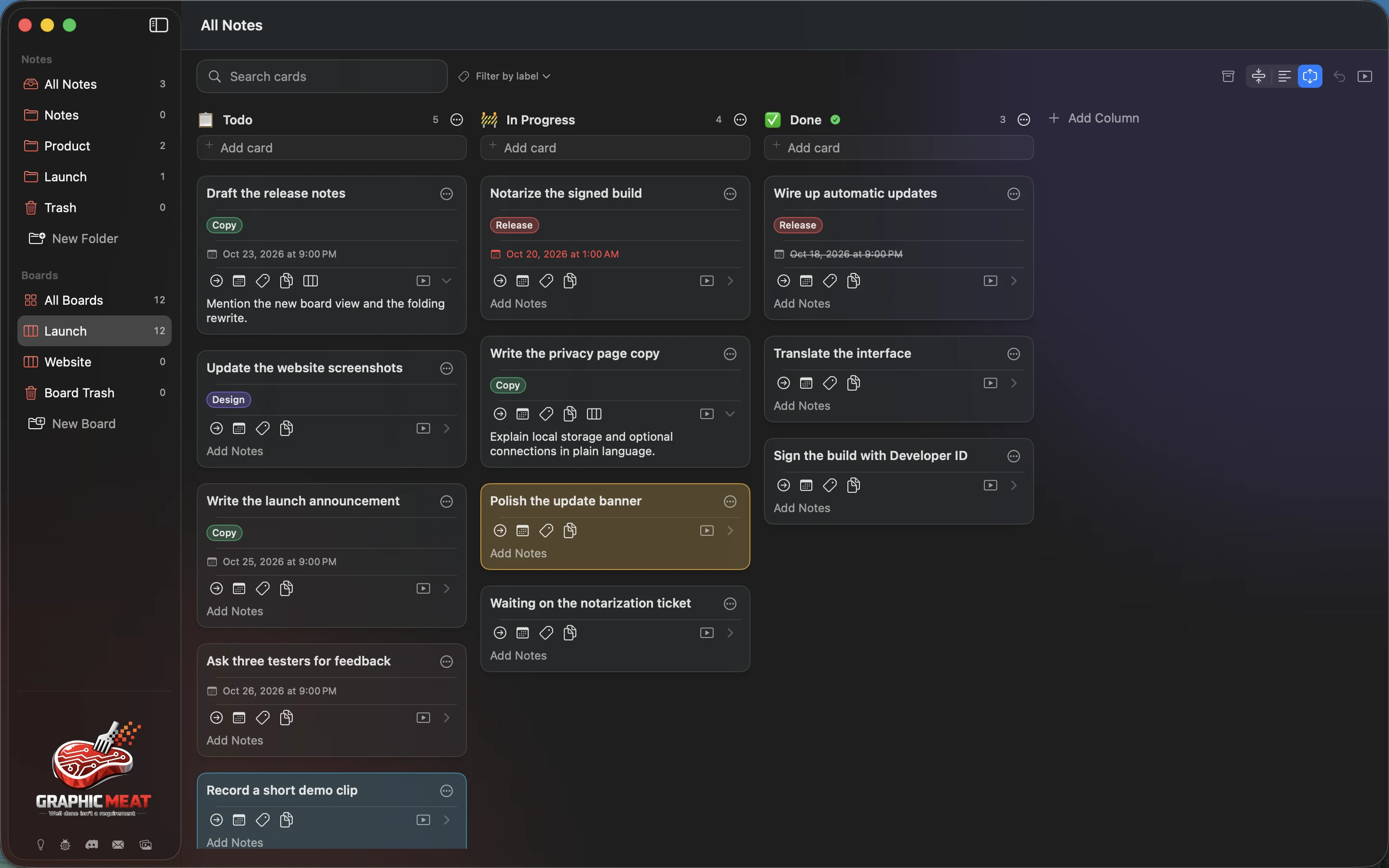
Review multiple boards together#
- Select All Boards in the sidebar. Cards keep their originating board.
- Use Combine Columns to group selected column names in the combined view. Choose Clear in that control to remove the combination.
- Choose Compact, Titles or Full to adjust how much card content is visible.
- Use the board search and label filter fields to narrow the visible cards. Clear filters before concluding that a card has disappeared.
Combining columns is a view of your boards. It does not turn all cards into one new board. A card’s Move menu still refers to the other columns of its own board.
Create and edit a card#
- In a column, click Add card, type a title and submit it.
- Click the title or notes on the card face to edit in place. Click the card’s ellipsis button (Card Actions) to open its editor and fuller set of fields.
- Enter Title and Add Notes. Use Show Notes or Hide Notes in the card menu to control the expanded card face.
- Open the card’s categories to choose its appearance, labels, due date and other actions.
- To paste clipboard text into a new card, use Paste from Clipboard. If MeatPad recognizes separate items, review Add … Cards versus Keep as One Card before accepting.
Enable Settings → General → Format card text as Markdown for bold, italic and links on cards. This display option does not change the underlying text. Summarize into Title derives a title from card text on macOS 26 when an Apple Intelligence model is available, the text language is supported and the body has at least 200 characters.
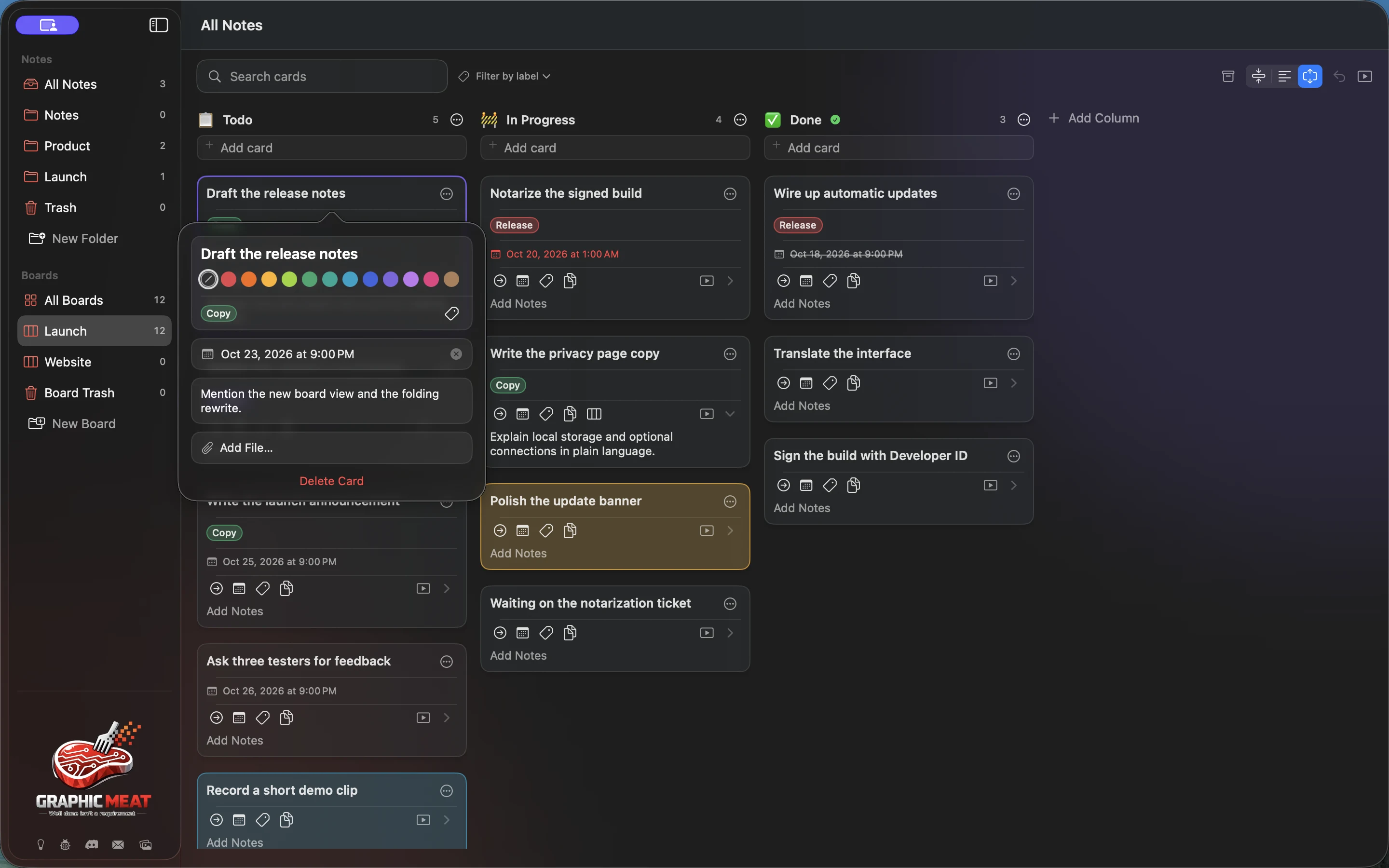
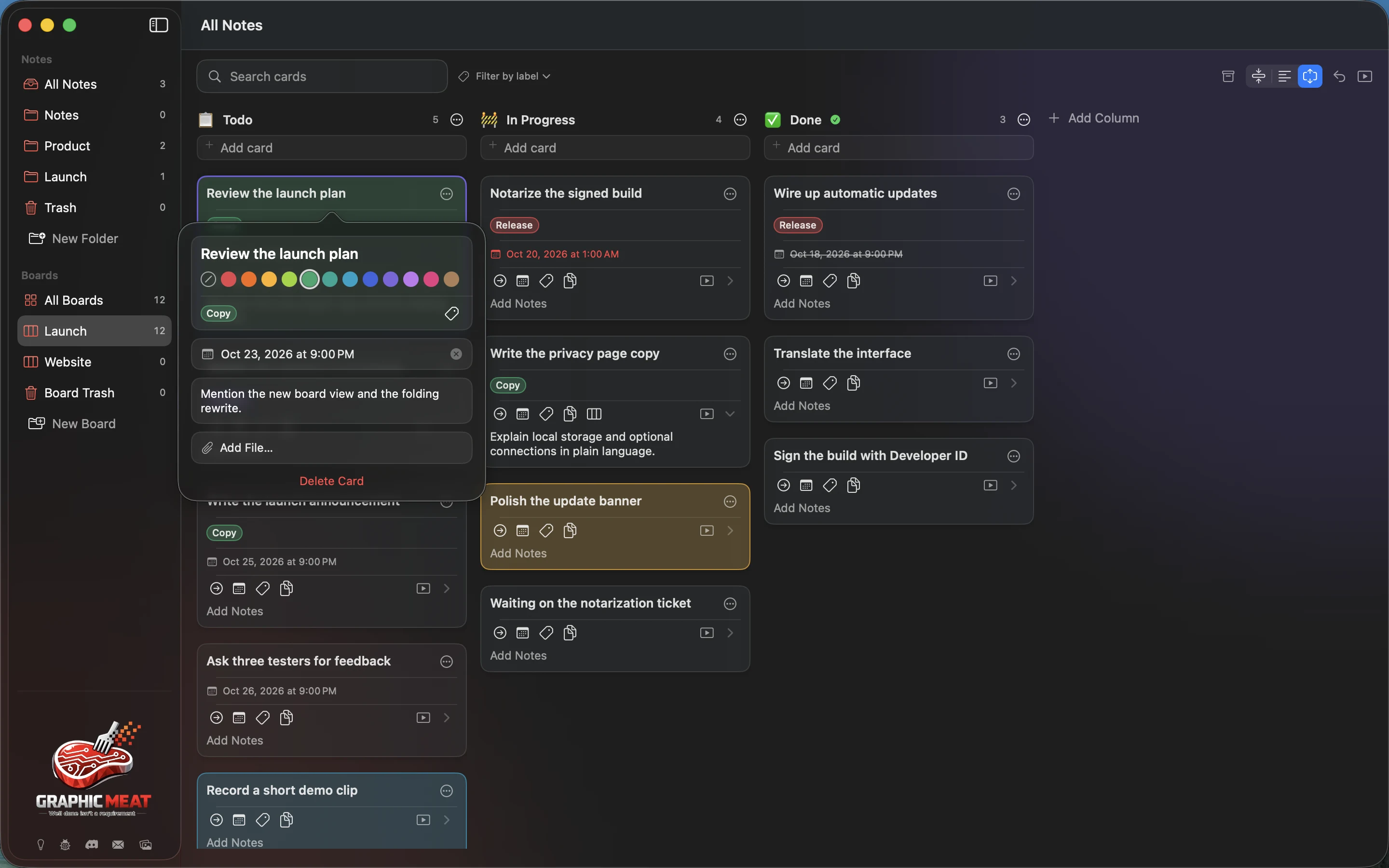
Recording transcript
Open the first card with its ellipsis button. Change the title to Review the launch plan. Select green for the card color.
Split multiline text into separate cards#
- Create a disposable card with several nonempty lines, for example “Research”, “Draft” and “Review”.
- Open its Split into Cards menu. Choose Split into Titles to make each line a title, Split into Notes to make each line card notes, or Split into Notes with Titles for notes with generated/fallback titles.
- Inspect the cards inserted directly after the original in the same column.
- Use Undo (⌘Z) to restore the original card as one step if the split was not what you wanted.
The original keeps its identity, attachments, due date, note link and archive state while taking the first line. New cards inherit labels and color, rather than sharing the original attachments or due date. Notes with Titles can use available on-device summarization; opening words provide a fallback. The menu requires at least two nonempty lines.
Set labels, colors and due dates#
- Open a card’s label menu. Toggle an existing label or choose New Label….
- Enter its Name, choose its color and press Create. Apply labels to related cards, then use the board label filter to see that group.
- Open Card Actions and select a swatch below the title to color the card. The first, crossed-out swatch clears its color. Label colors and card colors serve different purposes.
- In the due-date menu choose Today, Tomorrow, Next Week or Custom…. Use the custom date control to set a specific date/time.
- Choose Remove Due Date to clear the deadline.
Due-date reminders depend on macOS notification permission. A Done column provides completion context; a due date by itself is not a repeating task scheduler.
Select, move and copy cards#
- Use a card’s Move menu to choose another column on the same board, or drag the card into its destination column.
- Use Command-click to build a multiple-card selection. Use the column menu’s Select All Cards to select that column.
- Drag the selected cards to move them together. Use the selection toolbar to archive, unarchive or delete them. Choose Clear Selection when finished. Outside a text editor, ⌘A selects all visible cards, Escape clears the selection and Delete/Forward Delete deletes selected cards.
- Use the card’s Copy category for Copy Text, Copy Title or Copy Notes. Empty fields do not offer a copy action.
The bulk toolbar appears with two or more selected cards. Check the selection count before a bulk action. In All Boards, cards retain their own board identity. Undo in the board toolbar can reverse supported recent board edits; it is not a replacement for a backup or for reading a permanent-delete confirmation.
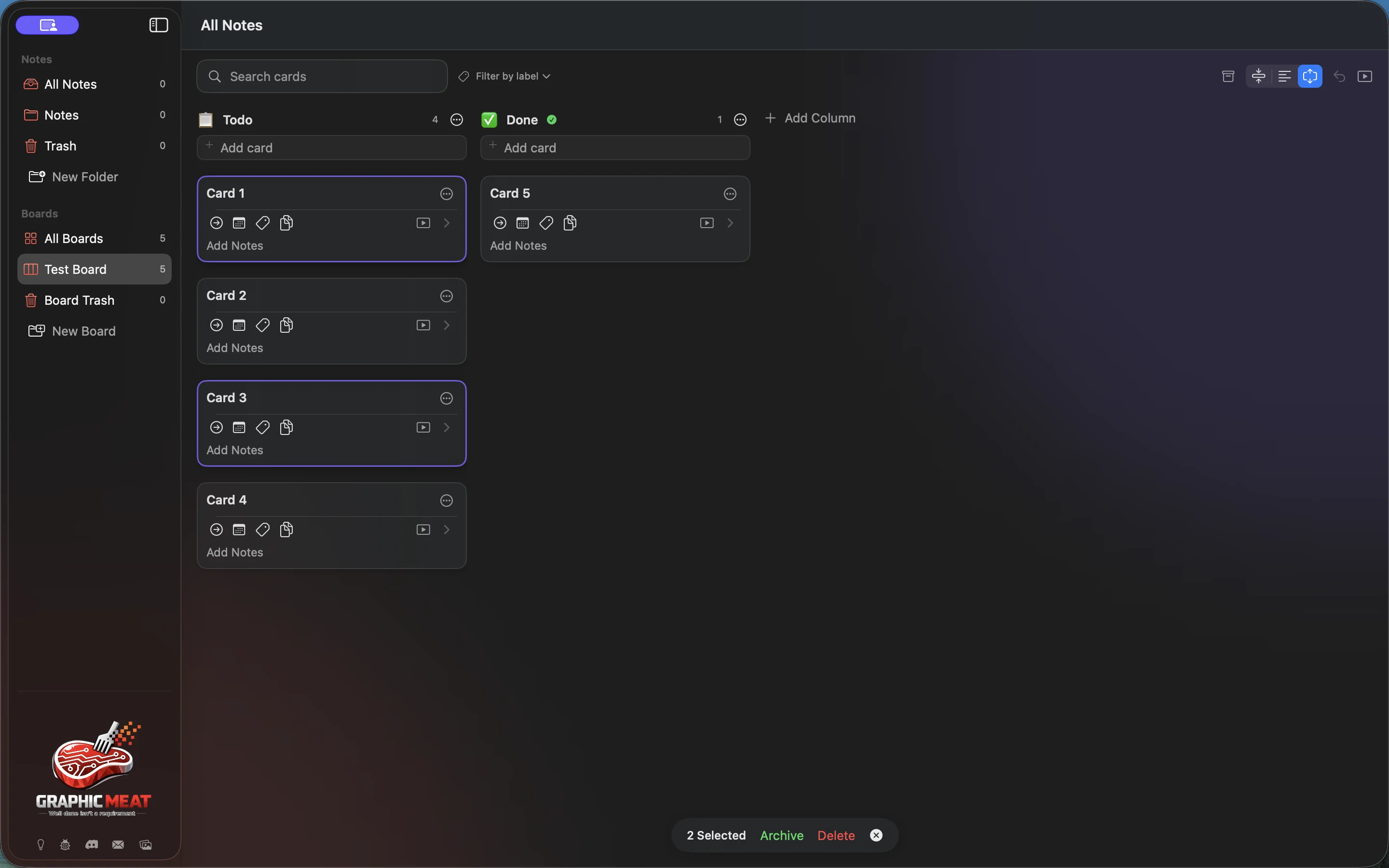
Recording transcript
Click Card 1. Command-click Card 3. Verify two cards are selected and the selection action bar is shown. Delete the two selected cards. Click Undo and verify both cards return.
Archive, restore and delete board content#
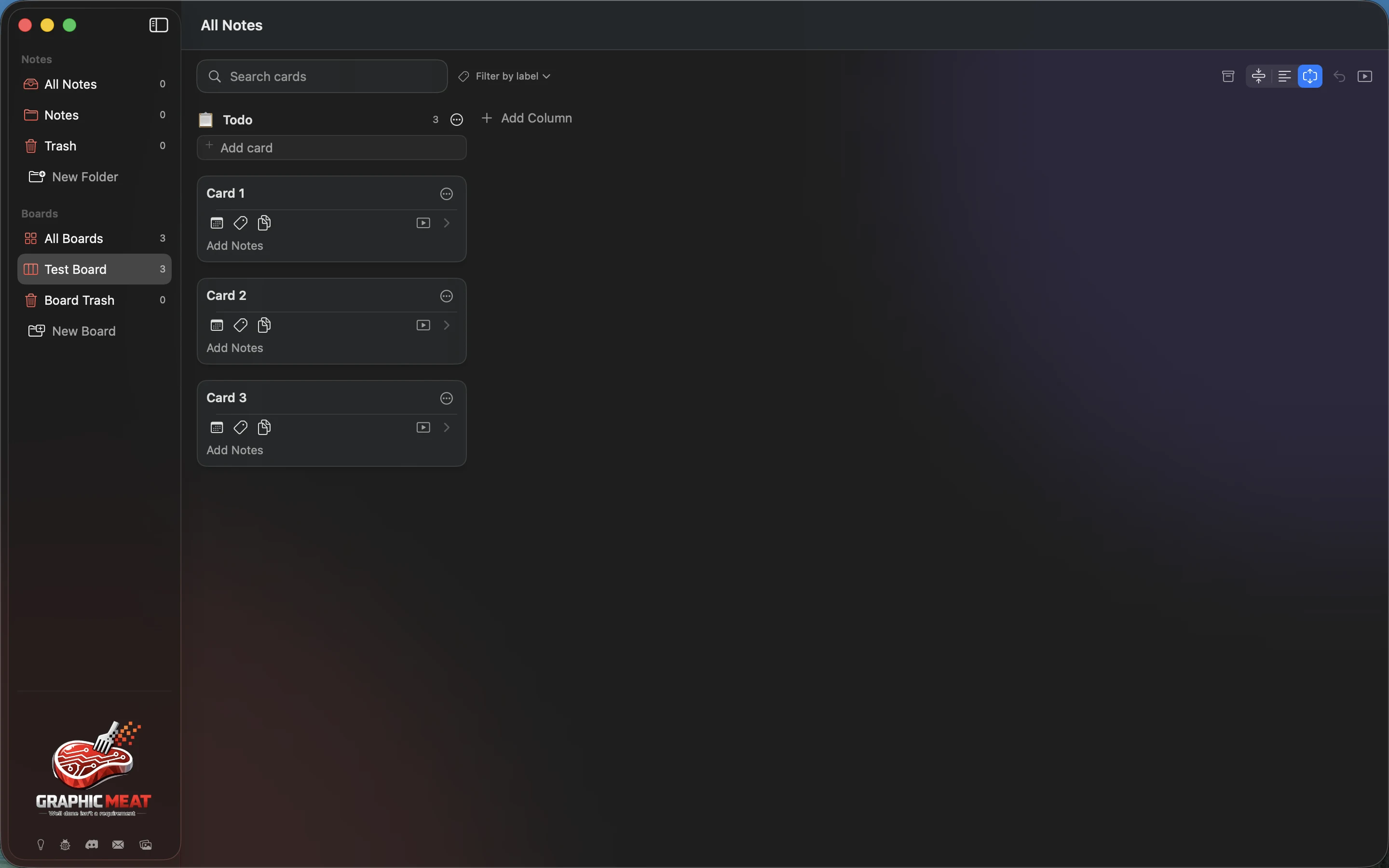
- Choose Archive Card to hide a card from the normal board without deleting it. A column menu can Archive All Cards.
- Enable Show Archived Cards to see archived work. Choose Unarchive Card, or use Unarchive in the selection toolbar.
- Choose Delete Card to move a card into Board Trash. Open Board Trash and choose Restore for the item.
- Use Delete Permanently for an individual trashed item, or Empty Trash for the board trash contents, only after reading the confirmation.
Deleting a column moves its live cards into the first remaining column and stores the deleted column in Board Trash. Restoring the column puts surviving original cards back. Restore a deleted parent board before restoring its cards or columns; if a card’s original column is missing, it goes to the first remaining column. The last column cannot be deleted. Purging the deleted column does not erase the live cards moved out of it. Board deletion and card deletion are also recoverable through Board Trash until purged.
Recording transcript
Open the Todo column menu. Choose Archive All Cards and verify the cards disappear. Click Undo and verify all three cards return.
Attach, preview and export files#
- Open a card’s editor and choose Add File… to import a file, or drag a file/image onto a supported card or board drop target.
- Check the resulting card or attachment strip. Dropping content on a board can create a new card; dropping on an existing card attaches to that card.
- Double-click the attachment, or choose Quick Look from its context menu, to preview it. Drag the attachment thumbnail into Finder to export a copy.
- After dragging to your destination folder, confirm the exported copy there before choosing Remove Attachment.
A file attachment is a stored copy. Imported images and icon images are different: choosing a column or board icon changes its appearance, while attaching an image keeps it with a card. Back up the Boards folder with its attachments.
Present a board or a card#
- Choose Presentation Mode in the board toolbar to focus on the board.
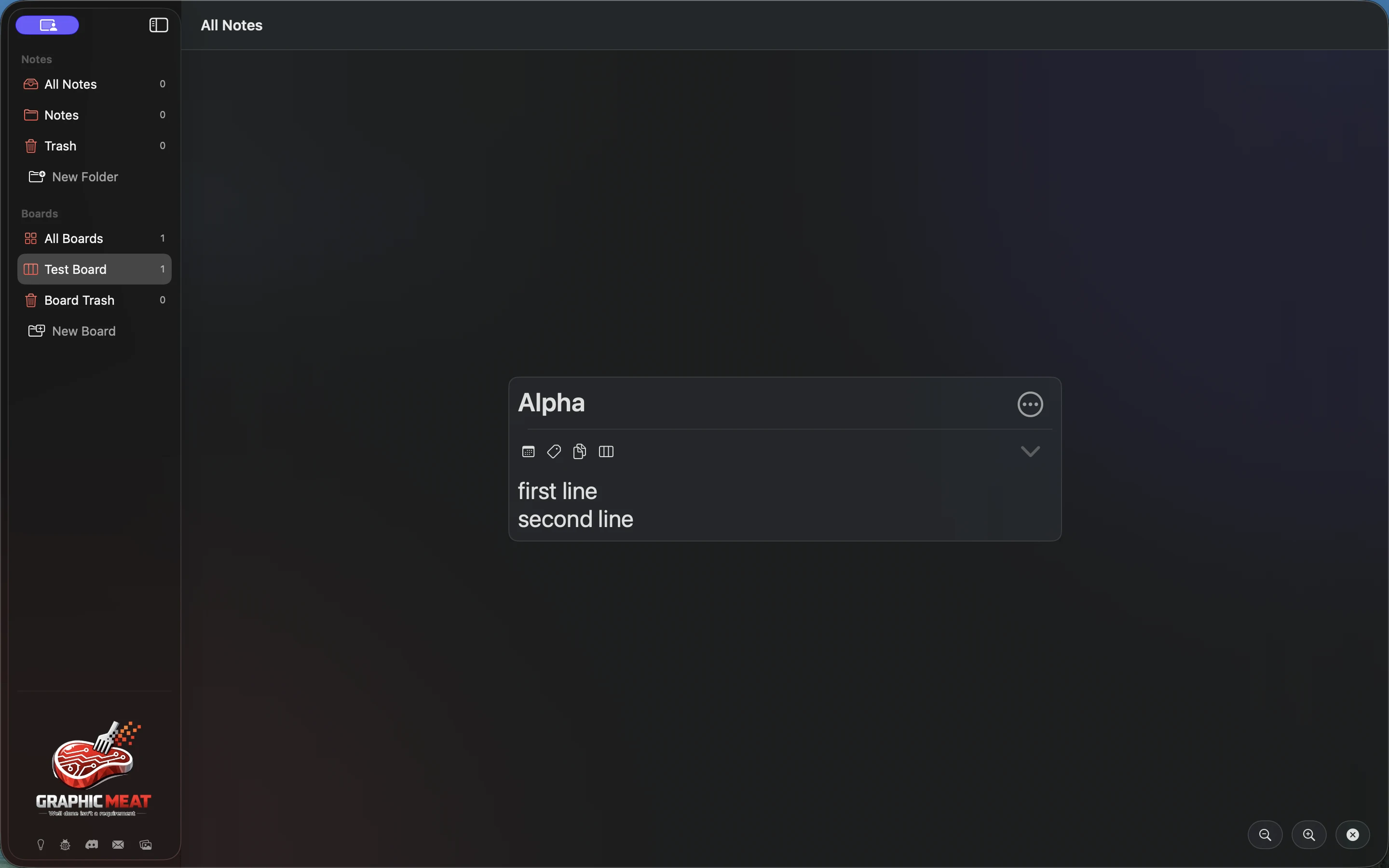
- Choose Present Card on a card to show that card on its own.
- In a presented card, choose Bigger (+ magnifier, ⌘=) or Smaller (− magnifier, ⌘−) to adjust its scale from 1× to 3×. Choose Close, click the backdrop or press Escape to close the card. Toggle Presentation Mode again to return the whole board to its usual scale.
Presentation focuses the stored board or card content. For a meeting, check card titles, notes, filters and attachments before switching to presentation.
Recording transcript
Click the card presentation button. Click the larger presentation control. Verify the presented card grows. Press Escape to close presentation.
Related questions
- What is the difference between archive and delete?
- What happens to cards when I delete a column?
- Does Combine Columns merge the underlying boards?
- Can I format card text as Markdown?
- How do I label cards or set a deadline?
- Does attaching a file move the original?
- Can I turn a multiline card into separate cards?