Notes and folders
Create, organize, search and recover notes; work with links, attachments and board-linked notes.
MeatPad 0.31.4 · Released 13 October 2026 · Reviewed 20 October 2026
Create notes and organize folders#
- Choose File → New Note (⌘N), then type. MeatPad uses your text in its note list.
- Open All Notes (⇧⌘L) to browse the library. Choose File → New Folder (⇧⌘N) while this browser is focused, and enter a name.
- Select multiple notes with Command-click (or use Shift for a range) to apply a context action to the selection. Right-click a note and choose Move to, then a folder. Choose Notes in that menu to return it to the top level.
- Right-click a folder for Rename… or Delete…. Read the confirmation before deleting a folder: its live notes move into in-app Trash.
- Use View → Sort Notes By to choose Manual, Name or Date Created. In Manual order, drag items into your preferred order.
Edits autosave after a short pause (about one second) and flush when the editor closes or the app resigns active. A completely empty note with no attachments is discarded when closed. You do not need to press Save for every note edit.
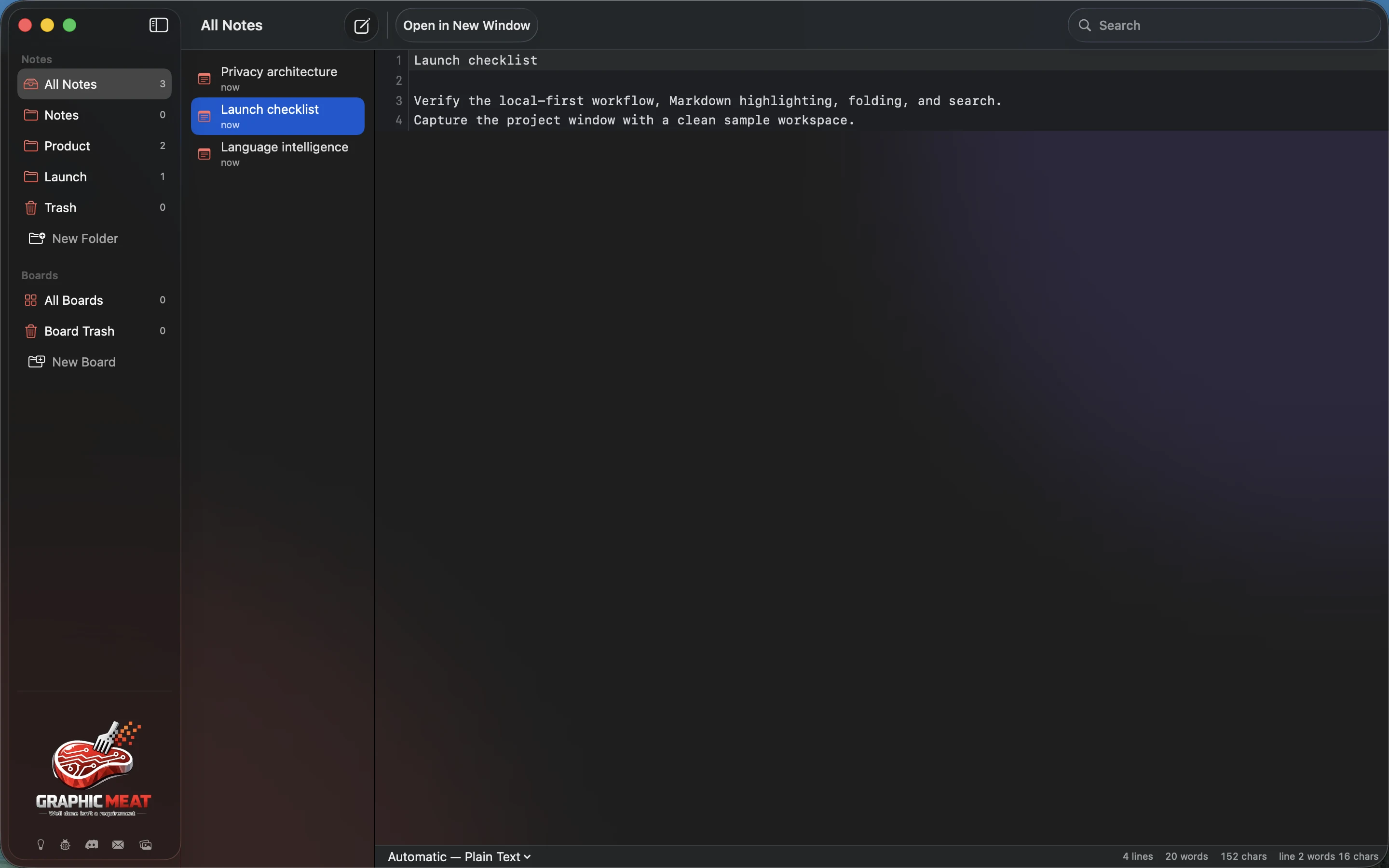
Find a note#
- Open All Notes and use the notes search field.
- Enter words from the note’s title or body. Select a matching note to read and edit it.
- Clear the field to return to the unfiltered list.
- For matches inside the focused editor, choose Edit → Find… (⌘F). Use Find Next (⌘G) and Find Previous (⇧⌘G).
The library’s search finds stored notes; project-wide file search lives in a project window. Check which window and sidebar are active when you cannot find expected text.
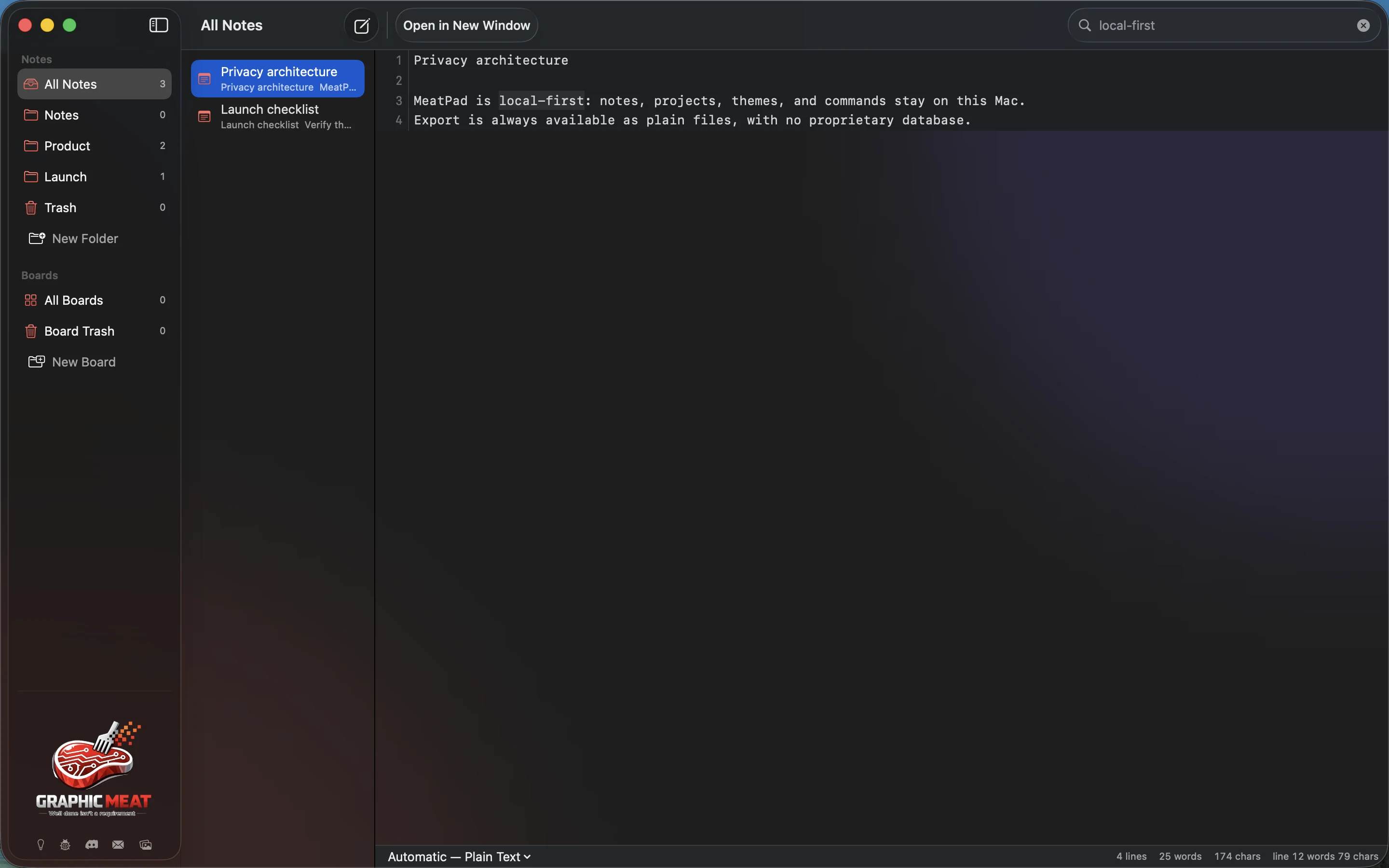
Recording transcript
Type local-first in the notes Search field. Select Privacy architecture in the results.
Open separate windows and follow links#
- Right-click a note and choose Open in New Window, or select it in the browser and press ⌘Return.
- Write or paste a URL into your note. MeatPad recognizes links in the note editor.
- Open Settings → General → Open links in notes to choose ⌘-click or Click. Follow that gesture when opening a link.
Selecting text for editing and activating a link use different gestures according to this setting. Link destinations open outside the note editor; review a destination before opening it.
Add files to a note#
- Open the note you want to keep the files with.
- Drop a file into the note editor or paste copied file content there.
- Double-click an attachment, or right-click and choose Quick Look, to preview it. Drag its thumbnail to Finder to export a copy. Choose Remove Attachment to remove it from the note.
Attachments are copied into MeatPad’s managed storage. Removing an attachment from a note is different from deleting your original file on disk. Include attachments when backing up the library.
Use a note on a board#
- Create a board first if your library has none.
- Right-click a note in All Notes and choose Send to Board, then the board.
- Use Reveal in Board on an already linked note to locate its card.
- Use the card’s Unlink action if you want to break its connection with the note.
A board-linked note is a relationship between a note and a card. Treat unlinking, deleting the card and deleting the note as separate actions.
Restore or permanently delete a note#
- Select a note and choose Move to Trash from its context menu, or press ⌘Delete while the notes browser owns the selection.
- Open Trash in the notes sidebar.
- Select the note and choose Restore to return it to the library. The ⌘Delete menu action becomes Restore while browsing Trash.
- To erase a trashed note instead, choose Delete Permanently… and confirm.
Permanent deletion is not an archive. Keep a backup before purging anything you may need again. Board Trash is a separate area for board content.
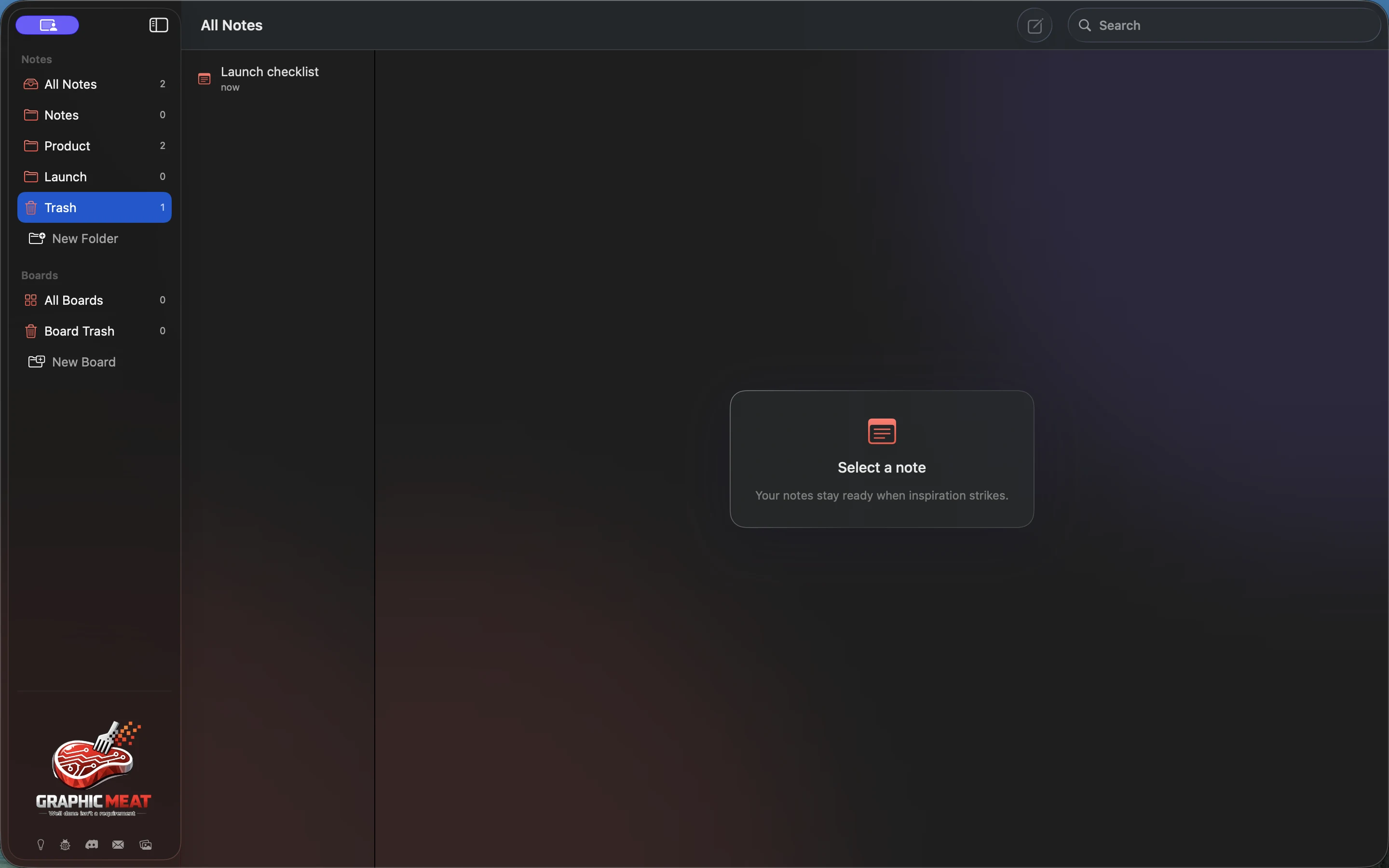
Recording transcript
Select the synthetic Launch checklist. Use Move to Trash. Open Trash and inspect the discarded note.