Settings reference
Every Settings tab: General, Boards, Themes, Snippets, Commands, Terminal, File Tree and Privacy.
MeatPad 0.31.4 · Released 13 October 2026 · Reviewed 20 October 2026
General: editor and app behavior#
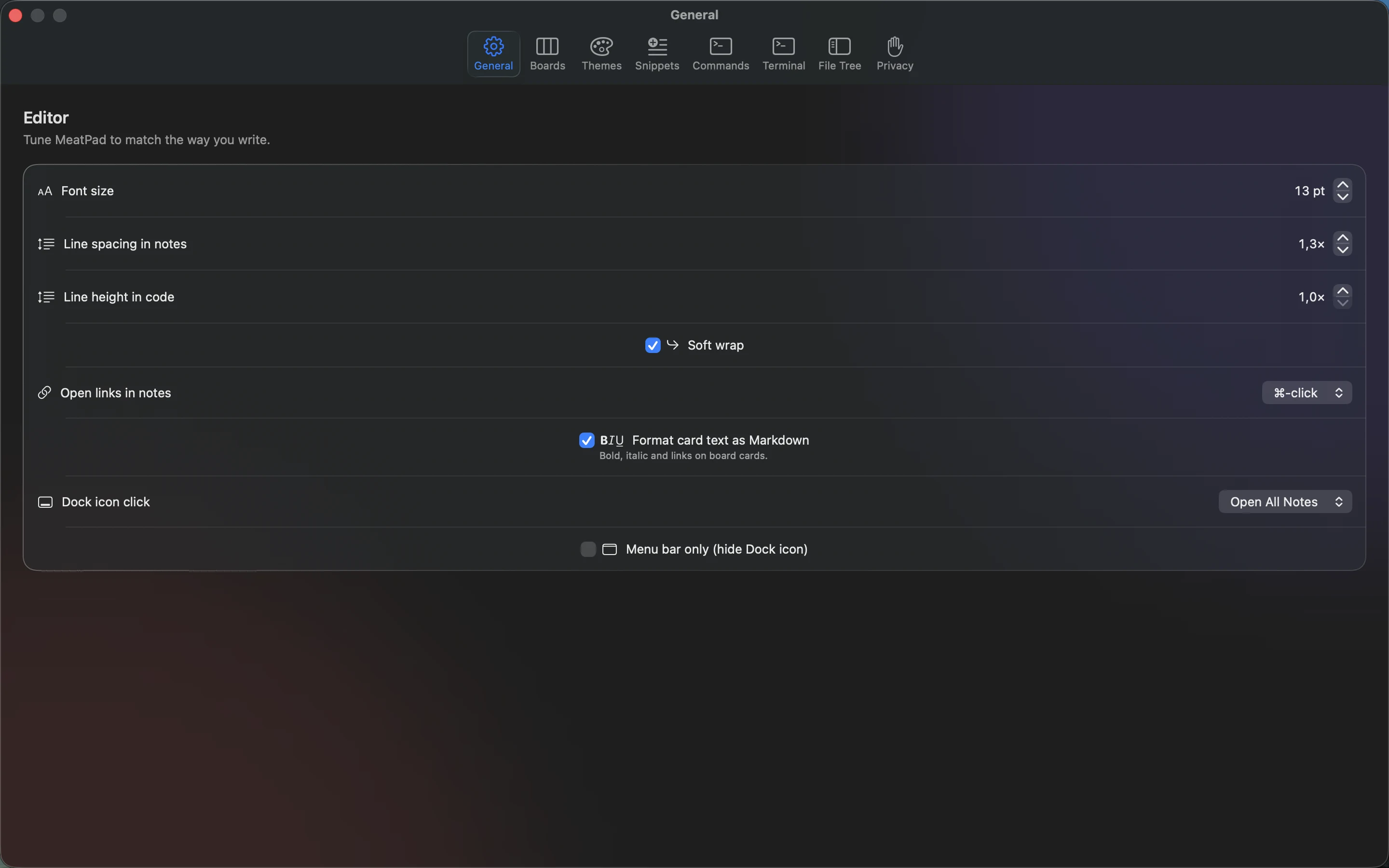
Open MeatPad → Settings… and select General. Changes apply to the app’s editors as you adjust them.
| Control | What to do |
|---|---|
| Font size | Use the stepper to choose 10–24 pt. |
| Line spacing in notes | Adjust spacing for note editors from 1×–2× in 0.1 steps. |
| Line height in code | Adjust separate project code spacing from 1×–2× in 0.1 steps. |
| Soft wrap | Toggle wrapping of long lines without inserting line breaks into the stored text. |
| Open links in notes | Choose ⌘-click or Click to activate note links. Card-face links use Click. |
| Format card text as Markdown | Toggle formatted bold, italic and links on board card text. |
| Dock icon click | Choose Open All Notes or New Note. This control is disabled while menu-bar-only mode is enabled. |
| Menu bar only (hide Dock icon) | Enable to use the menu bar without a persistent Dock icon. The activation policy changes when the last app window closes. |
Boards: icon colors#
- Select Settings → Boards.
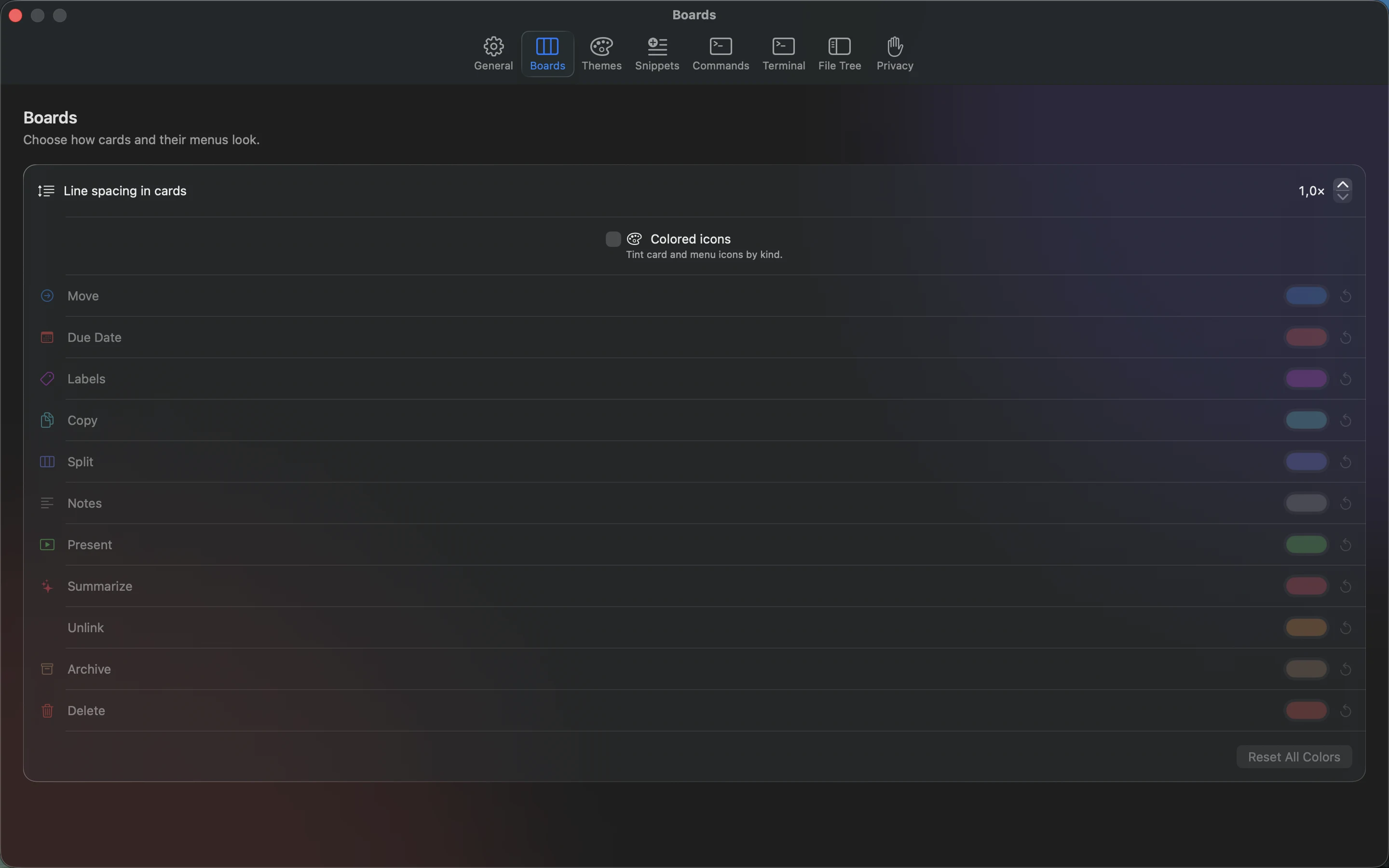
- Adjust Line spacing in cards from 1×–2× in 0.1 steps for card text, then toggle Colored icons to tint card/menu icons by their kind.
- Choose a kind’s color to customize it. Use its Reset to Default control to undo that one change.
- Choose Reset All Colors to return the entire icon palette to defaults.
This palette changes interface icons. Use a card’s own color or label controls to categorize work.
Themes: choose, customize or import a theme#
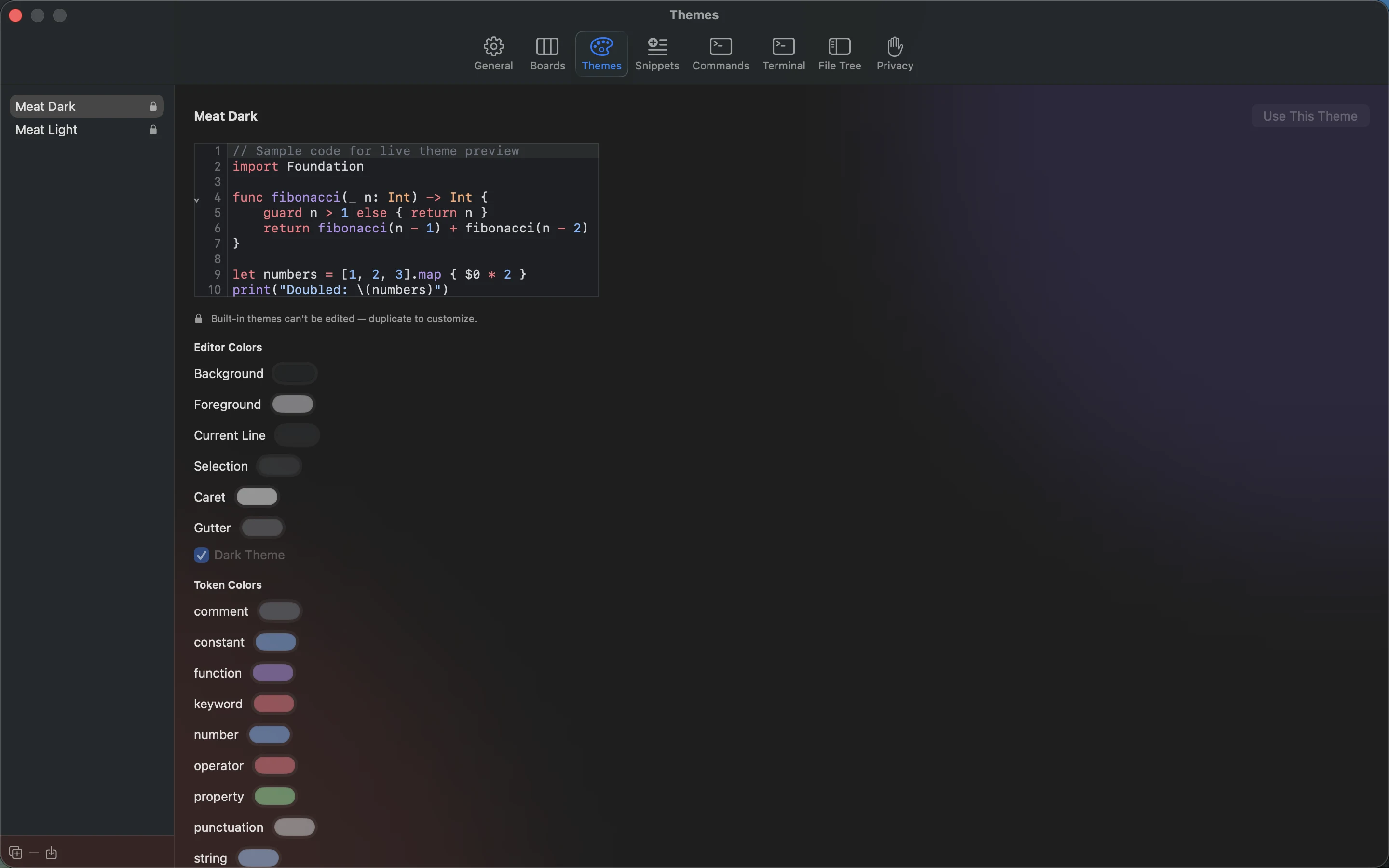
- Select a theme in Settings → Themes, then choose Use This Theme to activate it.
- Built-in themes show a lock. Choose Duplicate as editable copy before changing one.
- On the editable copy, change Background, Foreground, Current Line, Selection, Caret, Gutter and Dark Theme as needed. Review the sample editor.
- In Token Colors, change a capture’s color or enter a capture name (for example
keyword.control) and choose Add. - Choose Import theme…, or drop a theme file onto the list, to import a TextMate
.tmThemetheme. Select a user theme and choose Delete theme to remove it.
Theme selection and the theme currently being inspected can differ: Use This Theme activates the selected one. Built-ins remain available and cannot be deleted or edited directly.
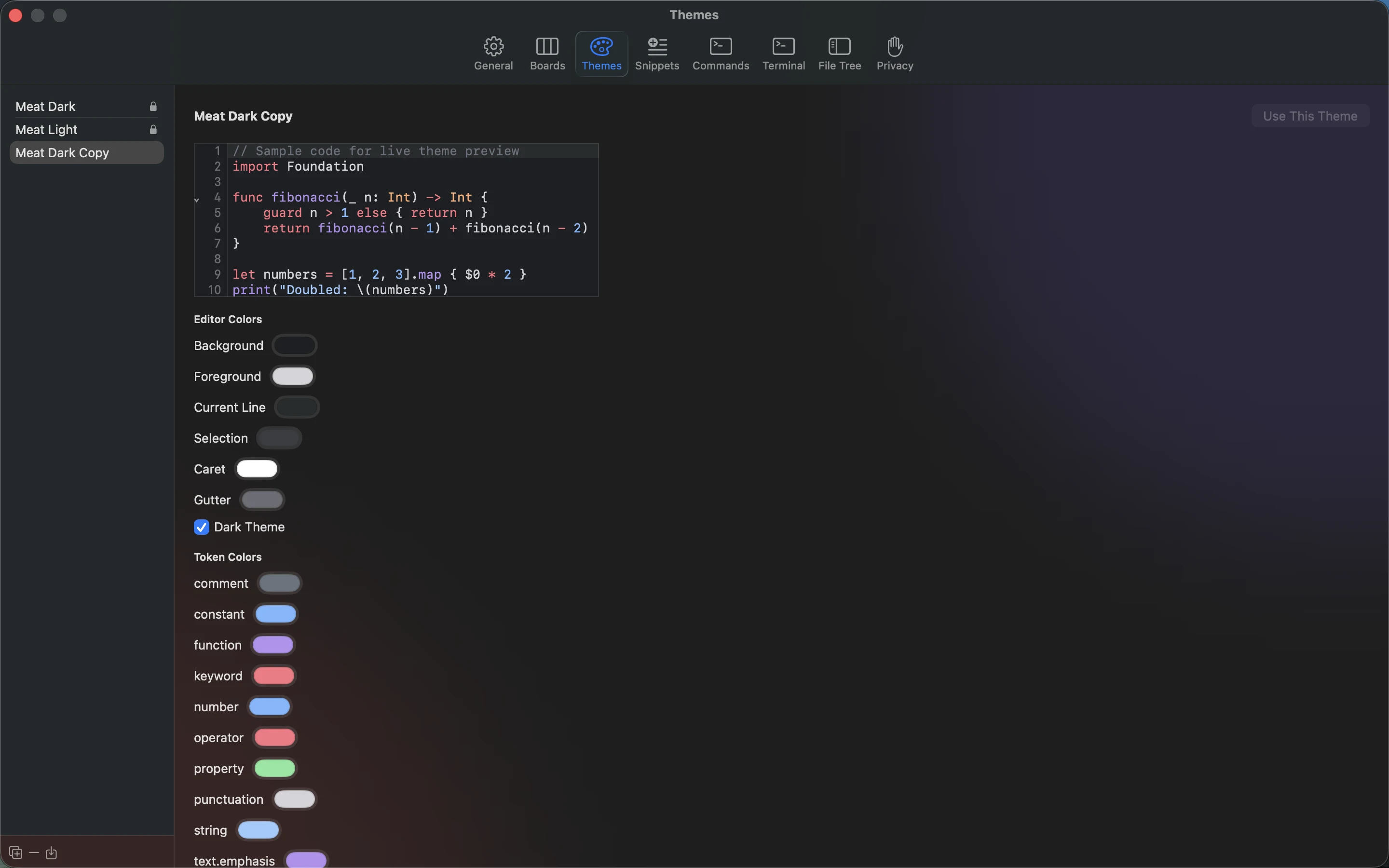
Recording transcript
Open Settings and select Themes. Click Duplicate as editable copy in the bottom-left toolbar. Click Use This Theme.
Snippets: manage reusable text#
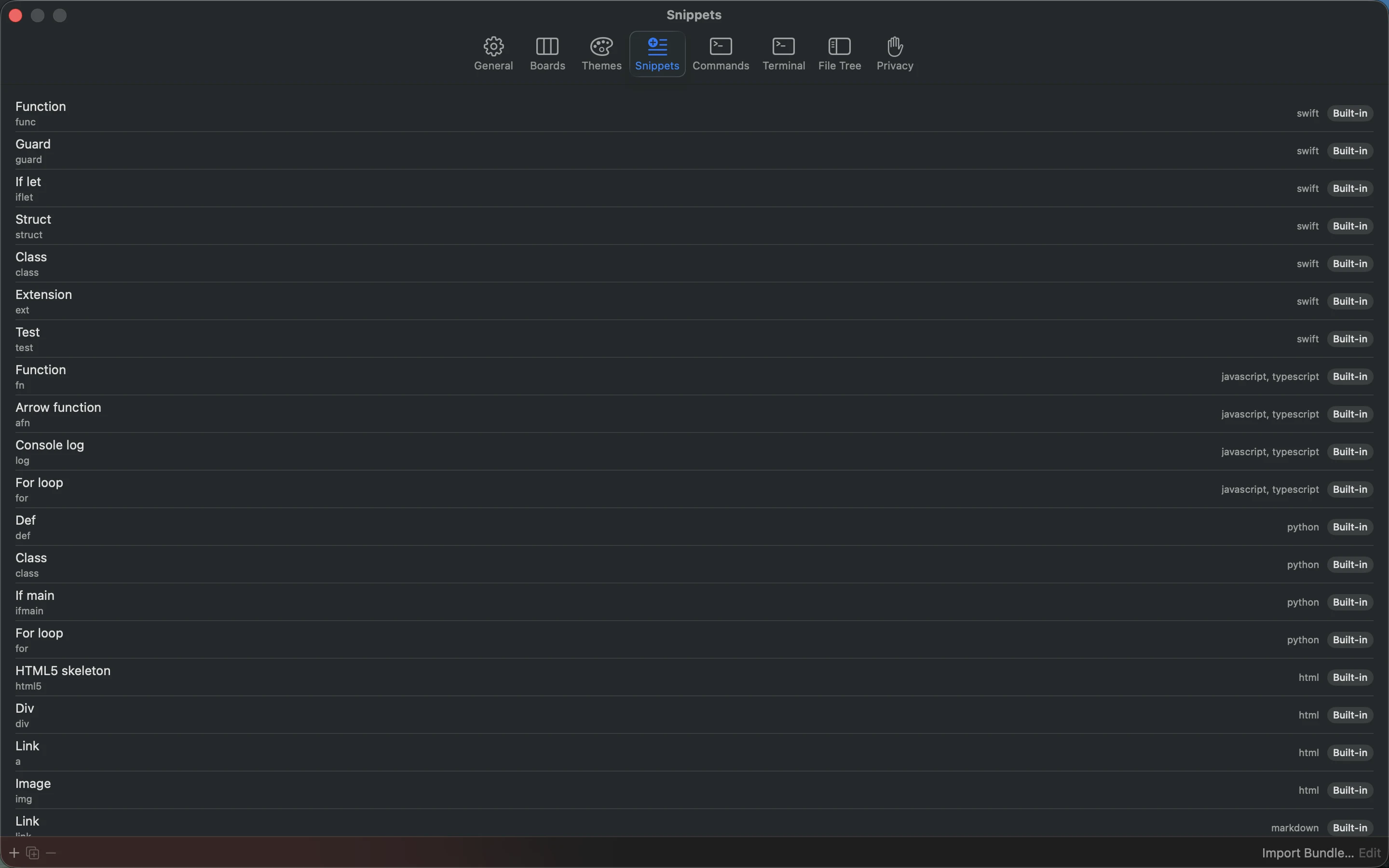
Select a snippet to see its name, trigger and language scope. The toolbar provides Add snippet, Duplicate as editable copy, Delete snippet, Import Bundle… and Edit. Built-in rows are marked and cannot be edited/deleted directly.
The editor contains Name, Trigger, language toggles and Body, followed by Cancel and Save. See the snippet procedure for expansion and tab stops.
Commands: scripts and execution settings#
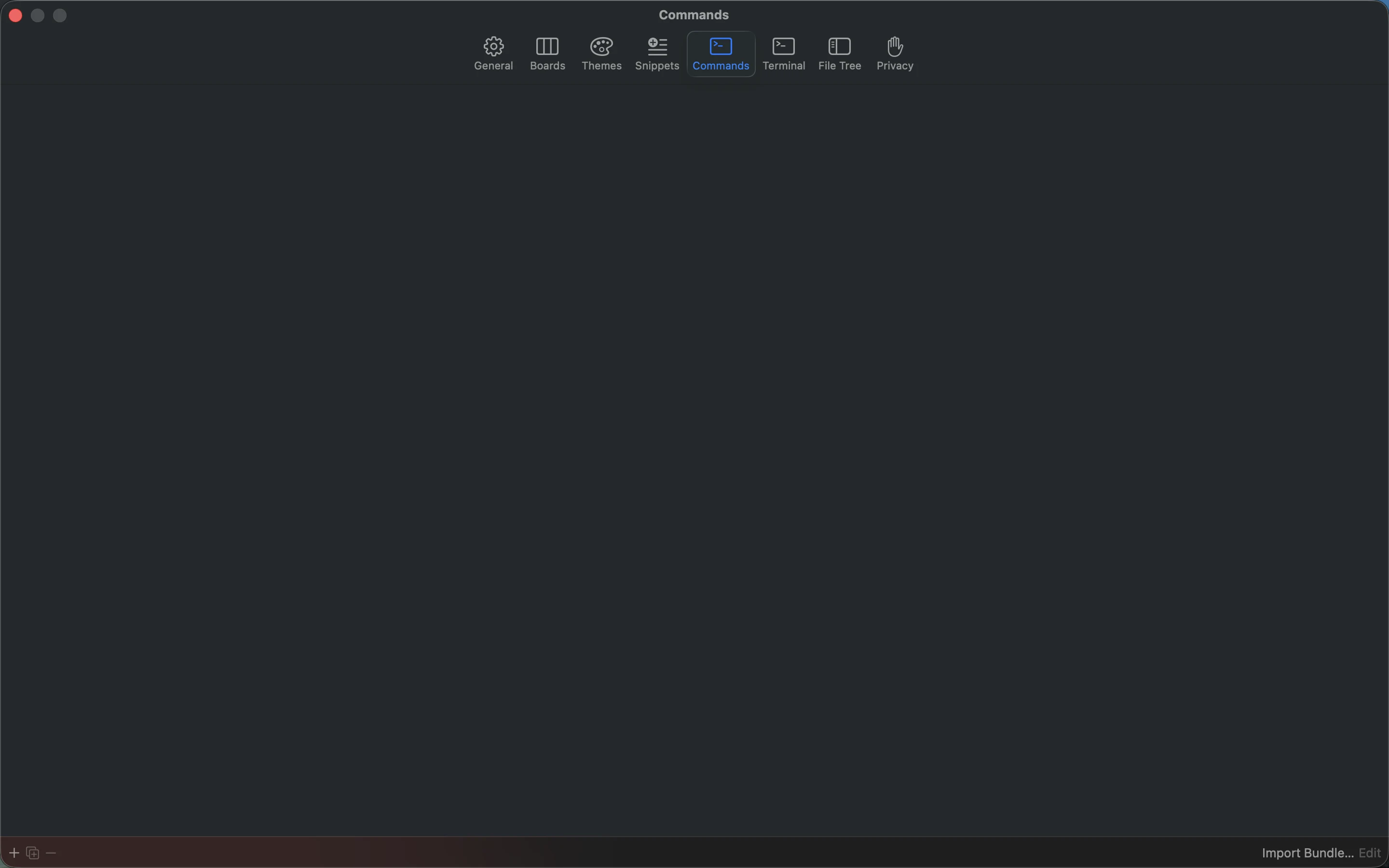
The command list shows trust, name, shortcut and language scope. Use Add command, Duplicate, Delete command, Import Bundle… and Edit in the toolbar. Right-click a row to Trust or Revoke Trust.
| Editor field | Meaning |
|---|---|
| Name / Script | The menu label and the shell script to execute. |
| Input | None, Selection or Document, sent as the command’s input. |
| Output | Replace Selection, Insert at Caret, New Note or Output Panel. |
| Key Equivalent | A binding such as cmd+shift+r; conflicting standard bindings show a warning. |
| Timeout | Execution time limit in seconds; default 30. |
| Restricted environment | Controls the shell execution environment; it does not sandbox script file/network access. |
| Languages | Select scopes, or leave unrestricted for all languages. |
Choose Save to persist or Cancel to abandon the editor. Follow the command procedure and review imported scripts before trusting them.
Terminal: edit the Git menu#
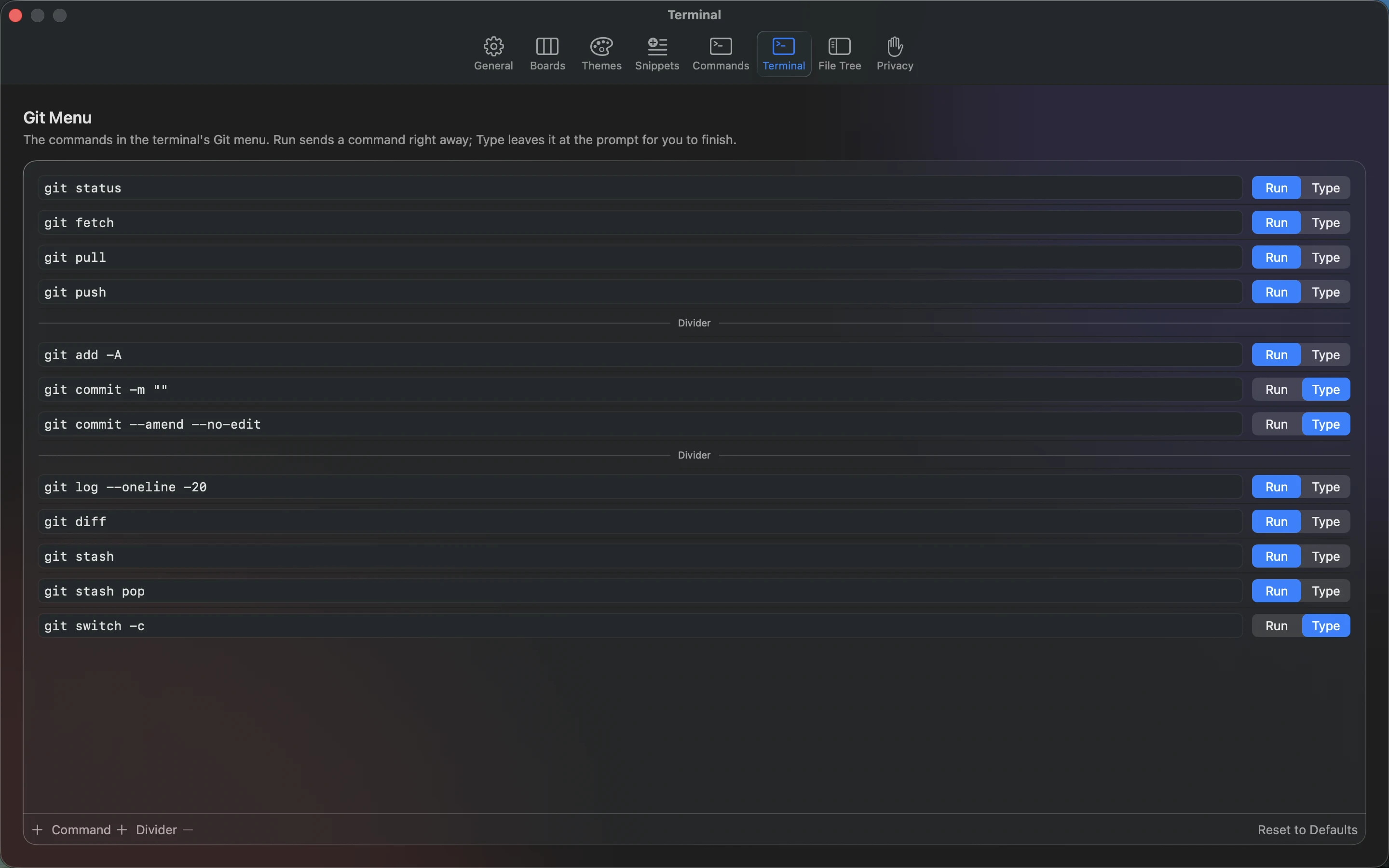
- Select Settings → Terminal. Edit a row’s Command text.
- Choose Run to execute on selection, or Type to leave it at the prompt.
- Use Command or Divider to add a row; select a row and use the minus control to remove it.
- Drag rows to reorder the menu. Choose Reset to Defaults to restore the shipped list.
The next time you open an existing project terminal’s Git menu, it reflects your settings. Review execution modes carefully: a Run item sends Return automatically.
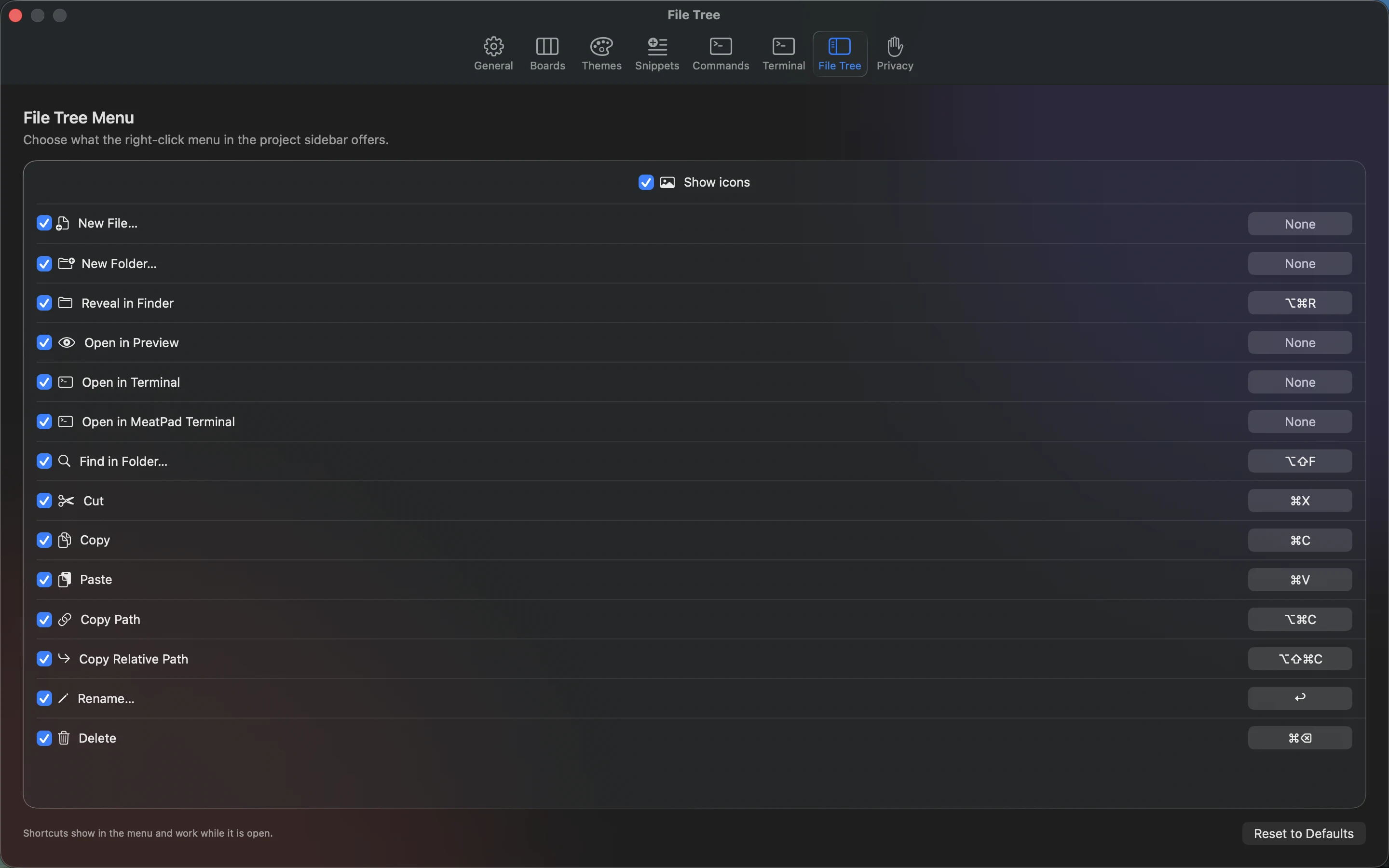
File Tree: actions, icons and menu shortcuts#
- Select Settings → File Tree.
- Toggle Show icons to control menu symbols.
- Enable or disable each action row to choose what the file-tree right-click menu offers.
- Click a shortcut recorder and press the new combination. Escape cancels; a bare Delete clears the binding. The bindings are shown in the menu and work while it is open.
- Choose Reset to Defaults to restore action visibility, icons and default bindings.
The configurable actions are New File, New Folder, Reveal in Finder, Open in Preview, Open in Terminal, Open in MeatPad Terminal, Find in Folder, Cut, Copy, Paste, Copy Path, Copy Relative Path, Rename and Delete. Availability also depends on the clicked target.
Privacy: network, storage, export and deletion#
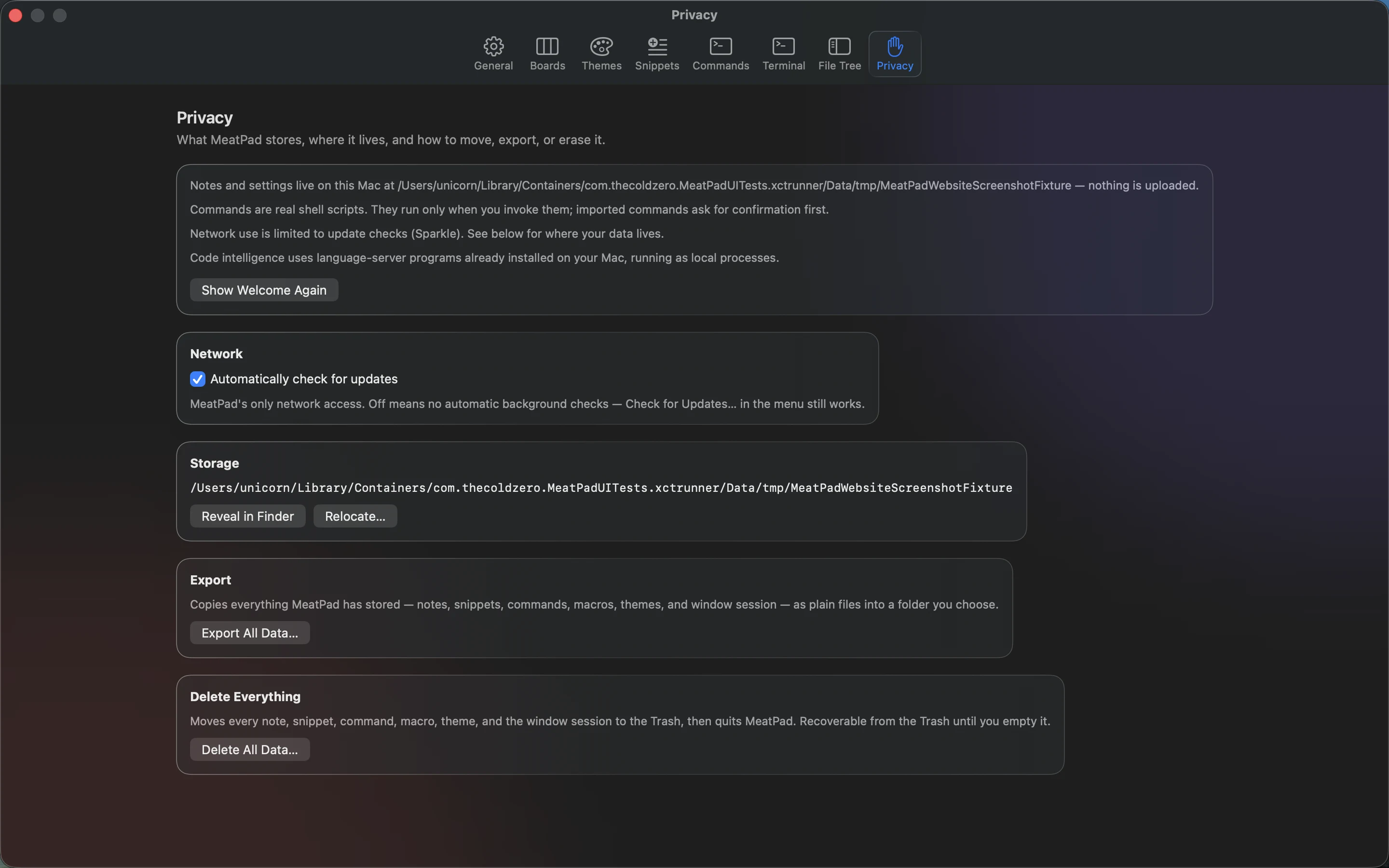
Select Settings → Privacy to see the active storage path and local-data explanation. Show Welcome Again resets the welcome acknowledgement. Automatically check for updates controls background update checks; manual checks remain available.
Reveal in Finder opens the storage location. Relocate… copies managed data to another folder and switches the configured root after a restart; the old copy remains. Export All Data… copies managed files to a chosen folder. Delete All Data… asks for confirmation, moves managed data to Trash and quits.
See Data, privacy and backup before relocating or deleting. Project folders outside managed storage need their own backup.