Editing and Markdown
Choose a language, read Markdown, fold code, edit with multiple carets and print.
MeatPad 0.31.4 · Released 13 October 2026 · Reviewed 20 October 2026
Choose highlighting and read document counts#
- Focus the note or project file you are editing.
- Open View → Language, or the language picker in the status bar. Choose a language explicitly if Automatic chose the wrong one.
- Choose Automatic to return to detected language behavior.
- Read the status bar for document lines, words and characters, plus the current line’s word and character counts.
Highlighting and a language server are separate capabilities. You can edit and highlight text without installing a server. The project status bar displays language-server status when that integration is active.
Write Markdown and open links#
Write Markdown as plain text: # Heading, **bold**, *italic*, [label](https://example.com), lists and fenced code blocks. Choose Markdown in the language picker when automatic detection does not identify it.
- Start a note or open a
.mdproject file. - Type your Markdown and keep its source text readable.
- For board card text, enable Settings → General → Format card text as Markdown.
- For note links, choose your gesture under Open links in notes in General settings.
Markdown support is not an export-to-HTML or PDF promise. Use the editor’s Print command for the system print workflow, including macOS PDF options.
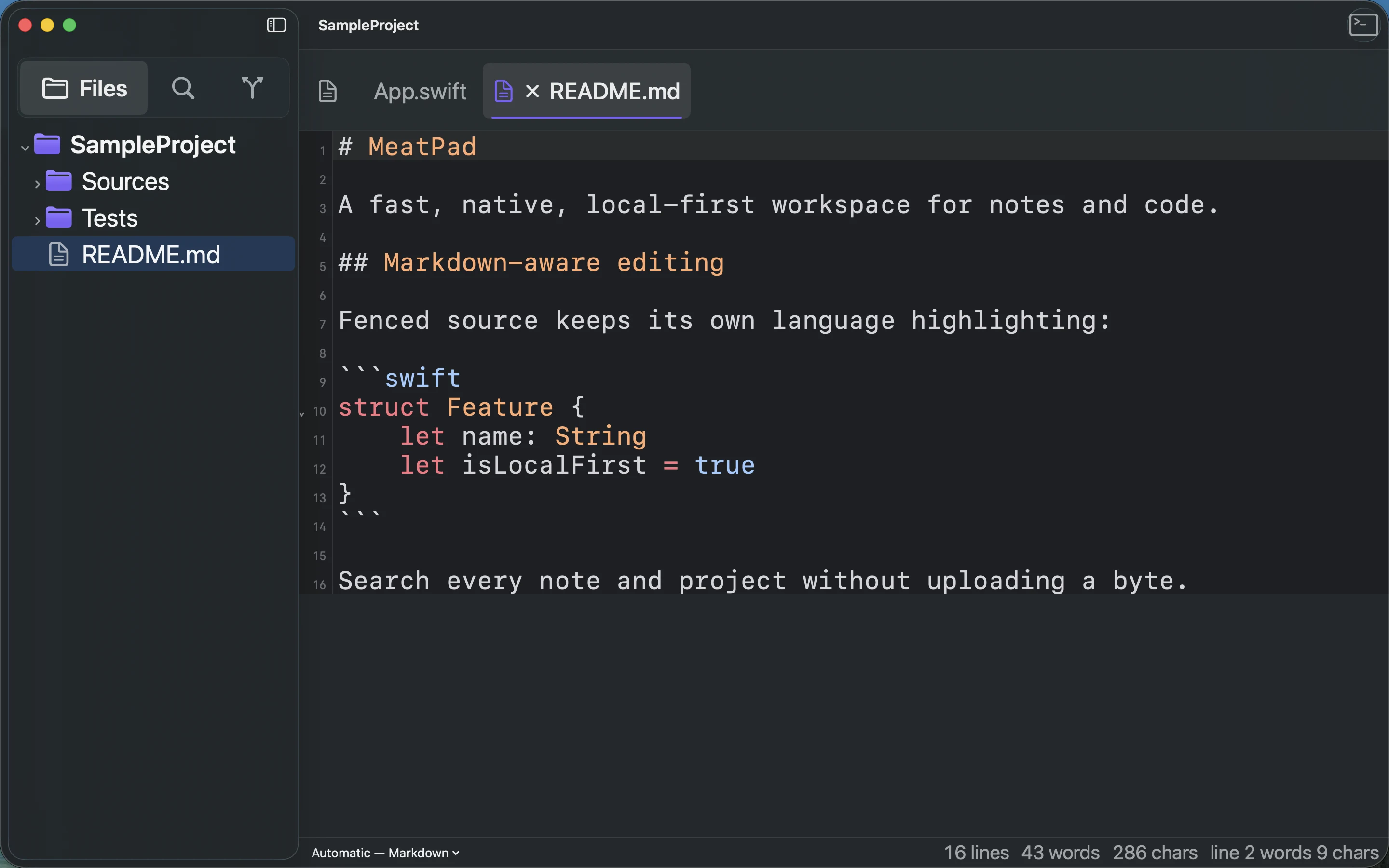
Recording transcript
Select the README.md project tab. Inspect Markdown and fenced Swift syntax highlighting.
Fold code and edit repeated text#
- In code with foldable structure, use a gutter fold control to collapse or expand that region.
- Choose Edit → Fold All (⇧⌥⌘←) or Unfold All (⇧⌥⌘→) for the document.
- Place the caret in a word and choose Edit → Select Next Occurrence (⌘D). The first invocation selects the word; repeat to add the next matching occurrence.
- Option-click to add a caret at another position. Type or delete to edit the active selections together.
- Press Escape to collapse multiple selections back to one.
Occurrence matching is case-sensitive and wraps. Folding follows indentation-based regions; reopening an editor starts unfolded, and edits that invalidate a folded region can unfold it. When a command is disabled, focus an editor that supports it.
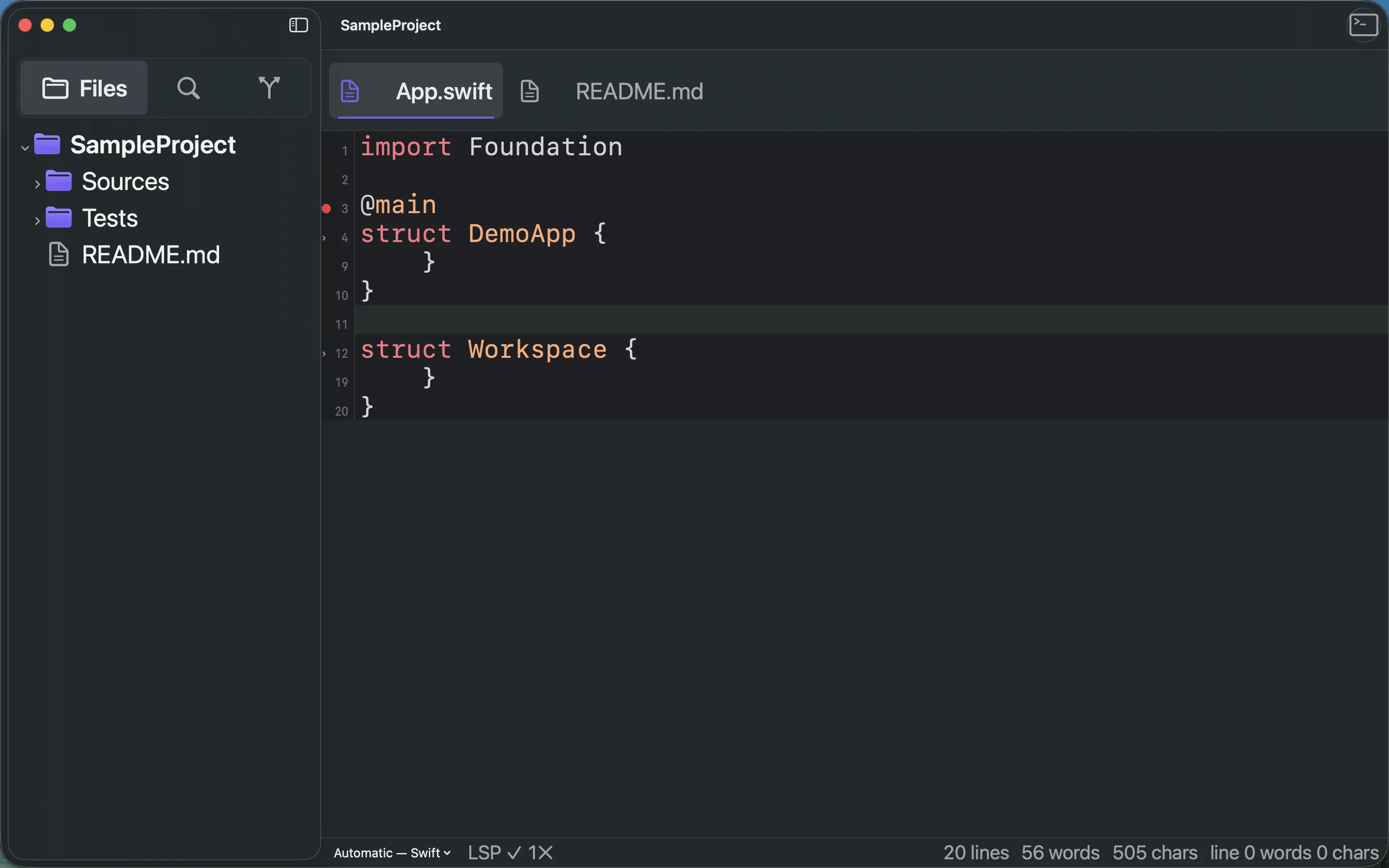
Recording transcript
Open App.swift in the disposable project. Focus the editor and press Command-Option-Shift-Left to Fold All.
Use completion and snippet placeholders#
- Focus an editor and press Control-Space to request completion. Suggestions combine document/project words, language keywords and snippets, with language-server results when available.
- Use the arrow keys to select a suggestion. Press Tab or Return, or click it, to accept. Escape cancels the completion list.
- When an inserted snippet has placeholders, press Tab to advance through them and Shift-Tab to go back; Escape exits the active snippet.
Completion is suppressed while multiple carets are active. Local completion works without a server. Additional suggestions depend on the file language and server capabilities. You can also insert a saved snippet through Commands → Insert Snippet; see the automation guide for authoring placeholders.
Print a note or file#
- Focus the editor you want to print.
- Choose File → Print… (⌘P).
- Review the macOS print dialog and select a printer, page settings or a PDF destination.
- Confirm the destination and print/save.
Printing acts on the focused editor. Check the preview before sharing a PDF, particularly for wide code lines or long notes.