Skip to content

Documentation / MeatPad / Terminal and Git

Terminal and Git

Use the project terminal, open it at a folder and configure the Git command menu.

MeatPad 0.31.4 · Released 13 October 2026 · Reviewed 20 October 2026

Open and use the project terminal#

  1. Open a project folder. Choose View → Terminal (Control-`) to show or hide its embedded terminal panel.
  2. Type a shell command and press Return. The terminal is an interactive shell, not an output-only log.
  3. Drag the separator to resize the panel. Hide and show it to return to the existing terminal session and output.
  4. To work at a specific directory, right-click it in the file tree and choose Open in MeatPad Terminal. Open in Terminal opens the separate macOS Terminal app instead.

Closing the project window or quitting terminates its shell; hiding the panel preserves it. Default scrollback is 500 lines. If the shell exits, press Return or choose Restart to start another; an ordinary restart begins at the project root. The terminal belongs to a project window. It starts in the project folder; opening a tree target changes its working directory. Commands execute with your user’s permissions. Check the prompt and directory before running commands that modify files.
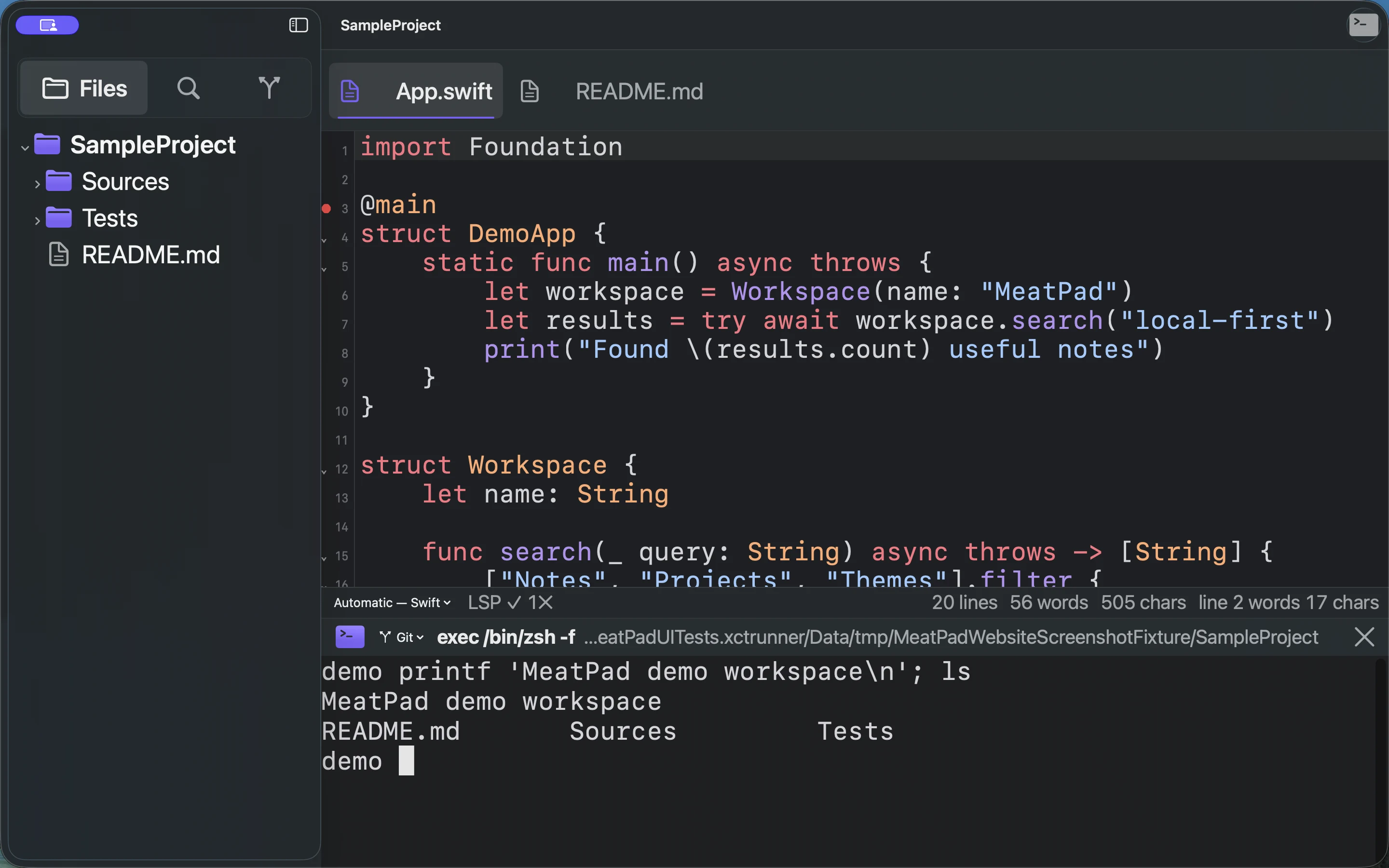
MeatPad version 0.31.4 en — MeatPad project terminal running a safe printf and listing the synthetic project files.
MeatPad project terminal running a safe printf and listing the synthetic project files. · MeatPad 0.31.4 · UI: en
Recording transcript

Type a safe printf command followed by ls in the disposable project terminal. Press Return. Inspect the printed MeatPad demo workspace message and README.md, Sources, and Tests listing.

Run or prepare a Git command#

  1. In the terminal header, open Git.
  2. Choose a configured command. A Run command is sent with Return immediately; a Type command is placed at the prompt for you to complete.
  3. For git commit -m "", type your message between the quotes, review the full command and press Return yourself.
  4. Open Settings → Terminal to edit the command list, modes, ordering and dividers.
Default behaviorCommands
Run immediatelygit status, git fetch, git pull, git push, git add -A, git log --oneline -20, git diff, git stash, git stash pop
Type for reviewgit commit -m "", git commit --amend --no-edit, git switch -c

These are ordinary Git commands. Return to the shell prompt if another program is running: the Git menu refuses commands while that program owns the terminal. Git must be available and the current folder must be appropriate for the operation. Fetch, pull and push may contact your remote and use your existing Git credentials. A menu action clears a half-typed prompt line before inserting its command.

Related questions

Need a hand?

Contact MeatPad support. Include your app version, macOS version and the steps that led to the problem.