Projects and files
Open a folder, manage its tree and tabs, jump to files, and search or replace across a project.
MeatPad 0.31.4 · Released 13 October 2026 · Reviewed 20 October 2026
Open a project and navigate files#
- Choose File → Open… (⌘O) and select the folder you want to edit.
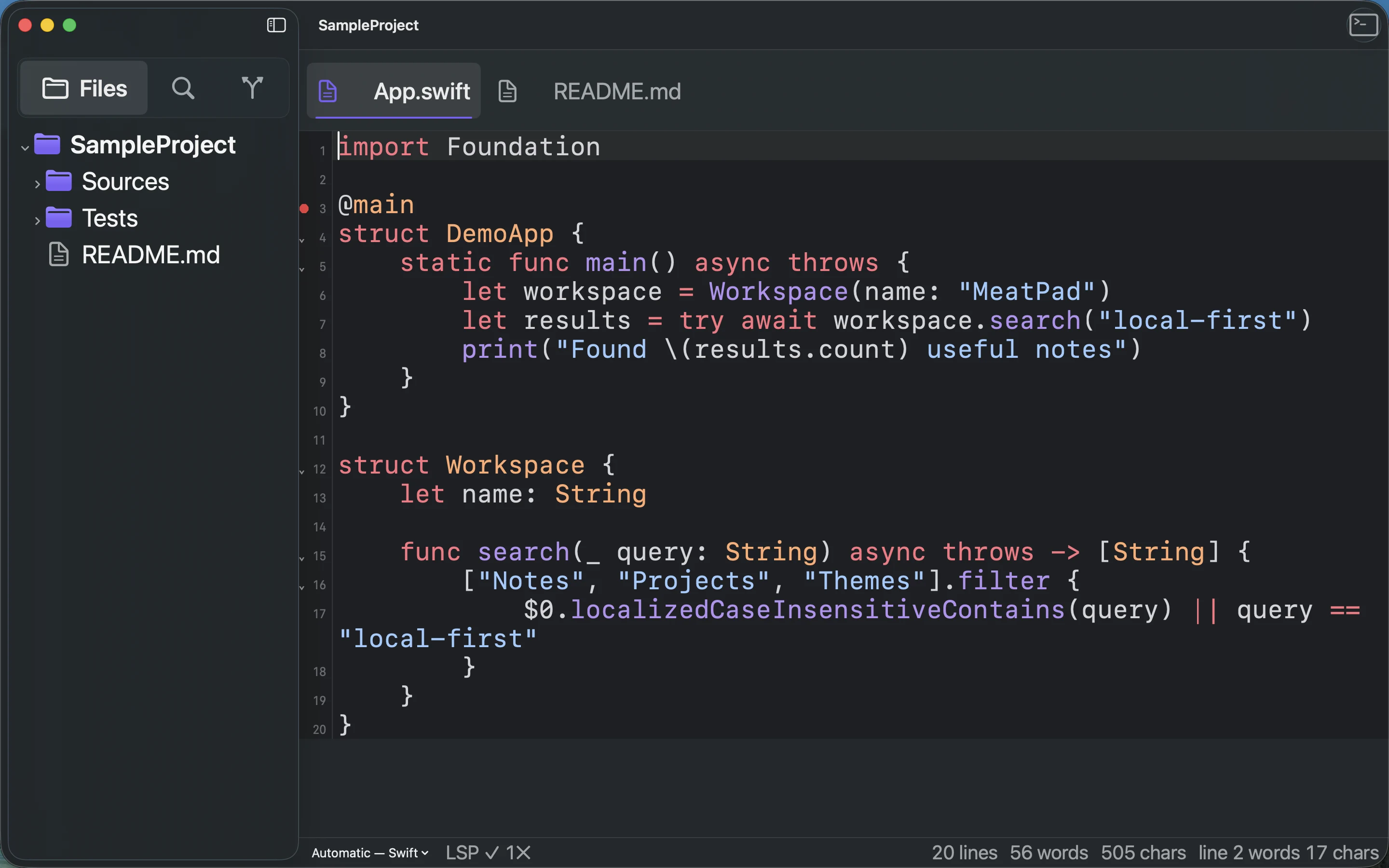
- In Files, expand folders and click a text file to open it in a tab.
- Choose View → Quick Open… (⌘T), type part of a filename/path, and choose the result to open it.
- Switch among tabs to keep several files open. Choose File → Save (⌘S) to save the active file.
- Choose File → Close Tab (⌘W) to close the active tab; when there are no tabs, the command closes the window. Review any unsaved-change prompt.
Projects edit your existing files. Unlike library notes, project buffers require Save. Closing an entire project with modified files offers Save All, Discard All and Cancel. File → Open Recent returns to previously opened project folders.
Create, copy, move and inspect files#
- Right-click a file or folder in the tree. The project root also has its own context menu.
- Choose New File… or New Folder…, enter a name and confirm. Choose Rename… to change an existing name.
- Use Cut or Copy, then right-click the destination folder and choose Paste. Check the destination before deleting the source.
- Choose Copy Path for an absolute path or Copy Relative Path for a path relative to the project root.
- Choose Reveal in Finder, Open in Preview, Open in Terminal or Open in MeatPad Terminal for the appropriate external or embedded tool. Use Delete only after checking the target.
Menu items depend on the target and what can be performed there. Settings → File Tree controls action visibility, icons and menu shortcuts. An action you hid there will not appear until enabled again. File-tree shortcuts apply while its menu is open.
Handle files changed outside MeatPad#
- When File changed on disk appears, compare your editor buffer with the external change before deciding.
- Choose Reload to load the disk version, or Keep Mine to dismiss the banner and retain your current editor text. Save when you intend to write your version to disk.
- If the banner says File was deleted on disk, choose Dismiss after reviewing the situation. Preserve any editor text you still need before closing the tab.
An external tool, Git checkout or another editor can change a project file. Reload may replace your buffer with disk content; keep a copy of valuable unsaved text before choosing it.
Manage tabs and window scale#
Right-click a tab and choose Close Others to keep only it, or Close to the Right to remove later tabs. The tab close button, middle-click and Control-click close that tab. Keep your changes saved before closing it.
- Choose View → Zoom In (⌘=) or Zoom Out (⌘−) to change the project interface scale.
- Choose Actual Size (⌘0) to reset it.
- Use Settings → General → Font size when you want to change editor text size rather than the whole project interface.
Find and replace across files#
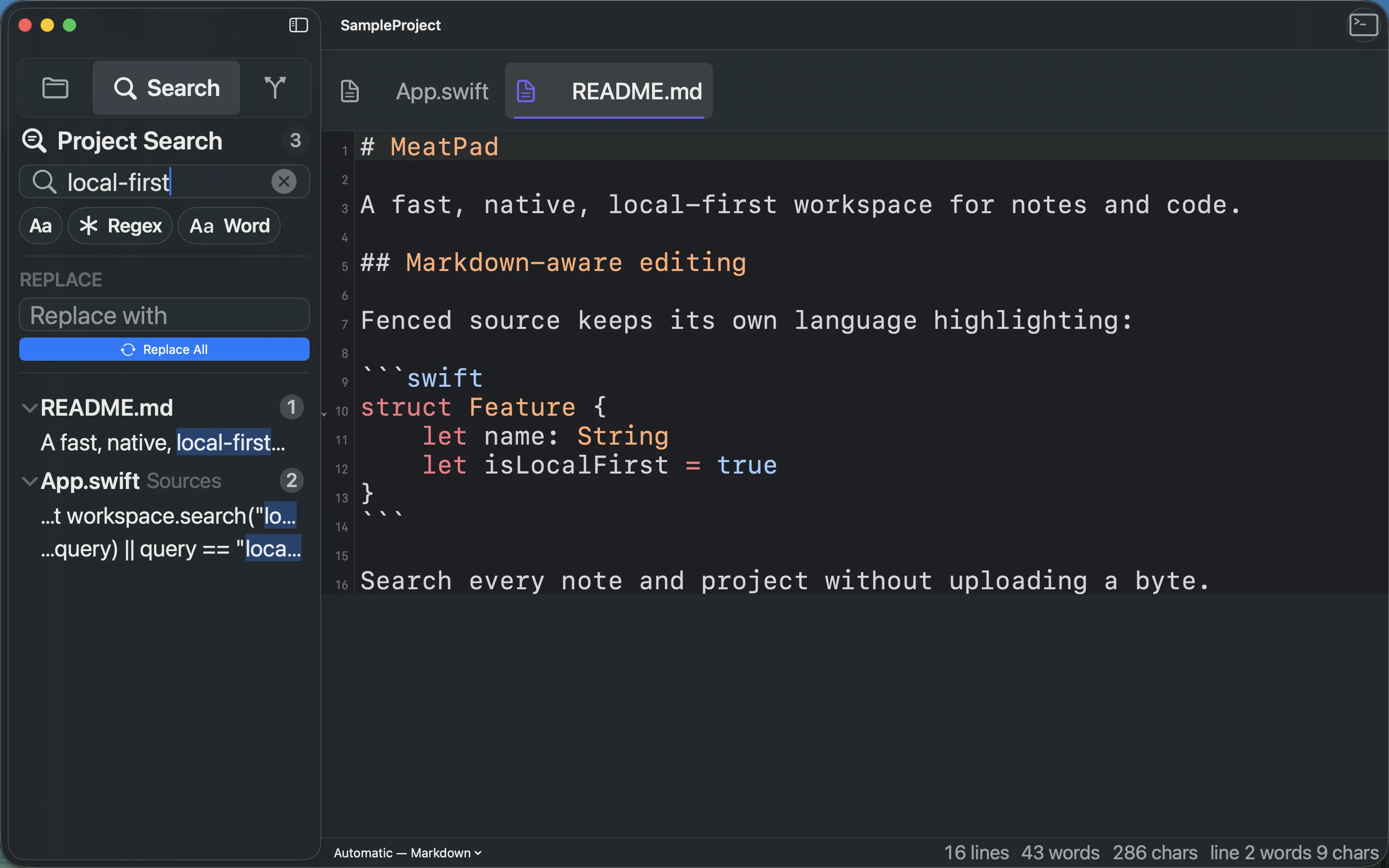
- Choose View → Find in Project… (⇧⌘F), or select the Search sidebar.
- Enter at least two characters in Find in files. Use Aa for Match Case, Regex for a regular expression or Word for Whole Word. Whole Word is unavailable with Regex.
- Click a match to open that file at the matching text. Results are grouped by file.
- To limit the search, right-click a folder and choose Find in Folder…. The root’s action reads Find in Project…. Choose Clear folder scope to search the whole project again.
- Review the matches, enter Replace with, then click Replace All to replace matches in the current scope. Inspect the changed files afterward.
Replace All changes files; make a backup or Git commit first if you need to recover the previous text. Invalid regular expressions show an error instead of valid matches. Check case, regex, word and folder-scope options when the result count is unexpected.
Recording transcript
Open the project Search sidebar. Enter local-first. Wait for grouped file matches and enabled replacement controls.